Apple APPLE-DEVICE-SUPPORT Online Practice
Questions and Exam Preparation
APPLE-DEVICE-SUPPORT Exam Details
Exam Code
:APPLE-DEVICE-SUPPORT
Exam Name
:Apple Device Support
Certification
:Apple Certifications
Vendor
:Apple
Total Questions
:214 Q&As
Last Updated
:Jul 14, 2026
Apple APPLE-DEVICE-SUPPORT Online Questions &
Answers
Question 191:
A supervised iPad is reported missing. The user was signed into their Managed Apple Account. What should you do to secure organizational data?
A. Ask the MDM administrator to enable Managed Activation Lock on the iPad. B. Ask the MDM administrator to enable Managed Lost Mode on the iPad. C. Ask the MDM administrator to enable Find My and mark the iPad as lost. D. Ask the user to sign into Find My on iCloud and mark the iPad as lost.
B. Ask the MDM administrator to enable Managed Lost Mode on the iPad.
Question 192:
Scenario
Guillermo wants to annotate the Keynote presentation he created on his Mac on iPad.
Select three responses.
What does he need to do for Handoff to work on both devices?
A. Turn on Wr-Fi. B. Turn on Bluetooth. C. Turn on iCIoud Drive. D. Sign in with the same Apple ID. E. Turn on AirPlay.
A. Turn on Wr-Fi. B. Turn on Bluetooth. D. Sign in with the same Apple ID. For Handoff to work on both devices, Guillermo needs to turn on Wi-Fi, Bluetooth, and sign in with the same Apple ID on his Mac and iPad. Handoff is a feature that allows users to start something on one device and then complete it on another. For example, Guillermo can start working on a Keynote presentation on his Mac and then continue annotating it on his iPad. To use Handoff, both devices must be on the same Wi- Fi network, have Bluetooth turned on, and be signed in with the same iCloud account. These are the prerequisites for Handoff to work. Turning on iCloud Drive or AirPlay is not necessary for Handoff. iCloud Drive is a cloud storage service that syncs files across devices, but it is not required for Handoff. AirPlay is a feature that streams audio and video from one device to another, but it is not related to Handoff. References: Use Handoff to transfer Keynote presentations - Apple Support, How to Set Up and Use Handoff on Your iPhone and iPad - How-To Geek
Question 193:
Where are sysdiagnose log files located on iPhone?
A. Settings > Privacy and Security > Analytics and Improvements > Analytics Data B. Settings > Privacy > Tracking C. Settings > Privacy > Analytics and Improvements > Share With App Developers
A. Settings > Privacy and Security > Analytics and Improvements > Analytics Data Sysdiagnose log files are located on iPhone in Settings > Privacy and Security > Analytics and Improvements > Analytics Data. Sysdiagnose is a tool that collects information from the iPhone and saves it in a log file. You can use sysdiagnose to troubleshoot general iOS issues or report them to AppleCare. To generate a sysdiagnose log file, you need to press and hold both volume buttons and the side or top button for 1 to 1.5 seconds, then release them. You will see a screenshot and a message that says "Diagnostics are in flight". Sysdiagnose can take up to 10 minutes to finish. After that, you can find the log file in the Analytics Data section of the Settings app. The log file name will start with "sysdiagnose_" and include the date and time of the generation, the device type, and the iOS version. For example, "sysdiagnose_2024.01.06_17-14- 34+0500_iPhone_OS_iPhone_19A344.tar.gz". References: Using Sysdiagnose to Troubleshoot iOS or iPadOS -- Apple Device Support Tutorials | Apple Training, How to extract sysdiagnose logs for forensic purposes on iOS | Andrea Fortuna
Question 194:
Which macOS and iPadOS feature lets you use your iPad to extend or mirror the display on your Mac?
A. Universal Control B. Screen Sharing C. Sidecar D. Stage Manager
C. Sidecar Sidecar is a feature that lets you use your iPad as a display that extends or mirrors your Mac desktop. You can use Sidecar to work with different apps on the different screens, use the same app on both screens, or mirror the screens so that they show the same content. You can also use your Apple Pencil to draw, edit, or mark up documents on your iPad while seeing the updates live on your Mac. Sidecar requires macOS 10.15 or later and iPadOS 13 or later on supported models. You can use Sidecar wirelessly or with a USB cable. To use Sidecar, you need to select your iPad from the Display menu in Control Center or the menu bar on your Mac, or from the AirPlay menu on macOS Catalina. You can also use the sidebar and the Touch Bar on your iPad to access common Mac controls and app-specific commands. The other options are not the correct answer, as they have different functions or are not available on macOS and iPadOS. Universal Control is a feature that lets you use a single keyboard, mouse, or trackpad to control your Mac and iPad, with the iPad showing its own Home Screen and apps rather than the desktop and apps of your Mac. You can also drag and drop content between your devices. Universal Control requires macOS Monterey or later and iPadOS 15 or later on supported models. Screen Sharing is a feature that lets you remotely view or control another Mac or share your Mac screen with others over the internet. You can use Screen Sharing to help someone with a problem, collaborate on a project, or access your files and apps. Screen Sharing requires macOS 10.14 or later on both Macs, and an Apple ID or a local network connection. Stage Manager is not a feature on macOS or iPadOS. It is a feature on watchOS 8 or later that lets you control the camera and microphone on your iPhone from your Apple Watch. You can use Stage Manager to take photos, record videos, zoom in and out, adjust the exposure, mute the sound, and switch between the front and back cameras on your iPhone. References: Apple Device Support Exam Prep Guide, page 6 Use an iPad as a second display for a Mac Use iPad as a second display for your Mac Sidecar: Turn an iPad Into a Secondary Mac Display Use Universal Control on your Mac and iPad Share the screen of another Mac [Use Stage Manager on your Apple Watch]
Question 195:
Which of these steps should you complete if your iPad fails to back up to iCloud?
A. Ensure that you're signed in with your Managed Apple Account. B. Confirm that Bluetooth is turned on. C. Verify that enough space is available in your iCloud storage. D. Verify that your iPad has a device passcode and is unlocked.
C. Verify that enough space is available in your iCloud storage.
Question 196:
Which screen indicates that iPhone is in recovery mode and ready to be updated or restored?
A. Option A B. Option B C. Option C D. Option D
A. Option A
Question 197:
HOTSPOT
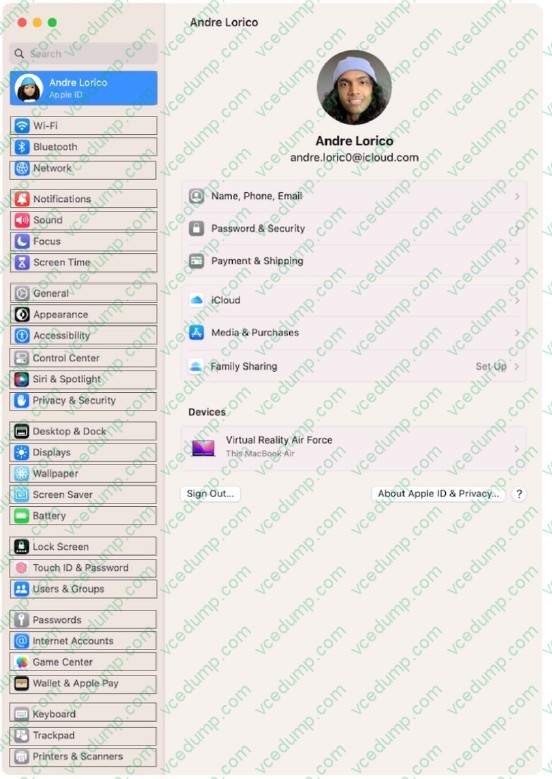
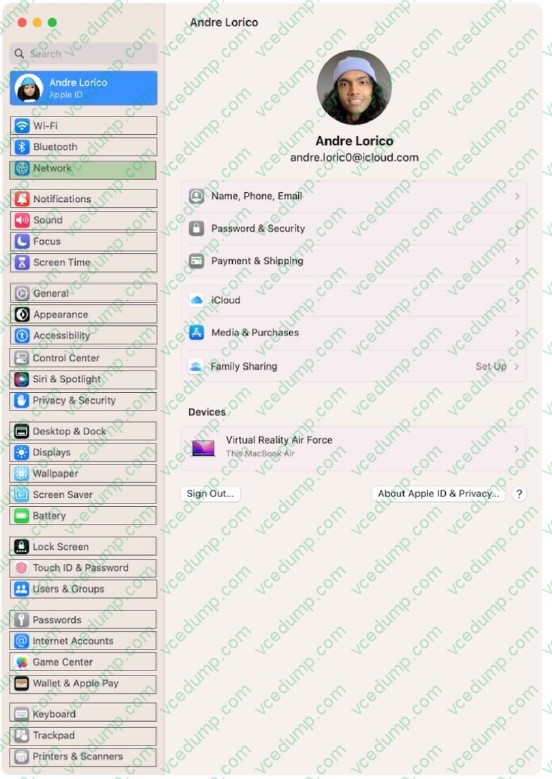
Select the setting in the sidebar that you should you use to copy the password of a known Wi-Fi network.
Hot Area:
Explanation/Reference:
Click Network in the sidebar, then click Wi-Fi on the right. Scroll down and click Advanced to open the list of known networks. Click the More button. next to the network name, then choose Copy Password.
Question 198:
How many times can you enter your iPhone passcode wrong before your account is disabled?
A. Five B. Ten C. Three D. Six
B. Ten You can enter your iPhone passcode wrong up to ten times before your account is disabled. After six failed attempts, your iPhone will be disabled for one minute. After seven attempts, it will be disabled for five minutes. After eight attempts, it will be disabled for 15 minutes. After nine attempts, it will be disabled for 60 minutes. After ten attempts, it will be disabled until you connect it to a computer and restore it using iTunes or Finder. References: = If you forgot your iPhone passcode - Apple Support; What to do when your iPhone is disabled | Tom's Guide.
Question 199:
Which feature requires apps to ask permission before they collect data about your activity across other apps and websites?
A. App Tracking Transparency B. Safety Check C. Sensitive Content Warning D. Private Browsing
A. App Tracking Transparency
Question 200:
How can you use AirPlay to share content exclusively with a specific individual from your Apple iPhone and Mac?
A. Allow Airplay for anyone in the same network B. Allow Airplay for everyone C. Allow Airplay for Current use
C. Allow Airplay for Current use To use AirPlay to share content exclusively with a specific individual from your Apple iPhone and Mac, you need to set the "Allow AirPlay for" option to "Current user" on your Mac. This option allows only devices where you're signed in with the same Apple ID as on the Mac to stream to the Mac. To set this option, you need to go to System Preferences > Sharing and click on "AirPlay Receiver" in the list that appears on the left. Then, choose "Current user" from the menu next to "Allow AirPlay for". After that, you can use AirPlay to stream or mirror content from your iPhone to your Mac by tapping the AirPlay button in the app that you're using or in Control Center. References: = Apple - Support - Manuals, macOS User Guide, Set up your Mac to be an AirPlay receiver; Apple - Support - Manuals, Use AirPlay to stream video or mirror the screen of your iPhone; How to AirPlay From iPhone or iPad to Your Mac - How-To Geek; How to Use AirPlay (Screen Mirroring) on a Mac - How-To Geek.
Nowadays, the certification exams become more and more important and required by more and more
enterprises when applying for a job. But how to prepare for the exam effectively? How to prepare
for the exam in a short time with less efforts? How to get a ideal result and how to find the
most reliable resources? Here on Vcedump.com, you will find all the answers.
Vcedump.com provide not only Apple exam questions,
answers and explanations but also complete assistance on your exam preparation and certification
application. If you are confused on your APPLE-DEVICE-SUPPORT exam preparations
and Apple certification application, do not hesitate to visit our
Vcedump.com to find your solutions here.