Apple APPLE-DEVICE-SUPPORT Online Practice
Questions and Exam Preparation
APPLE-DEVICE-SUPPORT Exam Details
Exam Code
:APPLE-DEVICE-SUPPORT
Exam Name
:Apple Device Support
Certification
:Apple Certifications
Vendor
:Apple
Total Questions
:214 Q&As
Last Updated
:Jul 14, 2026
Apple APPLE-DEVICE-SUPPORT Online Questions &
Answers
Question 171:
Which Wireless Diagnostics window should you use to see a live view of current Wi-Fi signal strength, quality, and rate?
A. Logs B. Diagnostics C. Performance D. Monitor
C. Performance The Performance window in Wireless Diagnostics shows a live view of the current Wi-Fi signal strength, quality, and rate. It also displays a graph of the signal-to- noise ratio (SNR) over time, which can help you identify sources of interference or other problems with your Wi-Fi connection. The Performance window can be accessed by opening Wireless Diagnostics from the Spotlight menu, clicking Window on the menu bar, and selecting Performance. References: Apple Support: Use Wireless Diagnostics on your Mac, How to determine Wi-Fi signal strength on Windows 10
Question 172:
Which device can you use to unlock your Mac computer's screen saver and approve authentication requests from macOS and other apps?
A. HomePod B. iPhone C. iPad D. Apple Watch
D. Apple Watch You can use your Apple Watch to unlock your Mac computer's screen saver and approve authentication requests from macOS and other apps, without having to enter a password. This feature is called Auto Unlock and Approve with Apple Watch, and it requires that you have an Apple Watch with watchOS 6 or later, a Mac with macOS Catalina or later, and that both devices are signed in with the same Apple ID using two- factor authentication. To turn on this feature, you need to go to System Preferences > Touch ID and Password > Apple Watch and enable the option next to the name of your watch. Then, whenever you wake your Mac from its idle state or an app requires authentication, you can double-click the side button of your Apple Watch to unlock or approve the task. References: Unlock your Mac and approve requests with Apple Watch - Apple Support Authentication Services | Apple Developer Documentation Approve App Authentication Requests with Your Apple Watch in Catalina
Question 173:
Why are passkeys more secure than passwords?
A. They generate a unique shared secret for every account on the device. B. They work on Apple devices only. C. They use XProtect to create signed certificates in iCloud Keychain. D. They are less vulnerable to phishing.
D. They are less vulnerable to phishing.
Question 174:
What are three reasons that a warning icon might appear in the Security Recommendation window for a password in Passwords settings?
A. The password hasn't been updated in the last 90 days. B. The password is reused on another website. C. The password appeared in a data leak. D. It's a commonly used password or it's easily guessed. E. You have multiple or duplicate passwords listed for the website.
B. The password is reused on another website. C. The password appeared in a data leak. D. It's a commonly used password or it's easily guessed. A warning icon might appear in the Security Recommendation window for a password in Passwords settings if the password meets any of the following criteria: The password is reused on another website. This means that the same password is used for more than one saved password across different domains. This can make the accounts vulnerable to credential-stuffing attacks, where attackers try the same credentials on other services to compromise additional accounts. The password appeared in a data leak. This means that the password has been compromised by a data breach and exposed online. This can allow attackers to access the accounts that use the leaked password or try to guess other passwords based on the leaked one. It's a commonly used password or it's easily guessed. This means that the password is weak and may be easily cracked by an attacker. This can happen if the password uses words found in a dictionary, common character substitutions, patterns found on a keyboard, or repeated sequences. These patterns are often used to create passwords that satisfy minimum password requirements for services, but are also commonly used by attackers attempting to obtain a password using brute force. References: 1: Password security recommendations- Apple Support
Question 175:
You suspect a hardware problem with your Mac. You want to use Apple Diagnostics to verify your suspicion. What steps should you complete to use Apple Diagnostics? (Image of macOS startup options, disk and gear on a black background)
A. Turn on Mac, then press and hold the Shift key. Release the Shift key when a progress bar appears. B. Press and hold the power button until Options appears. Release the power button, then press and hold Command-D. C. Press and hold the power button until Options appears. Release the power button, then press and hold Option-D. D. Turn on Mac, then press and hold the D key. Release the D key when a progress bar appears.
B. Press and hold the power button until Options appears. Release the power button, then press and hold Command-D.
Question 176:
A user has an external storage device. They can read files from the external storage device, but they can't write to it from their Mac. Which drive format could prevent writing to an external storage device from the user's Mac?
A. NTFS B. exFAT C. MS-DOS (FAT32) D. macOS Extended (Journaled)
A. NTFS
Question 177:
How do you view log messages grouped by activity in Console on a Mac?
A. Click the Activities button in the Console toolbar. B. Control-click the process window and select Group by Activity. C. Add:activity to a search string in the Console search field.
A. Click the Activities button in the Console toolbar. Activities is a feature in Console that allows you to view log messages grouped by the activity they are associated with. This helps you focus on specific log messages and allows for a more complete analysis of your Mac. To view activities in Console, you need to click the Activities button in the toolbar (or use the Touch Bar). If the Activities button is dimmed, you need to click Start in the toolbar first. You can then select an activity to see the log messages for that activity, expand or collapse child activities, and view the details of an activity. References: = View activities in Console on Mac; Apple Device Support Exam Prep Guide, page 11.
Question 178:
HOTSPOT
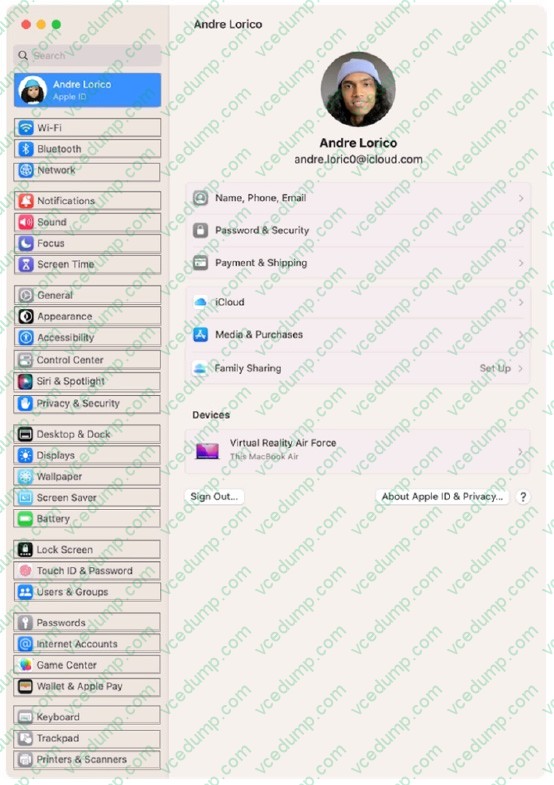
Where can you add a VPN configuration in macOS?
Hot Area:
Explanation/Reference:
System Settings > Network > VPN and Filters > Add VPN Configuration
Question 179:
Which feature allows you to share your screen during a FaceTime Call?
A. Stage Manager B. SideCar C. SharePlay D. AirPlay Receiver
C. SharePlay SharePlay is a feature that lets you share your screen, watch videos, listen to music, or work out together with others in a FaceTime call. You can use SharePlay to bring apps, webpages, and more into the conversation. To share your screen in a FaceTime call, you need to tap the Share Content button and then tap Share My Screen. Everyone in the call can see what's on your screen until you stop sharing, but they can't control anything on your device. If you get any notifications while sharing your screen, others won't be able to see them. SharePlay requires iOS or iPadOS 15.1 or later on your iPhone or iPad, or macOS Monterey or later on your Mac. References: Apple Device Support Exam Prep Guide, page 6 Share your screen in FaceTime on your iPhone or iPad Share your screen in a FaceTime call on iPhone
Question 180:
Scenario
You would like to access files stored in iCIoud Drive on your Windows PC at work.
What should you do to access these files on your PC?
A. Download iCIoud Drive from the Windows App Store and set it up using your Apple ID. B. Download iCIoud for Windows and set it up with your Apple ID. C. Copy the content of iCIoud Drive from your Mac to an external drive, and connect the external drive to your Windows PC.
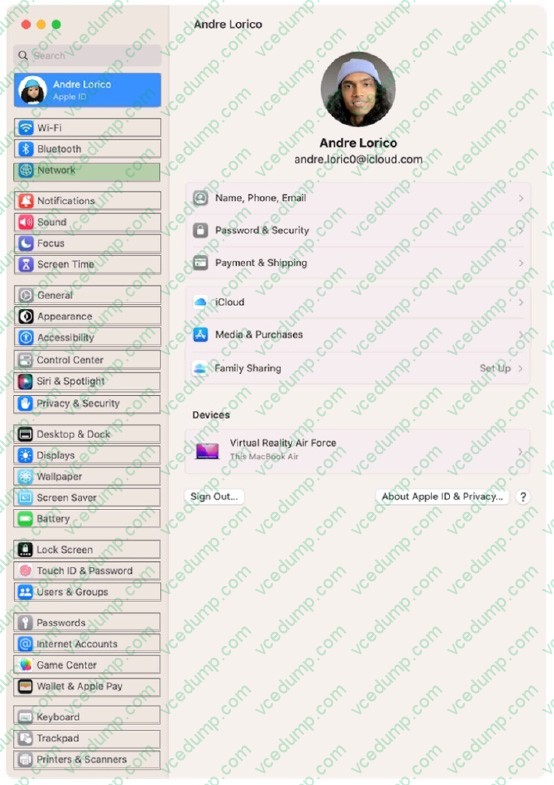
B. Download iCIoud for Windows and set it up with your Apple ID. To access files stored in iCloud Drive on your Windows PC, you need to download iCloud for Windows and set it up with your Apple ID. This will allow you to view, add, or remove iCloud Drive files and folders directly on your Windows computer in File Explorer or Windows Explorer. You can also choose a different location for your iCloud Drive files and folders on your PC. Downloading iCloud Drive from the Windows App Store or copying the content of iCloud Drive from your Mac to an external drive are not valid options, as they will not sync your files across your devices or let you access them online. References: 1: Set up iCloud Drive on your Windows computer - Apple Support. 2: View, add, or remove iCloud Drive files in iCloud for Windows - Apple Support. 3: [Step-by-Step] How to Sync iCloud Drive on PC? - MultCloud. 4: How to Access iCloud Drive on Windows PCs in 3 Easy Ways - MultCloud. 5: How to Access iCloud Drive Files from Windows PC - OS X Daily.
Nowadays, the certification exams become more and more important and required by more and more
enterprises when applying for a job. But how to prepare for the exam effectively? How to prepare
for the exam in a short time with less efforts? How to get a ideal result and how to find the
most reliable resources? Here on Vcedump.com, you will find all the answers.
Vcedump.com provide not only Apple exam questions,
answers and explanations but also complete assistance on your exam preparation and certification
application. If you are confused on your APPLE-DEVICE-SUPPORT exam preparations
and Apple certification application, do not hesitate to visit our
Vcedump.com to find your solutions here.