How to buy and access VCEdump products
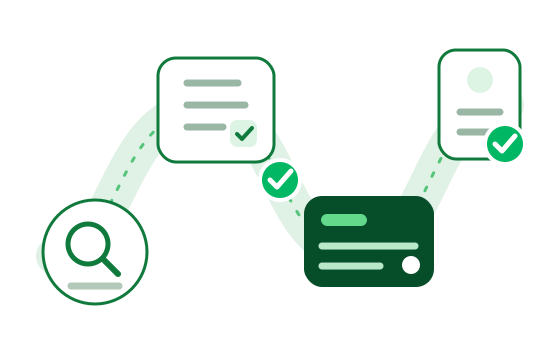
Find the correct exam, compare its PDF and Web TestEngine options, review the order, complete PayPal checkout, and return to your account.
-
1
Search
Open the matching exam record
Search by exam code, certification title, or vendor. An exact code such as 200-301 or AZ-104 is the quickest route. Check the complete exam name and provider on the product page, especially when several versions have similar names.
Open the exam catalog -
2
Compare
Choose PDF, Web TestEngine, or both
Use the available PDF preview and Web TestEngine demo to understand the two formats. Then compare PDF, Web TestEngine, or a bundle, along with its current price and 3-month or 6-month access term.
-
3
Checkout
Sign in, review the order, and pay
Use an email address you can access. Before opening PayPal, confirm the exam code, included PDF or Web TestEngine product, access term, discount, currency, and final total. Complete the payment on PayPal, then follow the return path to VCEdump.
-
4
Access
Return to Orders and My Exams
Confirmed payments create product access automatically. Sign in with the same account, use Orders for the order record and PDF access, and use My Exams for Web TestEngine. If PayPal still reports the payment as pending, wait for confirmation before trying again.
View my orders
Confirm these details before payment
The checkout summary should match the exam and product you intend to use.
- ✓Exam code and complete title
- ✓PDF, Web TestEngine, or both products
- ✓Access term and plan description
- ✓Discount, currency, and final total
- ✓Account email you can access