Apple APPLE-DEVICE-SUPPORT Online Practice
Questions and Exam Preparation
APPLE-DEVICE-SUPPORT Exam Details
Exam Code
:APPLE-DEVICE-SUPPORT
Exam Name
:Apple Device Support
Certification
:Apple Certifications
Vendor
:Apple
Total Questions
:214 Q&As
Last Updated
:Jul 14, 2026
Apple APPLE-DEVICE-SUPPORT Online Questions &
Answers
Question 121:
Which of these would you need to use Continuity features?
A. Siri turned on for all devices B. All devices connected to the same SSID C. Wi-Fi turned on for all devices D. All devices signed in to a different Apple Account
C. Wi-Fi turned on for all devices
Question 122:
How to put an iPhone in recovery mode?
A. Quickly press and release the Volume Up button. B. Quickly press and release the Volume Down button. C. Press and hold the Side (or Power) button until the Recovery Mode screen appears. Keep holding the button even when the Apple logo appears; release it only when the Recovery Mode screen is visible.
A. Quickly press and release the Volume Up button. B. Quickly press and release the Volume Down button. C. Press and hold the Side (or Power) button until the Recovery Mode screen appears. Keep holding the button even when the Apple logo appears; release it only when the Recovery Mode screen is visible. According to the Apple Device Support Reference Materials, the steps to put an iPhone in recovery mode are: Plug your iPhone in to your computer using your USB to Lightning cable. On a Mac with macOS Catalina or later, open the Finder. On a Mac with macOS Mojave or earlier, or on a PC, open iTunes. Quickly press and release the Volume Up button, then quickly press and release the Volume Down button, and then press and hold the Side (or Power) button until the recovery mode screen pops up. It won't happen instantly, so hang on for at least 15 seconds or so before you try it again. Locate your device on your computer and choose the option to Update or Restore. These steps apply to all iPhones manufactured since 2017, including iPhone 8 or later, iPhone SE (2nd and 3rd generations), and iPhone 12 or later. For older models, such as iPhone 7 or earlier, the steps may vary slightly. References: 1: If you can't update or restore your iPhone or iPod touch - Apple Support 2: How to put your iPhone or iPad into recovery mode | iMore
Question 123:
Which tool should you use to determine if an app is causing your Mac to be sluggish or unresponsive?
A. Console B. Disk Utility C. System Information D. Activity Monitor
D. Activity Monitor This is the correct answer because Activity Monitor is a built-in macOS utility that allows you to see how much CPU, memory, disk, and network resources are being used by each app and process on your Mac. You can use Activity Monitor to identify and quit apps that are consuming a large percentage of your CPU or memory, or that are not responding. This can help you improve the performance and responsiveness of your Mac. To launch Activity Monitor, you can use Spotlight (Command+Spacebar) and search for it, or find it under Applications > Utilities. You can sort the apps and processes by clicking on the column headers, such as "% CPU" or "Memory". You can also use the search field to filter the list by name. To quit an app or process, select it and click on the "X" button at the top of the window. You can also use the View menu to see more information about the app or process, such as its open files and ports, its memory usage, or its energy impact. References: How to See Which Program Is Using All Your CPU on Mac, If your Mac runs slowly - Apple Support, How to Fix Crashing Apps on a Mac - How-To Geek
Question 124:
HOTSPOT
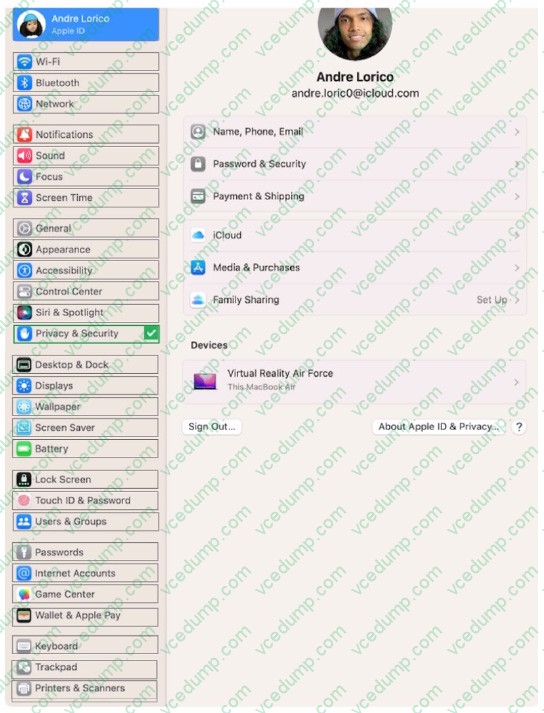
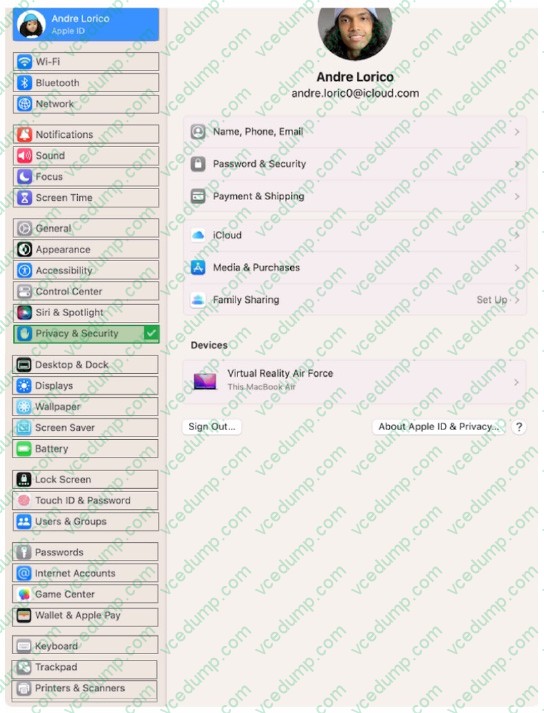
Select the setting in the sidebar that you should use to turn on FileVault.
Hot Area:
Explanation/Reference:
On your Mac, choose Apple menu > System Settings, click Privacy and Security in the sidebar, then click FileVault on the right. (You may need to scroll down.) Click Turn On. You might be asked to enter your password.
Question 125:
Which action in Apple Configurator for Mac should you select to retain user data (if recoverable) if iPhone or iPad devices are unresponsive or in recovery mode?
A. Restore B. Revive C. Update D. Erase all Content and Settings
B. Revive Revive is an action in Apple Configurator for Mac that allows you to restore the latest version of iOS or iPadOS on an iPhone or iPad device, while preserving user data (if recoverable). Revive is useful when a device is unresponsive or in recovery mode, and you want to try to fix it without erasing the user's data. Revive does not require the device to be supervised or enrolled in MDM, and it does not affect the activation lock status of the device. Revive is different from Restore, which erases the device and installs the latest version of iOS or iPadOS. Restore also requires the device to be supervised or enrolled in MDM, and it removes the activation lock from the device. Update is another action that installs the latest version of iOS or iPadOS on the device, but it does not work when the device is unresponsive or in recovery mode. Erase all Content and Settings is a device setting that erases the device and removes the activation lock, but it does not install the latest version of iOS or iPadOS. References: = Apple Configurator User Guide for Mac, section "Revive an iPhone, iPad, or Apple TV"; Apple Device Support Exam Prep Guide, page 9.
Question 126:
Which Apple program should you join if you're in charge of testing your organization's infrastructure and its ability to work with the Apple software before public release?
A. Design for IT B. Apple Developer Program C. Apple Seed for IT D. Apple Developer Enterprise Program
C. Apple Seed for IT The Apple program that you should join if you're in charge of testing your organization's infrastructure and its ability to work with the Apple software before public release is Apple Seed for IT. This beta-testing program, available to any business organization or educational institution, allows you to evaluate the latest prerelease software versions in your unique work environments. You can test the compatibility, stability, and security of your IT infrastructure and business-critical apps with the upcoming releases of macOS, iOS, iPadOS, tvOS, and watchOS. You can also provide feedback directly to Apple and influence the development of the software. The other options are not suitable for this purpose, as they have different goals and requirements. Design for IT is a program that helps you design and implement solutions for Apple devices in your organization, but it does not provide access to prerelease software. Apple Developer Program is a program that lets you distribute apps on the App Store and access developer resources, but it does not offer a dedicated channel for testing your organization's infrastructure. Apple Developer Enterprise Program is a program that allows you to develop and deploy proprietary, internal-use apps to your employees, but it does not allow you to test the compatibility of those apps with the latest Apple software. References: 1: Apple Seed for IT - Apple Support. 2: Design for IT - Apple Developer. 3: Apple Developer Program - Apple Developer. 4: Apple Developer Enterprise Program - Apple Developer.
Question 127:
You try to start a Mac in macOS Recovery. The Mac has FileVault turned on. Which additional step or steps must you complete to access macOS Recovery?
A. Mount the volume in Disk Utility, and enter the administrator password. B. Select an administrator, then provide the account password. C. Enter the administrator's six-digit MFA code after it arrives. D. Enter the administrator's Recovery Lock password.
B. Select an administrator, then provide the account password.
Question 128:
How does a private Wi-Fi address help keep your privacy?
A. It requires that applications request access before being allowed to send traffic on the network. B. It generates a new MAC address for each network you connect to. C. It prohibits non-App Store applications from providing location-based suggestions. D. It restricts MAC addresses to prevent unauthorized devices from connecting to your network.
B. It generates a new MAC address for each network you connect to.
Question 129:
Scenario
You're troubleshooting a third-party app that frequently quits on your Mac. You've determined that the issue occurs across all user accounts.
What should be your next step in troubleshooting the app's issue?
A. Create a new file. B. Upgrade to the latest version of the app. C. Remove the -/Library/Preferences/application name preference file. D. Reinstall or upgrade macOS. E. Troubleshoot application preferences.
B. Upgrade to the latest version of the app. The next step in troubleshooting the app's issue is to upgrade to the latest version of the app. This can help resolve any compatibility issues, bugs, or performance problems that the app may have with your version of macOS. You can check for updates to your software by opening the App Store and looking at the Updates section for apps that you got from the App Store, or by visiting the app developer's website for apps that you got from another source1. Upgrading to the latest version of the app may also provide new features or enhancements that can improve your user experience. Creating a new file, removing the preference file, reinstalling or upgrading macOS, or troubleshooting application preferences are not the best options for this scenario, as they may not address the root cause of the app's issue, or they may be too drastic or time- consuming. Creating a new file may not help if the app quits regardless of the file type or content. Removing the preference file may delete your custom settings or preferences for the app, and it may not fix the issue if the app has a problem with its code or resources4. Reinstalling or upgrading macOS may erase your data or settings, and it may not be necessary if the issue is specific to the app and not the operating system5. Troubleshooting application preferences may be useful if the app has a problem with its configuration or options, but it may not work if the app has a problem with its compatibility or functionality. References: 1: If an app on your Mac stops responding, quits unexpectedly, or won't open - Apple Support. 2: How to Fix Crashing Apps on a Mac - How-To Geek. 3: If an app freezes or quits unexpectedly on Mac - Apple Support. 4: How to Reset Mac App Preferences to Their Default Settings - Make Tech Easier. 5: How to reinstall macOS from macOS Recovery - Apple Support. : How to troubleshoot preferences in Mac OS X - Adobe Support.
Question 130:
Guillermo is a designer for ACME, Inc. He uses his 12.9-inch iPad Pro to create marketing materials and do color grading.
Which iPadOS feature should Guillermo use to allow his 12.9-inch iPad Pro to accurately display colors for common color standards?
A. Display Zoom B. True Tone C. ColorSync D. Reference Mode
D. Reference Mode Reference Mode is a display mode for professional content creation workflows, like color grading, editing, and content review, where accurate colors and consistent image quality are critical. Reference Mode enables the 12.9-inch iPad Pro with Liquid Retina XDR display to deliver reference color for popular color standards and video formats, such as BT.709, sRGB, HDR10, Dolby Vision, and more. It also disables all dynamic display adjustments for ambient surround, such as True Tone, Auto-Brightness, and Night Shift. Guillermo can use Reference Mode to match the color requirements of his workflow and ensure that his marketing materials and color grading are accurate and consistent. He can also use Reference Mode with Sidecar to use his iPad Pro as a secondary reference display for his Mac. References: Use Reference Mode on your iPad Pro, iPadOS 16: These are the new features exclusive to M1 iPads
Nowadays, the certification exams become more and more important and required by more and more
enterprises when applying for a job. But how to prepare for the exam effectively? How to prepare
for the exam in a short time with less efforts? How to get a ideal result and how to find the
most reliable resources? Here on Vcedump.com, you will find all the answers.
Vcedump.com provide not only Apple exam questions,
answers and explanations but also complete assistance on your exam preparation and certification
application. If you are confused on your APPLE-DEVICE-SUPPORT exam preparations
and Apple certification application, do not hesitate to visit our
Vcedump.com to find your solutions here.