Apple APPLE-DEVICE-SUPPORT Online Practice
Questions and Exam Preparation
APPLE-DEVICE-SUPPORT Exam Details
Exam Code
:APPLE-DEVICE-SUPPORT
Exam Name
:Apple Device Support
Certification
:Apple Certifications
Vendor
:Apple
Total Questions
:214 Q&As
Last Updated
:Jul 14, 2026
Apple APPLE-DEVICE-SUPPORT Online Questions &
Answers
Question 101:
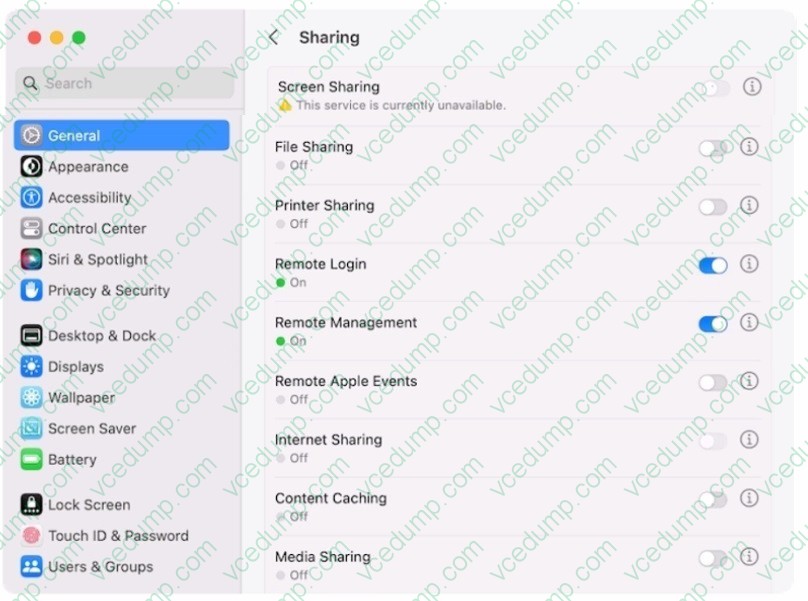
Use this image to answer the question.
Why is the screen sharing service disabled with the message "This service is currently unavailable"?
A. TCP and UDP ports 5900 are currently blocked on this network. B. An internet connection is currently unavailable. C. Screen sharing is being controlled by the remote management service. D. Screen sharing is being controlled by the remote login service.
C. Screen sharing is being controlled by the remote management service. According to the image you sent, the screen sharing service is disabled because the remote management service is turned on. You can't have both screen sharing and remote management on at the same time. Remote management allows you to perform more advanced tasks on another Mac, such as installing and configuring apps, helping remote users, and creating detailed reports. Screen sharing allows you to view and control another Mac's screen. To enable screen sharing, you need to turn off remote management first. You can do this by going to System Settings > General > Sharing and deselecting Remote Management. Then you can check the box next to Screen Sharing to turn it on. Alternatively, you can use Apple Remote Desktop, a commercial app that combines the features of screen sharing and remote management, and works with both Intel-based and Apple silicon Macs. References: Turn Mac screen sharing on or off - Apple Support, Mac screen sharing won't work? Disable it! Then turn it back on, Revive or restore a Mac with Apple silicon using Apple Configurator - Apple Support
Question 102:
Which of the following IP address suggests there may be a problem with DHCP?
A. 172.25.143.2 B. 169.254.194.49 C. 10.31.209.58 D. 192.168.6.75
B. 169.254.194.49 An IP address that starts with 169.254 suggests there may be a problem with DHCP. This is because 169.254 is the prefix for a link-local address, which is an address that is automatically assigned by the device when it cannot obtain an IP address from a DHCP server. A link-local address allows the device to communicate with other devices on the same local network, but not with devices on other networks. A link-local address indicates that either the DHCP server is not available, not configured properly, or not reachable by the device. To resolve this issue, the device should try to renew its IP address from the DHCP server, or the DHCP server should be checked for any errors or misconfigurations. The other IP addresses are valid addresses that can be assigned by a DHCP server, and do not indicate any problem with DHCP. References: DHCP Error: What It Is and How to Fix It - Lifewire, 7.4.4 Module Quiz - DHCPv4 (Answers) -ITExamAnswers
Question 103:
Which of these is a Continuity feature?
A. iCloud Keychain B. Notifications C. Universal Clipboard D. Siri
C. Universal Clipboard
Question 104:
You want to protect your Mac from unwanted contacts from other computers.
Which action should you take to protect your Mac while it's connected to the internet?
A. Go to System Settings > Privacy and Security > Lockdown Mode, then click Turn On. B. Go to System Settings > Network > Firewall, then turn on Firewall. C. Go to Safari Settings > Privacy, then enable Hide IP address from trackers. D. Go to Safari Settings > Privacy, then enable Prevent cross-site tracking.
B. Go to System Settings > Network > Firewall, then turn on Firewall. This is the correct answer because turning on the firewall is the best way to protect your Mac from unwanted contacts from other computers when you are connected to the internet or a network. A firewall is a software or hardware system that blocks unauthorized access to your Mac by filtering the incoming and outgoing network traffic. The firewall can prevent hackers, malware, or other threats from accessing your Mac or stealing your data. You can also customize the firewall settings to allow or block specific apps and services from communicating through the firewall. To turn on the firewall on your Mac, you need to go to System Settings > Network > Firewall, and click the Turn On Firewall button. You can also click the Firewall Options button to see more settings and options. References: Block connections to your Mac with a firewall - Apple Support, A Practical Guide to Securing Your Mac | Reviews by Wirecutter
Question 105:
Select Three.
In MacOS on APFS volumes, when are FileVault encryption keys generated?
A. When a user is deleted B. During the first login by a user on the Mac C. When a user turns on FileVault D. Setting the first user's password E. During user creation
B. During the first login by a user on the Mac C. When a user turns on FileVault E. During user creation FileVault is a feature that encrypts the entire APFS volume on a Mac using the AES-XTS data encryption algorithm. FileVault encryption keys are generated at different times depending on the scenario. According to the Apple Support documents, FileVault encryption keys are generated in the following situations: During the first login by a user on the Mac: This happens when FileVault is turned on during the initial Setup Assistant process. The user's password and the hardware UID are used to protect the class key, which wraps the volume encryption key. The user's password is also used to generate a personal recovery key, which can be used to unlock the volume if the user forgets their password or their account is deleted. When a user turns on FileVault: This happens when FileVault is turned on later from the System Settings. The user's password and the hardware UID are used to protect the class key, which wraps the volume encryption key. The user's password is also used to generate a personal recovery key, which can be used to unlock the volume if the user forgets their password or their account is deleted. An anti-replay mechanism prevents the old key (based on hardware UID only) from being used to decrypt the volume. During user creation: This happens when a new user is added to the Mac after FileVault is turned on. The new user's password and the hardware UID are used to protect the class key, which wraps the volume encryption key. The new user's password is also used to generate a personal recovery key, which can be used to unlock the volume if the user forgets their password or their account is deleted. The other options are not correct because FileVault encryption keys are not generated in those situations. When a user is deleted, their FileVault encryption key is removed from the Mac, but the volume encryption key remains the same. Setting the first user's password does not generate FileVault encryption keys unless FileVault is turned on during the Setup Assistant process or later from the System Settings. References: Intro to FileVault - Apple Support, Volume encryption with FileVault in macOS - Apple Support
Question 106:
A user reports that their USB storage device isn't appearing in the Finder. The storage device also isn't appearing in Disk Utility. Where can you verify that the storage device is connected?
A. System Information > Hardware > Volumes B. System Information > Hardware > USB C. System Settings > General > Storage D. System Settings > General > Device Management
B. System Information > Hardware > USB
Question 107:
An app stopped responding. How can you use the Dock to force the app to quit?
A. Shift-click the app icon, then choose Force Quit from the shortcut menu. B. Control-click the app icon, then choose Force Quit from the shortcut menu. C. Fn (Function)-click the app icon, then choose Force Quit from the shortcut menu. D. Esc (Escape)-click the app icon, then choose Force Quit from the shortcut menu.
B. Control-click the app icon, then choose Force Quit from the shortcut menu.
Question 108:
What could be a reason you can't update your compatible iPad to the latest iPadOS?
A. Your iPad is connected to cellular only. B. Your iPad battery level is lower than 50 percent. C. Your iPad doesn't have enough available storage space. D. The Apple Account used to update to the latest iPadOS doesn't have iPadOS in Purchase History.
C. Your iPad doesn't have enough available storage space.
Question 109:
Which setting should you check to find out if ACME manages her iPhone?
A. Privacy and Security > Device Management B. Control Center > Device Profile C. General > Software Update D. General > VPN and Device Management E. General > Profile and Device Management
D. General > VPN and Device Management
Question 110:
What other sharing settings may prevent Screen Sharing from being turned on?
A. Remote Login B. Media Sharing C. Remote Management D. Remote Apple Events
C. Remote Management Screen Sharing is a feature that allows you to view and control the screen of another Mac on your network. However, Screen Sharing cannot be turned on if Remote Management is already enabled on your Mac. Remote Management is a more advanced feature that allows you to remotely manage Mac computers in a commercial or business environment. Remote Management and Screen Sharing are compatible with Virtual Network Computing (VNC), but they cannot be used at the same time. To turn on Screen Sharing, you need to turn off Remote Management first in the Sharing settings of System Settings. The other sharing settings, such as Remote Login, Media Sharing, and Remote Apple Events, do not affect Screen Sharing and can be turned on or off independently. References: Turn Mac screen sharing on or off - Apple Support, Share the screen of another Mac - Apple Support
Nowadays, the certification exams become more and more important and required by more and more
enterprises when applying for a job. But how to prepare for the exam effectively? How to prepare
for the exam in a short time with less efforts? How to get a ideal result and how to find the
most reliable resources? Here on Vcedump.com, you will find all the answers.
Vcedump.com provide not only Apple exam questions,
answers and explanations but also complete assistance on your exam preparation and certification
application. If you are confused on your APPLE-DEVICE-SUPPORT exam preparations
and Apple certification application, do not hesitate to visit our
Vcedump.com to find your solutions here.