70-680 Exam Details
-
Exam Code
:70-680 -
Exam Name
:Windows 7 Configuring -
Certification
:Microsoft Certifications -
Vendor
:Microsoft -
Total Questions
:565 Q&As -
Last Updated
:Dec 13, 2021
Microsoft 70-680 Online Questions & Answers
-
Question 471:
You use a portable computer that has Windows 7 installed. The computer has a single hard disk drive and a dual-core CPU.
You need to analyze the performance of the computer to meet the following requirements:

Include the CPU, Memory, and Disk subsystems.
Collect information in a report.
What should you do?
A. Run powercfg.exe.
B. Run the Windows Experience Index.
C. Configure Event Viewer subscriptions.
D. Open Task Manager.
E. Open System Properties, and configure performance settings.
F. Open System Properties, and configure environment variables.
G. Open System Properties, and configure user profiles settings.
H. Open System Properties, and configure the page file settings.
I. Open Performance Monitor, and configure a Data Collector Set.
J. Open Performance Monitor, and customize the System Monitor view. -
Question 472:
You have a computer that runs Windows Vista (x86).
You need to perform a clean installation of Windows 7 (64-bit).
What should you do?
A. From the Windows 7 installation media, run Rollback.exe.
B. From the Windows 7 installation media, run Migsetup.exe.
C. Start the computer from the Windows 7 installation media. From the Install Windows dialog box, select the Upgrade option.
D. Start the computer from the Windows 7 installation media. From the Install Windows dialog box, select the Custom (advanced) option. -
Question 473:
You administer 80 computers that run Windows 7. The computers have static IP addresses.
You need to change the static IP addresses on all the computers by using a startup script.
Which command should you include in the startup script?
A. Ipconfig.exe
B. Nbtstat.exe
C. Netstat.exe
D. Netsh.exe -
Question 474:
A company has client computers that run Windows 7 Enterprise.
You need to configure new NTFS permissions to ensure that only the specified user has access to write to a given folder.
What should you use to achieve this goal? (Each correct answer presents a complete solution. Choose two.)
A. the icacls command
B. the User Account Control Settings Control Panel window
C. share permissions
D. Local Users and Groups
E. the folder Properties window
F. the Services management console
G. the netsh command
H. Device Manager
I. the Group Policy management console -
Question 475:
Your company has an internal Web site that requires HTTPS. The Web site's certificate is self- signed. You have a computer that runs Windows 7 and Windows Internet Explorer 8.
You use HTTPS to browse to the Web site and receive the following warning message. "There is a problem with this website's security certificate."
You need to prevent the warning message from appearing when you access the Web site.
What should you do?
A. From Internet Explorer, enable InPrivate Browsing.
B. From Internet Explorer, add the Web site to the Trusted sites zone.
C. From Certificate Manager, import the Web sites certificate into your Personal store.
D. From Certificate Manager, import the Web sites certificate into your Trusted Root Certification Authorities store. -
Question 476:
You are the network administrator at a scientific research firm. You have a network of Windows Server 2008 R2 servers and Windows 7 Enterprise computers in a domain configuration.
Management needs to support a new, remote laboratory that is connected by a very slow network link. The primary work of the five scientists is to carry out experiments by following documentation that is stored on the corporate network. The only equipment at the remote site includes five computers and network connectivity devices.
You receive the following three email messages:
Message 1
All,
Due to business constraints, we are unable to support the purchase of a server at the new remote location to service such a small number of users. The minimum number of users to support a server purchase is 10.
Bart Cushing
Purchasing Department
Message 2
Dear all,
The new lab is up and running. By far the biggest problem is the exceptionally slow speed downloading the experiment descriptions from corporate headquarters. Is there a way to fix the problem?
Thanks!
Dana Wright
Remote Lab Manager
Message 3
To all employees of A Datum Corp:
This is a friendly reminder that corporate security policy prohibits users from creating file shares computers.
Thank you for your attention to this matter
Gwen Francis
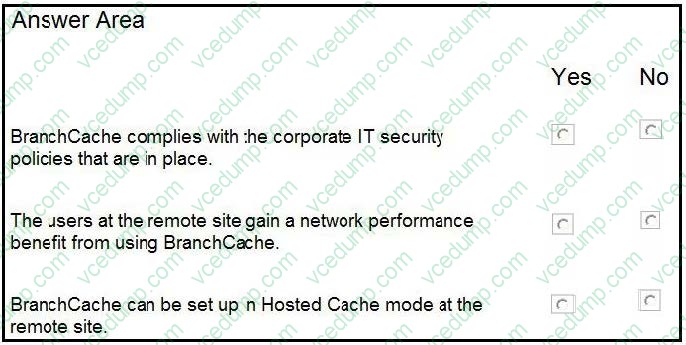
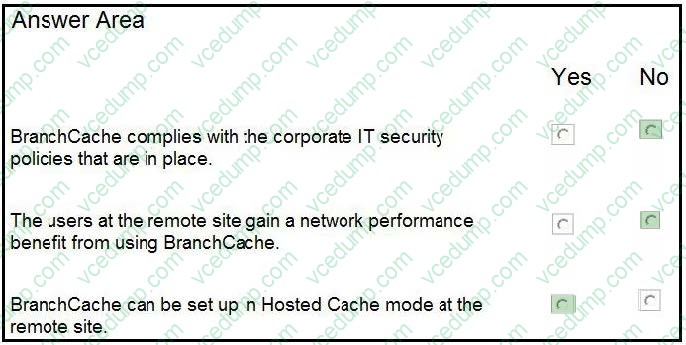
You need to determine if BranchCache can support the environment.
Consider each of the following statements. Does the information in the three messages support the interference as stated? Each correct selection is worth one point.
Hot Area:
-
Question 477:
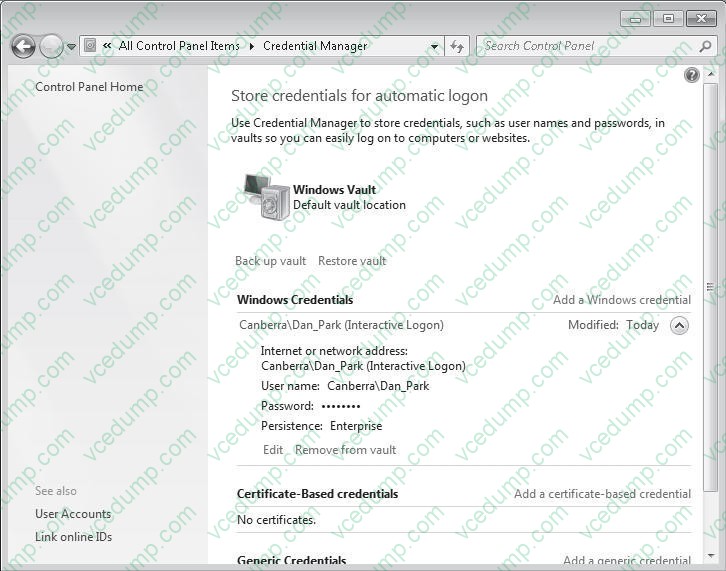
You have a computer named Computer1 that runs Windows 7. The computer is a member of an Active Directory domain. The network contains a file server named Server1 that runs Windows Server 2008.
You log on to the computer by using an account named User1. You need to ensure that when you connect to Server1, you authenticate by using an account named Admin1.
What should you do on Computer1?
A. From User Accounts, select Link online IDs.
B. From Windows CardSpace, select Add a card.
C. From Credential Manager, select Add a Windows credential.
D. From Local Security Policy, modify the Access this computer from the network user right. -
Question 478:
You have a computer that runs Windows 7.
You install a second internal hard disk drive in the computer.
You attempt to create a system image and discover that the new disk is not listed as a backup destination.
You need to ensure that you can use the new disk as a backup destination for system images.
What should you do?
A. Create a NTFS partition.
B. Create a mirrored volume.
C. Create a system repair disc.
D. Log on to the computer by using a different account. -
Question 479:
You have a computer that runs Windows 7.
The computer's hard disks are configured as shown in the following table.
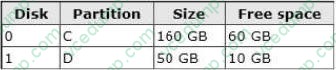
You need to ensure that you can recover the operating system and all the files on the computer if hard disk 0 experiences hardware failure.
What should you do?
A. Shrink drive C and then create a new partition.
B. Use the Backup and Restore tool to back up data files for all users.
C. Use the Backup and Restore tool to create a system image on a network location.
D. Create a restore point for both hard disks. -
Question 480:
You have a computer that runs Windows 7. Windows Update settings are configured as shown in the exhibit. (Click the Exhibit button.)
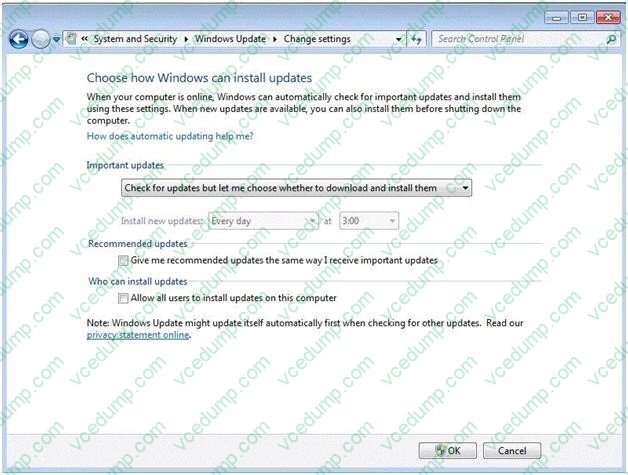
You discover that standard users are never notified when updates are available.
You need to ensure that standard users are notified when updates are available.
What should you do?
A. Select Allow all users to install updates on this computer.
B. Specify an intranet Microsoft update service location in Group Policy.
C. Change the Startup Type for the Windows Update service to Automatic.
D. Select Give me recommended updates the same way I receive important updates.
Related Exams:
-
62-193
Technology Literacy for Educators -
70-243
Administering and Deploying System Center 2012 Configuration Manager -
70-355
Universal Windows Platform – App Data, Services, and Coding Patterns -
77-420
Excel 2013 -
77-427
Excel 2013 Expert Part One -
77-725
Word 2016 Core Document Creation, Collaboration and Communication -
77-726
Word 2016 Expert Creating Documents for Effective Communication -
77-727
Excel 2016 Core Data Analysis, Manipulation, and Presentation -
77-728
Excel 2016 Expert: Interpreting Data for Insights -
77-731
Outlook 2016 Core Communication, Collaboration and Email Skills
Tips on How to Prepare for the Exams
Nowadays, the certification exams become more and more important and required by more and more enterprises when applying for a job. But how to prepare for the exam effectively? How to prepare for the exam in a short time with less efforts? How to get a ideal result and how to find the most reliable resources? Here on Vcedump.com, you will find all the answers. Vcedump.com provide not only Microsoft exam questions, answers and explanations but also complete assistance on your exam preparation and certification application. If you are confused on your 70-680 exam preparations and Microsoft certification application, do not hesitate to visit our Vcedump.com to find your solutions here.