Apple APPLE-DEVICE-SUPPORT Online Practice
Questions and Exam Preparation
APPLE-DEVICE-SUPPORT Exam Details
Exam Code
:APPLE-DEVICE-SUPPORT
Exam Name
:Apple Device Support
Certification
:Apple Certifications
Vendor
:Apple
Total Questions
:214 Q&As
Last Updated
:Jul 14, 2026
Apple APPLE-DEVICE-SUPPORT Online Questions &
Answers
Question 81:
HOTSPOT
Scenario:
Ozzy contacted you about issues obtaining 5G service on his iPhone. You confirmed that his device is compatible with the carrier's 5G service, in a coverage area, and using the latest version of iOS. The carrier's support website indicates that a carrier settings update is needed to fully support its 5G service.
Where in Settings should you go to manually check for carrier settings updates on iPhone?
Hot Area:
Explanation/Reference:
General > About, then follow the onscreen instructions
Question 82:
DRAG DROP
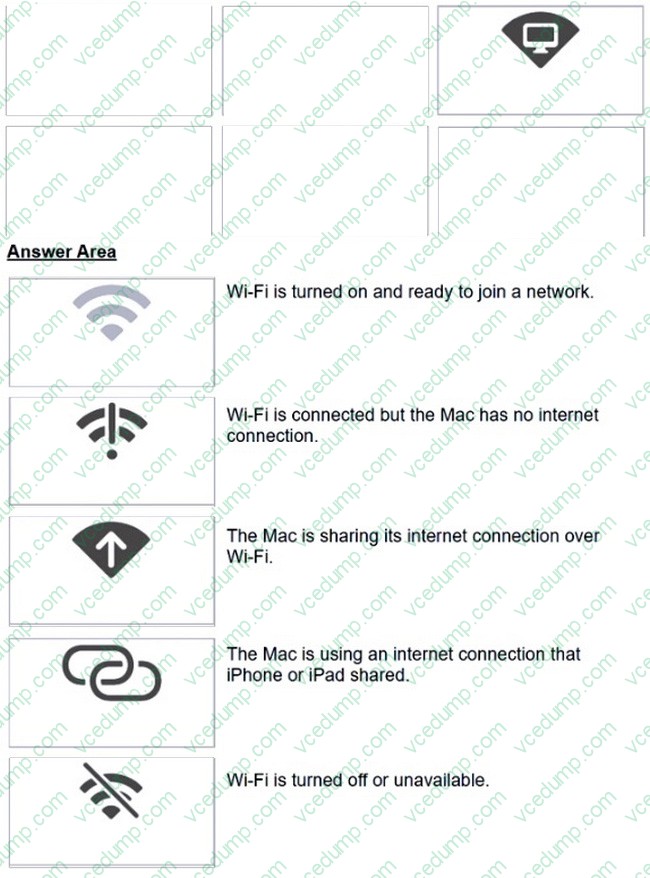
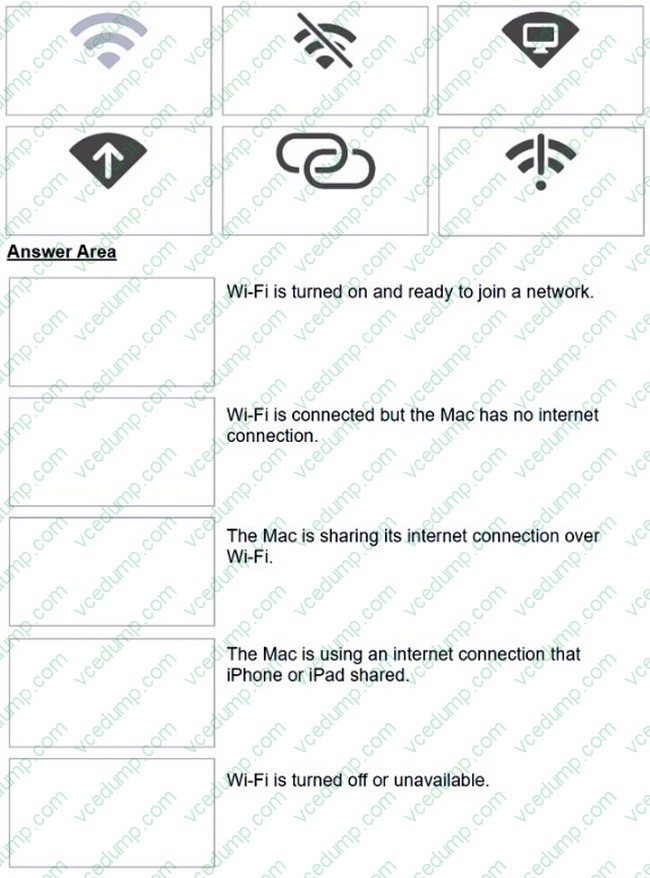
Match the Wi-Fi menu bar icons on the left to the descriptions on the right by dragging the responses to the correct target areas. Responses may be used once, more than once, or not at all.
Select and Place:
Explanation/Reference:
Question 83:
HOTSPOT
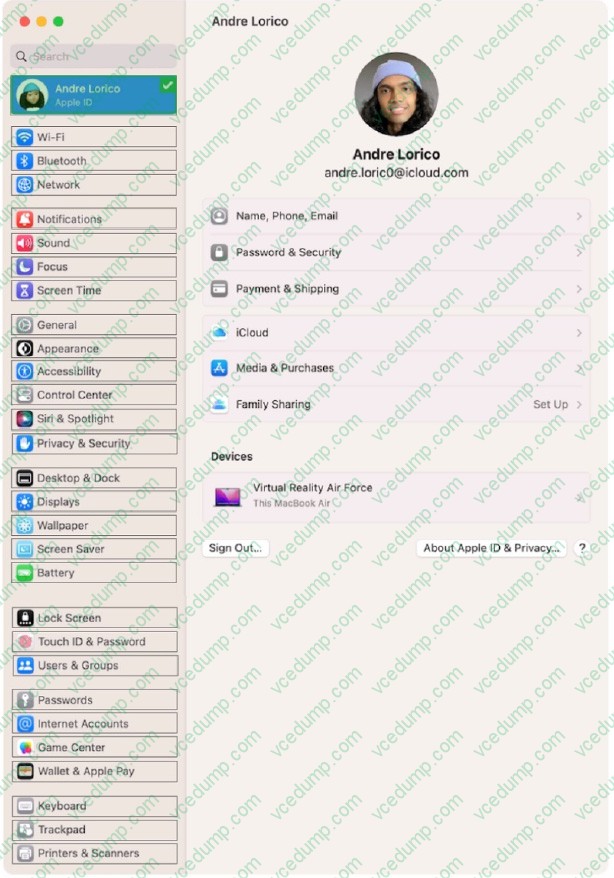
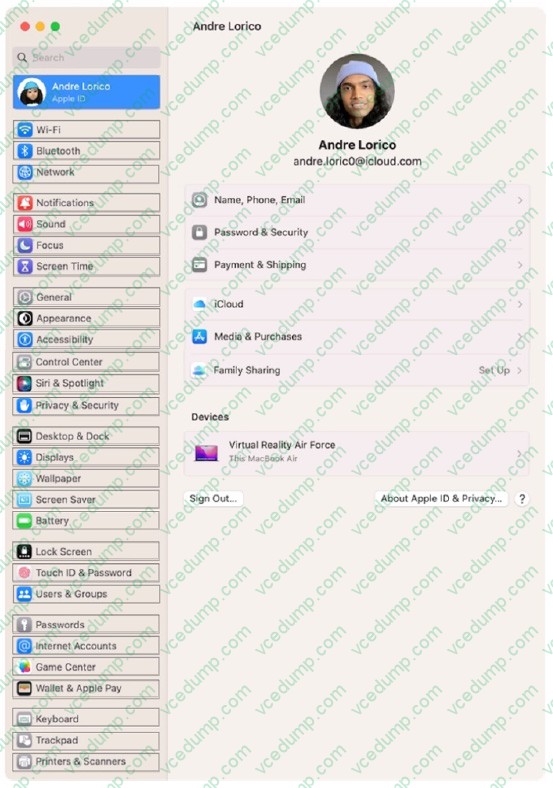
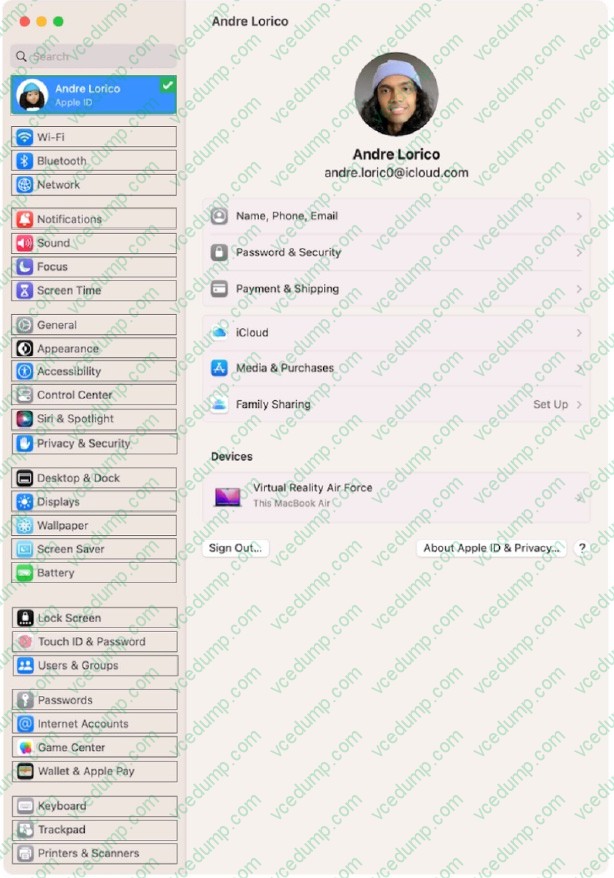
Select the setting in the sidebar that you should use to turn on Find My on your Mac.
Hot Area:
Explanation/Reference:
Turn on Find My Mac in iCloud settings so you can locate, lock, or erase your Mac.
On your Mac, choose Apple menu > System Settings, then click [your name] at the top of the sidebar. ... Click iCloud on the right, then click Find My Mac. https://support.apple.com/guide/findmy-mac/set-up-fmm53101237/mac
Question 84:
Where do you go to tell if an iPad has an MGM solution installed?
A. Privacy and Security > Device Management B. General > Profiles and Device Management C. Privacy and Security > Analytics and Improvements D. General > VPN and Device Management
D. General > VPN and Device Management This section of the iPad settings displays any installed Mobile Device Management (MDM) or Mobile Gateway Management (MGM) profiles. This area shows the profiles and configurations that control device management, including any restrictions or settings applied by the MDM or MGM solution, making it the right place to verify whether such solutions are installed on the device.
Question 85:
Which two locations are app preference files typically stored on a Mac?
A. /Users/Preferences B. -/Library/Preferences C. -/Library/Logs D. /Library/Application Support/Preferences E. /Library/Preferences
B. -/Library/Preferences E. /Library/Preferences App preference files are files that store the rules or parameters that tell your apps how they should work. They usually have the .plist extension and are associated with a specific app's bundle identifier. App preference files are typically stored in two locations on a Mac: the user library and the system library. The user library is located at - /Library/Preferences and contains the preference files for the current user. The system library is located at /Library/Preferences and contains the preference files for all users. These locations are different from the root library, which is located at /System/Library/Preferences and contains the preference files for the operating system and its components. You can access these locations by using the Finder, the Terminal, or the defaults command line utility. You can also edit, delete, or reset the preference files using various methods, but you should be careful not to damage or corrupt them, as they may affect the functionality of your apps. References:Where are the application preference files location on Mac What are Mac system preferences files, and how do I fix them? How to change the default apps used to open files in macOS
Question 86:
Which accessibility feature enlarges text on the screen when you move the pointer over it?
A. VoiceOver B. Zoom C. Pointer Control D. Hover Text
D. Hover Text
Question 87:
You're experiencing odd behavior with a Custom App on your iPad.
How should you gather information about the app issue?
A. Turn on debug logging. B. Open Apple Configurator for iPhone and run diagnostics. C. Turn on advanced analytics. D. Gather a sysdiagnose.
D. Gather a sysdiagnose. A sysdiagnose is a comprehensive report that contains information about the system state, logs, and diagnostic files from your iPad. You can use a sysdiagnose to troubleshoot issues with a custom app or any other app on your iPad. To gather a sysdiagnose, you need to press and quickly release the volume up button, then press and quickly release the volume down button, then press and hold the top button until the screen flashes. Then you can find the sysdiagnose file in the Settings app under Privacy and Security > Analytics and Improvements > Analytics Data. References: Apple Device Support Exam Prep Guide, page 10. How to collect a sysdiagnose for iOS, Apple Developer.
Question 88:
Use this image to answer the question.
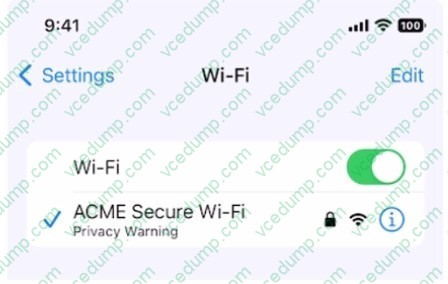
What does this iPhone Privacy Warning message indicate?
A. Limit IP Address Tracking is disabled for this network B. iOS has detected a spoofed MAC address on the network C. Private Wi-Fi Address is disabled for this network D. Local network access is enabled for a third-party app
C. Private Wi-Fi Address is disabled for this network The iPhone Privacy Warning message indicates that the device is using its original MAC address to join the Wi-Fi network, which could allow the network operator or other parties to track the device or profile its online activity. To prevent this, the device can use a different MAC address for each Wi-Fi network, which is called a Private Wi-Fi Address. This feature is enabled by default on devices running iOS 14 or later, but it can be turned off manually or automatically by some networks. To turn on the Private Wi-Fi Address, the user needs to go to Settings > Wi-Fi, tap the info icon next to the network name, and toggle on the Private Wi-Fi Address option. This will generate a new MAC address for the device and rejoin the network. References: = Use private Wi-Fi addresses in iOS 14, iPadOS 14, and watchOS 7, Wi-Fi Privacy Warning on an iPhone: What It Means and What To Do
Question 89:
Where can you change the undo send delay setting on your iPad?
A. General > Mail > Undo Send Delay B. Open your mail app then open settings and select Undo Send Delay. C. Settings > Mail > Accounts > Undo Send Delay D. Settings > Mail > Undo Send Delay
D. Settings > Mail > Undo Send Delay According to the Apple Device Support Reference Materials, you can change the undo send delay setting on your iPad by going to Settings > Mail > Undo Send Delay. This setting allows you to unsend an email within a certain time frame after you tap the send button. You can choose from Off, 10 seconds, 20 seconds, or 30 seconds. The other options, A, B, and C, are not correct because they are not the correct paths to access the undo send delay setting. General > Mail > Undo Send Delay is not a valid path in the iPad settings. Open your mail app then open settings and select Undo Send Delay is not a valid option because the mail app does not have its own settings menu. Settings > Mail > Accounts > Undo Send Delay is not a valid path because the Accounts section does not have an undo send delay option. References: 1: Unsend email with Undo Send in Mail on iPad - Apple Support, Section "Delay sending emails". 2: General settings on iPad - Apple Support 3: Mail settings overview for iPad - Apple Support 4: Manage email accounts in Mail on iPad - Apple Support
Question 90:
Scenario
You have an iPhone and iPad device. You bought five new App Store apps on your iPhone. but you also want to use these apps on your iPad.
How can you configure your iPad to automatically download and install the App Store apps you bought on your iPhone?
A. In Settings, tap App Store and tap to turn on App Downloads. B. In the iTunes Store, tap Settings and tap to turn on Automatic Downloads. C. In the App Store, tap Settings and tap to turn on App Downloads. D. In Settings, tap General > Software Update > Automatic Updates.
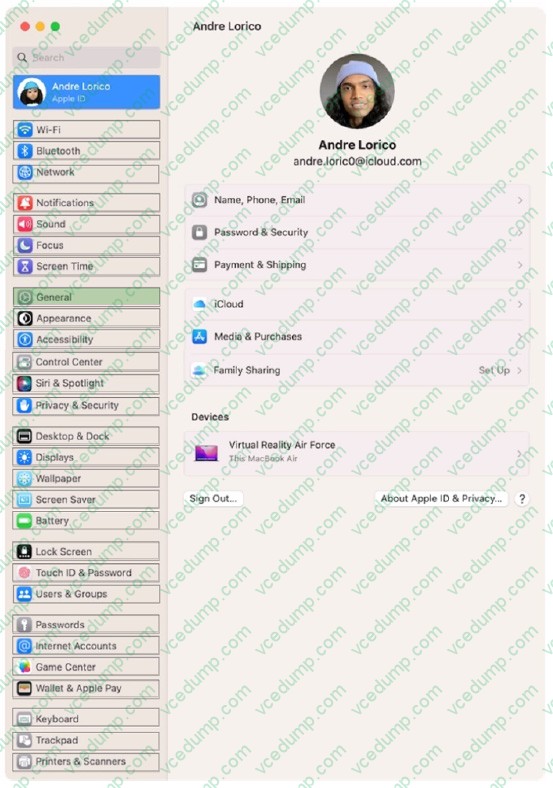
A. In Settings, tap App Store and tap to turn on App Downloads.
Nowadays, the certification exams become more and more important and required by more and more
enterprises when applying for a job. But how to prepare for the exam effectively? How to prepare
for the exam in a short time with less efforts? How to get a ideal result and how to find the
most reliable resources? Here on Vcedump.com, you will find all the answers.
Vcedump.com provide not only Apple exam questions,
answers and explanations but also complete assistance on your exam preparation and certification
application. If you are confused on your APPLE-DEVICE-SUPPORT exam preparations
and Apple certification application, do not hesitate to visit our
Vcedump.com to find your solutions here.