Apple APPLE-DEVICE-SUPPORT Online Practice
Questions and Exam Preparation
APPLE-DEVICE-SUPPORT Exam Details
Exam Code
:APPLE-DEVICE-SUPPORT
Exam Name
:Apple Device Support
Certification
:Apple Certifications
Vendor
:Apple
Total Questions
:214 Q&As
Last Updated
:Jul 14, 2026
Apple APPLE-DEVICE-SUPPORT Online Questions &
Answers
Question 61:
You attempt to start up a Mac with Apple silicon to recoveryOS, but a lock icon appears on the screen and you're asked to enter a password. What is the most likely reason that this screen appears?
A. Your Mac is enrolled in an MDM solution and has a FileVault password set. B. Your Mac has a security policy set that disallows access to recoveryOS. C. Your Mac is enrolled in an MDM solution and has a recoveryOS password set. D. Your Mac has a Startup Utility password set.
C. Your Mac is enrolled in an MDM solution and has a recoveryOS password set. If you see a lock icon and a password prompt when you try to start up a Mac with Apple silicon to recoveryOS, the most likely reason is that your Mac is enrolled in an MDM solution and has a recoveryOS password set by the administrator. This password prevents unauthorized access to the recovery environment and the startup options screen, where you can change the security policy, erase the internal storage, or reinstall macOS. You need to enter the correct password to proceed to recoveryOS. If you don't know the password, you should contact your administrator or the organization that manages your Mac. The other options are not the most likely reasons for this screen to appear, as they have different effects or symptoms. A FileVault password is used to unlock the encrypted startup volume, not the recoveryOS. If your Mac has a FileVault password set, you will see a different screen that asks you to enter the password or the recovery key to unlock the disk. You can still access the recoveryOS without entering the FileVault password by holding down the power button until you see the startup options screen. A security policy that disallows access to recoveryOS is not possible on a Mac with Apple silicon. The security policy only affects the ability to boot from external media or run non-Apple operating systems. You can always access the recoveryOS by holding down the power button until you see the startup options screen, unless there is a recoveryOS password set by an MDM solution. A Startup Utility password is not a feature on a Mac with Apple silicon. The Startup Utility is an app that lets you select a startup disk on a Mac with Intel processor. On a Mac with Apple silicon, you can select a startup disk from the startup options screen, which may require a recoveryOS password if your Mac is enrolled in an MDM solution. References: Apple Device Support Exam Prep Guide, page 8 Use macOS Recovery on a Mac with Apple silicon Revive or restore a Mac with Apple silicon using Apple Configurator How to Enter macOS Recovery Mode on Apple Silicon Macs How to Enter macOS Recovery on an Apple Silicon Mac - MUO Any way to block Safe Mode on a Macbook w/ an M1 chip?
Question 62:
You're reviewing the manual page for the defaults command in Terminal.
What should you do to exit a manual page in the Terminal window?
A. Press the Esc key B. Press the Control-X keys C. Type Exit and Press the Return key D. Press the Q key
D. Press the Q key The Q key is the universal shortcut to quit or exit a manual page in the Terminal window. The manual page, or man page, is a document that provides information about a command or utility in the Unix-like operating systems. The man command is used to display the man page for a given command or topic. The man command uses a pager program, such as less or more, to display the man page in the Terminal window. A pager program allows the user to scroll through the text file one page, line, or half-page at a time. To exit the pager program and return to the shell prompt, the user needs to press the Q key. This is the same for any other program that invokes the pager program, such as git log or git diff. The Q key stands for quit, and it is easy to remember for Mac users who are familiar with the Command + Q shortcut to quit an application. References: = How to escape out of the MAN screen or page in UNIX?, How to Exit the MAN Command and Quit Man Pages Properly, How to Quit the MAN Command and Exit Man Pages Properly, How to jump to the end of a `man' page
Question 63:
How should you view live log messages using Console on your Mac?
A. Select Log Reports in the sidebar, click the log message, and choose View > Expand Selected Row. B. Select system.log in the sidebar, click the log message, and choose View > Expand Selected Row. C. Select Mac in the sidebar, then click info from the toolbar. D. Select Mac in the sidebar, then click Start Streaming.
D. Select Mac in the sidebar, then click Start Streaming. To view live log messages using Console on your Mac, you need to select Mac in the sidebar, then click Start Streaming in the toolbar. This will display the log messages for your Mac as they are generated. You can also use the Touch Bar to start or stop streaming. The type of log message is indicated by a dot in the Type column: red for faults, yellow for errors, dark gray for debug messages, and light gray for info messages. References: View log messages in Console on Mac, Apple Support.
Question 64:
DRAG DROP
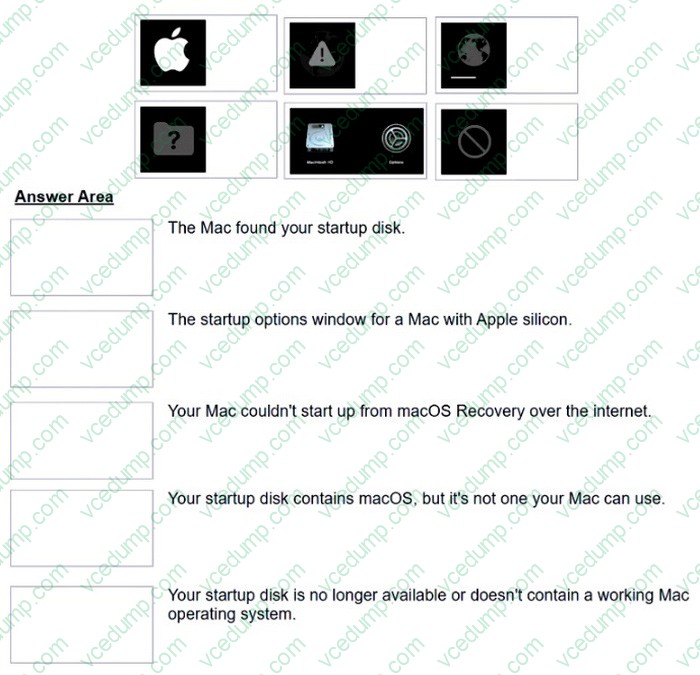
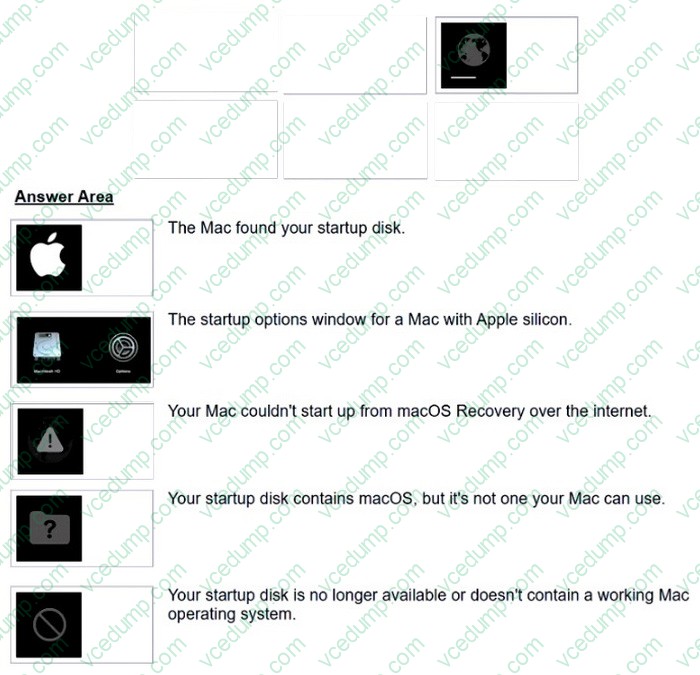
Match the startup icons on the left to the descriptions on the right by dragging the responses to the correct target areas. Responses may be used once, more than once, or not at all.
Select and Place:
Explanation/Reference:
Question 65:
How can you enlarge the view on your Mac using an accessibility feature?
A. Use Increase Transparency. B. Use Zoom. C. Use Assistive Touch. D. Use Magnifier.
B. Use Zoom.
Question 66:
Scenario
You're trying to connect a podcasting microphone to your MacBook Air. You're using the Apple USB-C Digital AV Multiport Adapter connected to a standard USB A to B cable that connects to the microphone. You open Sound in System Settings and click the input tab. but the microphone doesn't appear in the sound input device list.
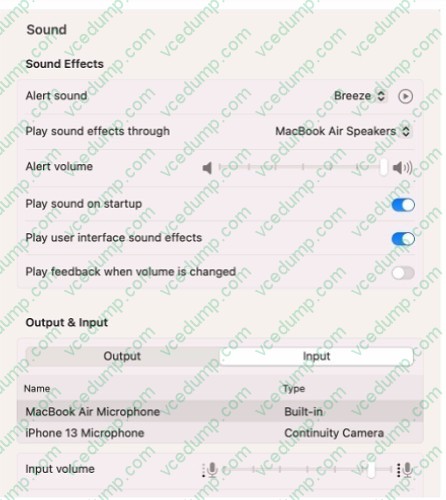
What should you use to verify that your Mac has successfully connected to the microphone?
A. The microphone's power light B. VoiceOver Utility > Sound > Input Device > USB CODEC C. System Information > Hardware > USB D. The device driver settings
C. System Information > Hardware > USB To verify that your Mac has successfully connected to the microphone, you should use the System Information app to check the USB devices connected to your Mac. The System Information app provides detailed information about your Mac hardware, software, and devices. You can access the System Information app by choosing Apple menu > About This Mac, then clicking System Report. In the System Information window, select Hardware > USB from the sidebar. You should see your microphone listed under the USB Device Tree, along with its product ID, vendor ID, speed, and other details. If you don't see your microphone, try disconnecting and reconnecting it, or using a different USB port or cable. References: How to use System Information on your Mac - Apple Support, USB-C Digital AV Multiport Adapter - Apple
Question 67:
Scenario
Melody's Mac has multiple printers configured.
Where in System Settings should you go to determine if her printers were configured manually or by an MDM solution?
A. Printers > Advanced B. Privacy and Security > Profiles C. Printers and Scanners > Advanced D. General > Sharing > Printer Sharing
B. Privacy and Security > Profiles To determine if Melody's printers were configured manually or by an MDM solution, you should go to Privacy and Security > Profiles in System Settings. This is where you can see the profiles that are installed on the Mac, which may include printer settings. If there are any profiles that contain the Printing or AirPrint payload, then the printers were configured by an MDM solution. Otherwise, the printers were configured manually by the user or an administrator. References: Printing MDM payload settings for Apple devices - Apple Support, AirPrint MDM payload settings for Apple devices - Apple Support, Intro to mobile device management profiles - Apple Support
Question 68:
Where in Settings can you review configuration profiles?
A. General > Privacy and Security B. Profiles > Remote Management C. General > VPN and Device Management D. Privacy and Security > Profiles
C. General > VPN and Device Management
Question 69:
How do you view details about your Wi-Fi connection on a Mac?
A. Option-click the Wi-Fi status menu in the menu bar. B. Option-click the Wi-Fi status in System Settings > Network. C. Control-click the Wi-Fi status menu in the menu bar. D. Control-click the Wi-Fi status in System Settings > Network.
A. Option-click the Wi-Fi status menu in the menu bar.
Question 70:
What can you do if you forget your iPhone passcode?
A. Wait for the "forgot your passcode?" prompt to appear and follow the onscreen instructions. B. Use your Apple ID to get into your phone. C. Put the phone in recovery mode and attempt to restore it in Apple Configurator. D. Connect the phone to a mac and erase all content and settings.
D. Connect the phone to a mac and erase all content and settings. If you forget your iPhone passcode, you can use a Mac to erase your iPhone and remove the passcode. This will delete all your data and settings, but you can restore them from a backup if you have one. To erase your iPhone using a Mac, you need to put your iPhone in recovery mode and connect it to the Mac with a cable. Then, you need to open Finder and locate your iPhone. You will see an option to Restore or Update your iPhone. Choose Restore and wait for the process to complete. After your iPhone is erased, you can set it up again and restore your data from a backup or iCloud. References: If you forgot your iPhone passcode - Apple Support, Erase your iPhone - Apple Support
Nowadays, the certification exams become more and more important and required by more and more
enterprises when applying for a job. But how to prepare for the exam effectively? How to prepare
for the exam in a short time with less efforts? How to get a ideal result and how to find the
most reliable resources? Here on Vcedump.com, you will find all the answers.
Vcedump.com provide not only Apple exam questions,
answers and explanations but also complete assistance on your exam preparation and certification
application. If you are confused on your APPLE-DEVICE-SUPPORT exam preparations
and Apple certification application, do not hesitate to visit our
Vcedump.com to find your solutions here.