70-680 Exam Details
-
Exam Code
:70-680 -
Exam Name
:Windows 7 Configuring -
Certification
:Microsoft Certifications -
Vendor
:Microsoft -
Total Questions
:565 Q&As -
Last Updated
:Dec 13, 2021
Microsoft 70-680 Online Questions & Answers
-
Question 91:
You plan to install Windows 7 on a new notebook computer. The computer will be used by users who speak English, French, and German.
You need to select an edition of Windows 7 that enables the users to switch between different graphical user interface (GUI) languages. The solution must minimize costs.
Which edition should you choose?
A. Home Premium
B. Professional
C. Starter
D. Ultimate -
Question 92:
You download a Windows PowerShell snap-in.
You need to ensure that the snap-in is automatically imported when you open a new PowerShell session.
A. Modify the PowerShell execution policy.
B. Create a new PowerShell manifest file. Update the PowerShell shortcut and specify the file option.
C. Create a new PowerShell console file. Update the PowerShell shortcut and specify the psconsolefile option.
D. Create a new PowerShell formatting and type file. Copy the file to the %SystemRoot %\system32 \WindowsPowerShell\v1.0 folder. -
Question 93:
You are deploying a custom Windows 7 system image to a new computer. You perform the following tasks:

Start the new computer by using the Windows Preinstallation Environment (Windows PE)
Connect to a shared network location that contains the Windows 7 image file
You need to apply the Windows 7 image to the computer.
What should you do before you apply the image?
A. Mount the image.
B. Configure Windows Firewall.
C. Configure and format the hard disk drive.
D. Initialize the Boot Configuration Data (BCD) store. -
Question 94:
You have a computer that runs a 32-bit version of Windows 7 Home Premium. The computer has a single partition on a single hard disk drive.
You want to test a 64-bit version of Windows 7 Ultimate. You configure the computer for a dual boot with previously installed Windows 7 Home Premium.
You need to configure the computer to support the dual boot.
What should you do?
A. Reinstall Windows 7 Home Premium 32 bit as a 64-bit version.
B. Start Windows 7 Home Premium. Create and mount a new Windows Imaging Format (WIM) file with Windows 7 Ultimate files.
C. Shrink the existing partition and create a new partition to start Windows 7 Ultimate.
D. Install Virtual PC into Windows 7 Home Premium. -
Question 95:
Your company network includes desktop computers that have Windows 7 installed. Microsoft updates are applied automatically at a scheduled time.
A use1- reports that a proprietary application has stopped working.
You need to uninstall the most recent update from Microsoft.
What should you do first?
A. From the Action Center, open the Windows Update window.
B. From the Event Viewer, open the System log.
C. From the Services console, open the Windows Update service.
D. From the Task Scheduler, view the WindowsBackup node. -
Question 96:
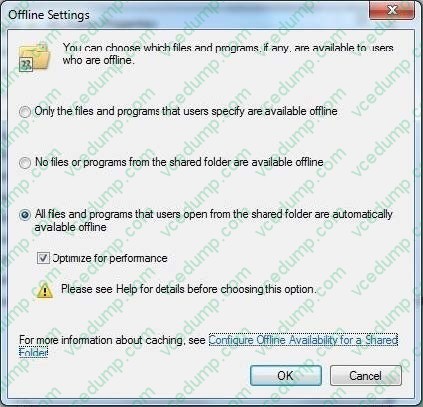
You have a portable computer named Computer1 and a desktop computer named Computer2. Both computers run windows 7.
On computer2, you create a share named Share1 by using Advanced Sharing feature.
You need to ensure that when you connect to Share1 from Computer1, the files that you open are automatically cached.
What should you do?
A. On Computer1, modify the Offline Files settings.
B. On Computer1, modify the User Profile settings.
C. On Computer2, modify the properties of Share1.
D. On Computer2, modify the file sharing connection settings for the HomeGroup -
Question 97:
You have a computer that runs Windows 7.
You perform an image backup.
A virus infects the computer and causes the computer to become unresponsive. You need to restore the computer as quickly as possible.
What should you do?
A. Start the computer by using the Last Known Good Configuration feature.
B. Start the computer from the Windows 7 DVD and then use the Startup Repair tool.
C. Start the computer from the Windows 7 DVD and then use the System Image Recovery tool.
D. Start the computer from Windows Preinstallation Environment (Windows PE) and then run Imagex.exe. -
Question 98:
You have a computer that runs Windows 7. Your network contains a VPN server that runs Windows Server 2008 R2. The server requires the use of a pre-shared key.
You need to create a VPN connection to connect to the network.
Which type of VPN connection should you create?
A. IKEv2
B. L2TP
C. PPTP
D. SSTP -
Question 99:
You have three computers that run Windows 7 SP1. All computers are connected to the same network subnet of 10.0.10.0/24. The computers' network location is set to the Work network.
You need to join all the computers to a HomeGroup.
What should you do first?
A. Set the network location to the Home network.
B. Enter the HomeGroup password.
C. Enable Network Discovery.
D. Configure Windows Firewall to allow the Netlogon service. -
Question 100:
You are the system administrator for a large manufacturing company. You and your team are responsible for managing over 1,000 Windows 7 Professional desktop and laptop computers. All computers are members of a Windows 2008 R2 Active Directory domain.
You want to utilize the Windows Remote Management Service available in Windows 7 Professional. You plan to configure all desktop and laptop computers so that the Windows Remote Management Service can manage them remotely.
You need to run a command on each Windows 7 computer so that you can configure the service.
Which two commands can you use to achieve this goal? (Each correct answer presents a complete solution. Choose two. )
A. Mstsc /v:computername configure
B. Enable-PSRemoting -force
C. Psexec Wcomputername -enable
D. Winrm quickconfig
Related Exams:
-
62-193
Technology Literacy for Educators -
70-243
Administering and Deploying System Center 2012 Configuration Manager -
70-355
Universal Windows Platform – App Data, Services, and Coding Patterns -
77-420
Excel 2013 -
77-427
Excel 2013 Expert Part One -
77-725
Word 2016 Core Document Creation, Collaboration and Communication -
77-726
Word 2016 Expert Creating Documents for Effective Communication -
77-727
Excel 2016 Core Data Analysis, Manipulation, and Presentation -
77-728
Excel 2016 Expert: Interpreting Data for Insights -
77-731
Outlook 2016 Core Communication, Collaboration and Email Skills
Tips on How to Prepare for the Exams
Nowadays, the certification exams become more and more important and required by more and more enterprises when applying for a job. But how to prepare for the exam effectively? How to prepare for the exam in a short time with less efforts? How to get a ideal result and how to find the most reliable resources? Here on Vcedump.com, you will find all the answers. Vcedump.com provide not only Microsoft exam questions, answers and explanations but also complete assistance on your exam preparation and certification application. If you are confused on your 70-680 exam preparations and Microsoft certification application, do not hesitate to visit our Vcedump.com to find your solutions here.