70-497 Exam Details
-
Exam Code
:70-497 -
Exam Name
:Software Testing with Visual Studio -
Certification
:Microsoft Certifications -
Vendor
:Microsoft -
Total Questions
:100 Q&As -
Last Updated
:Dec 06, 2021
Microsoft 70-497 Online Questions & Answers
-
Question 21:
You are using Microsoft Test Manager (MTM) to review the work items assigned to two of your team members.
You need to run a query from the Queries activity and compare the results to a second query without going to a second workstation.
What should you do?
A. Click the New query option to open a second Queries activity.
B. Click the Queries view to open a second Queries view, and compare the results of the two queries.
C. Click New and create a new task from the drop-down menu.
D. Launch another instance of MTM and execute a second query. -
Question 22:
Your organization uses Microsoft Visual Studio Team Foundation Server (TFS) 2013. You are working with tests in the TFS Web Access.
You have an existing test that uses the following parameters: @city, @state, and @postal code.
You want to use the same parameters in a new test case.
Which two actions should you perform? Each correct answer presents part of the solution.
A. In the original test case, select convert to shared parameters.
B. Open the original test case, and copy the parameters.
C. Open the new test case, and paste the parameters.
D. In the new test case, select add a shared parameter set. -
Question 23:
You are a test developer using Microsoft Test Manager (MTM).
You have a test case with a parameter variable that has several data values that are no longer needed because of a change to the specifications.
You need to remove these unneeded values.
What should you do?
A. Delete the unneeded iterations.
B. Delete the unneeded test steps.
C. Delete the unneeded parameter values.
D. Delete the old parameters. -
Question 24:
You are using Microsoft Test Manager (MTM) to run manual tests.
Testers reported a bug during a test run on the V1.0 build. A build for V2.0 has been created.
Testers are still running tests against the V1.0 build.
You need to verify that the bug has been fixed in build V2.0.
What should you do?
A. Change the default build for the test plan to V2.0 and run the test case.
B. Run the test case with default settings; the latest build will be selected automatically.
C. Change the build to V2.0 by using Run with options and run the test case.
D. Change the build property for the test case to the V2.0 build and run the test case. -
Question 25:
Your company uses Lab Center during manual- and automated-testing processes for different types of testing environments.
Development operations is standardizing their processes. They want to document their best practices for environment setup.
You need to verify your setup of a standard environment, which consists of physical servers that match your production environment. However, you are unable to connect to your new lab environment.
Which action in Lab Center should you perform in order to troubleshoot the problem?
A. Repair
B. Manage
C. Connect
D. open -
Question 26:
You are using Microsoft Test Manager (MTM).
You plan to reduce the maintenance of test suites.
You need to create test suites for which the test cases are automatically added.
What are two possible types of test suites that achieve this goal? (Each correct answer presents a complete solution. Choose two.)
A. Exploratory-based
B. Static
C. Query-based
D. Requirements-based -
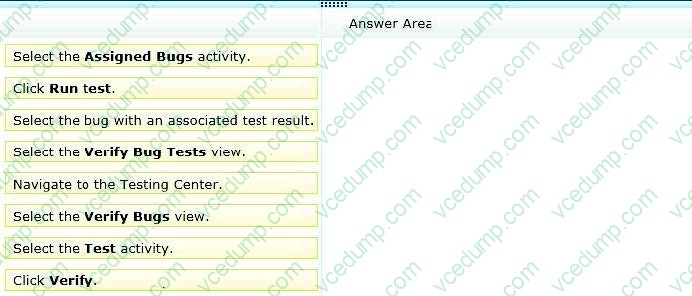
Question 27:
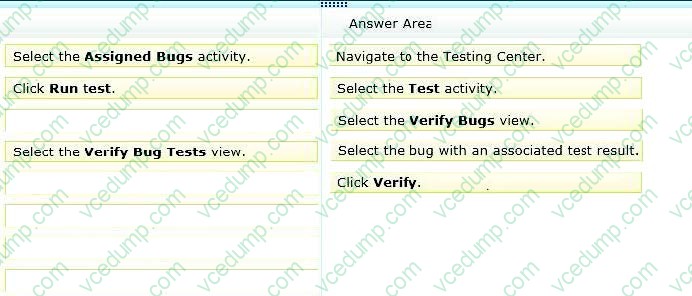
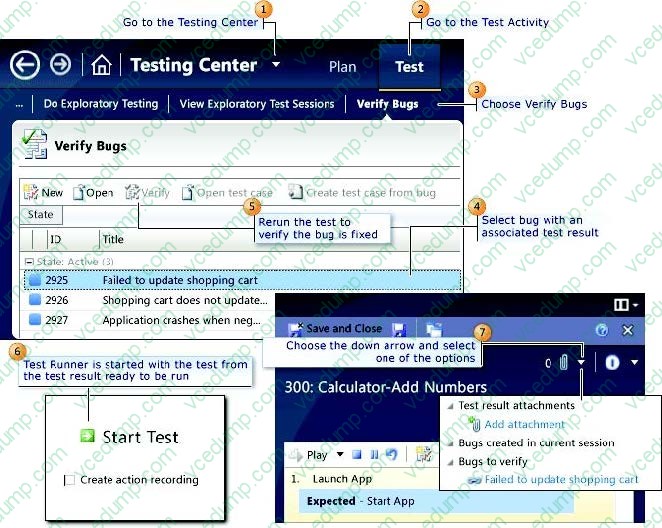
You are using Microsoft Test Manager (MTM) to track bugs that have been found during testing.
You need to verify a bug by re-running the test case associated with the bug.
Which actions should you perform? (To answer, move the five appropriate actions from the list of actions to the answer area and arrange them in the correct order.)
Select and Place:
-
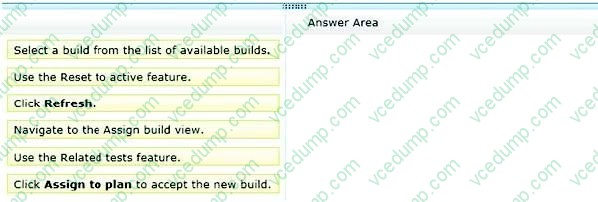
Question 28:
You are using Microsoft Test Manager (MTM) to manage your testing efforts.
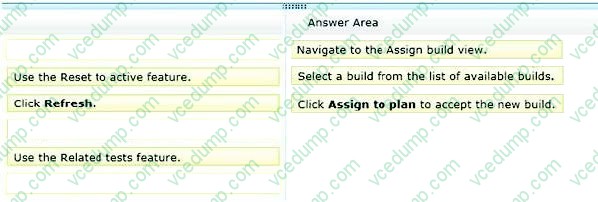
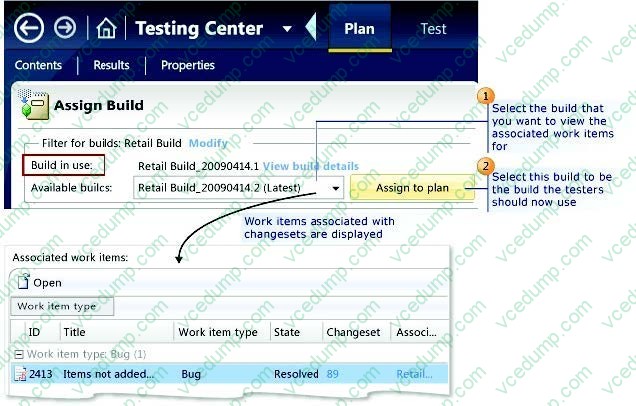
You want to see which work items have changed since the last time you assigned a build to the test plan.
You need to assign a new build to the test plan and create a list of the bugs that have been fixed and the features that have been associated with the new build.
What should you do? (To answer, move the three appropriate actions from the list of actions to the answer area and arrange them in the correct order.)
Select and Place:
-
Question 29:
You are using Microsoft Test Manager (MTM). You are using the Microsoft Solution Framework (MSF) for Agile Software Development process template.
SharePoint integration and reporting are enabled.
You want to assess your team's testing effort.
To do this, you need to:

Identify how much testing has the team completed,
Determine whether the team is likely to finish the testing on time,
Identify how many tests have passed, failed, or blocked, and
Identify how many tests are left to be run. What should you do?
A. From the team portal, open the Test Activity Excel Report.
B. From the team portal, open the Test Plan Progress Report.
C. From the team portal, open the Test Case Readiness Excel Report.
D. Open the Test Results view in MTM. -
Question 30:
Your team uses the Microsoft Visual Studio Scrum 2013 process template in Microsoft Test Manager.
Your team wants to link all test cases to the related product backlog item or bug that they test.
You have a test case ID 121 and a product backlog item with ID 79.
What should you do?
A. Open the test case, and add a Parent link to product backlog item #79.
B. Open the product backlog item, and add a Related link to test case #121.
C. Open the product backlog item, and add a Child link to test case #121.
D. Open the test case, and add a Tests link to product backlog item #79.
Related Exams:
-
62-193
Technology Literacy for Educators -
70-243
Administering and Deploying System Center 2012 Configuration Manager -
70-355
Universal Windows Platform – App Data, Services, and Coding Patterns -
77-420
Excel 2013 -
77-427
Excel 2013 Expert Part One -
77-725
Word 2016 Core Document Creation, Collaboration and Communication -
77-726
Word 2016 Expert Creating Documents for Effective Communication -
77-727
Excel 2016 Core Data Analysis, Manipulation, and Presentation -
77-728
Excel 2016 Expert: Interpreting Data for Insights -
77-731
Outlook 2016 Core Communication, Collaboration and Email Skills
Tips on How to Prepare for the Exams
Nowadays, the certification exams become more and more important and required by more and more enterprises when applying for a job. But how to prepare for the exam effectively? How to prepare for the exam in a short time with less efforts? How to get a ideal result and how to find the most reliable resources? Here on Vcedump.com, you will find all the answers. Vcedump.com provide not only Microsoft exam questions, answers and explanations but also complete assistance on your exam preparation and certification application. If you are confused on your 70-497 exam preparations and Microsoft certification application, do not hesitate to visit our Vcedump.com to find your solutions here.