77-731 Online Practice Questions

Outlook 2016 Core Communication, Collaboration and Email Skills

35 questions available · Page 1 of 4

Updated Exam DumpsVerified AnswersPass Guarantee

Get Complete Exam Dumps
Question 1 Lab simulation

FILL BLANK

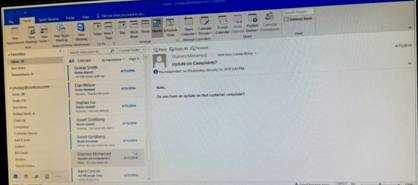
Import the contacts from the PersonalContacts.csv located in the Documents folder into the Contacts folder.
Show answer and explanation

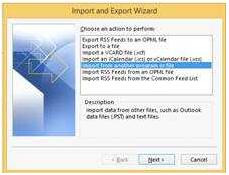
File - open & export - Import/Export
Import from another program or file
Comma separated values
Locate the file and import
Question 2 Lab simulation

FILL BLANK

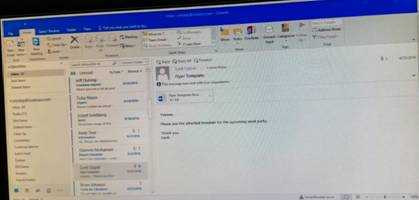
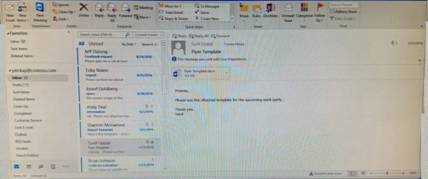
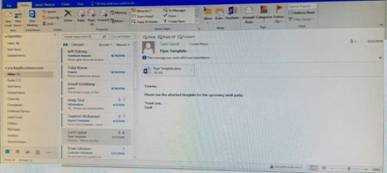
Mark the ''Flyer Template'' message as Do not forward between today and tomorrow. Do not set a reminder.

Show answer and explanation
Question 3 Lab simulation

FILL BLANK

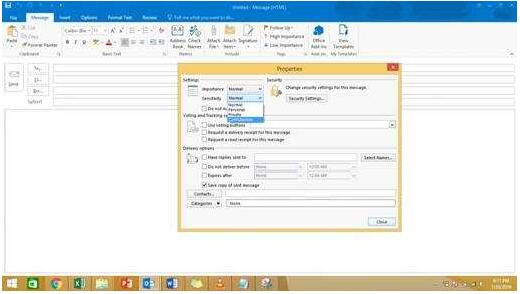
In the Drafts folder, open the ''New Organizational Chart" message. Change the Sensitivity to confidential.
Send the message.

Show answer and explanation

Open the message and click on message options dialog box launcher. Select the sensitivity, close the box and send.

Question 4 Lab simulation

FILL BLANK

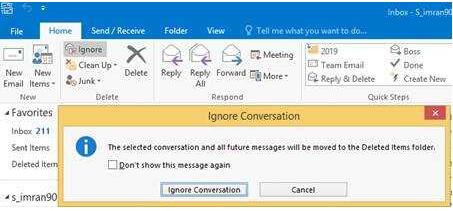
Locate the `'Account'' conversation in the Vendors folder. Send the entire conversation and all future
messages related to that conversation to the Deleted items folder.

Show answer and explanation

Locate the conversation. Click on "Ignore" and then "Ignore Conversation"

Question 5 Lab simulation

FILL BLANK

On the Calendar, locate the ''Team Review'' meeting that occurs on Thursday. Add all members of the ''Customer Service" group, except ''Andy Teal'', to the meeting as required attendees. Make ''Andy Teal'' an optional attendee. Send an invitation to all attendees.

Show answer and explanation

Locate the ''Team Review'' meeting in calendar and double click to open it.
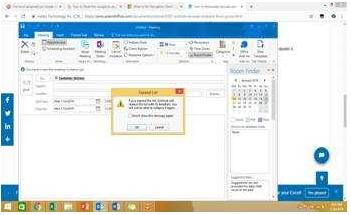
Select the customer service group and then click on + sign. On the Expand list box click on ok. Select and delete ''Andy Teal'' and put it in Optional attendees.

Question 6 Lab simulation

FILL BLANK

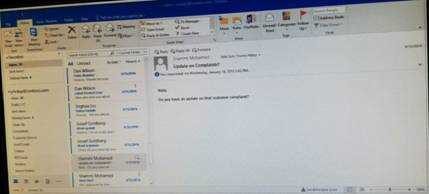
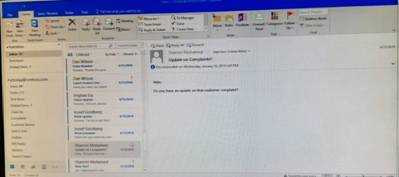
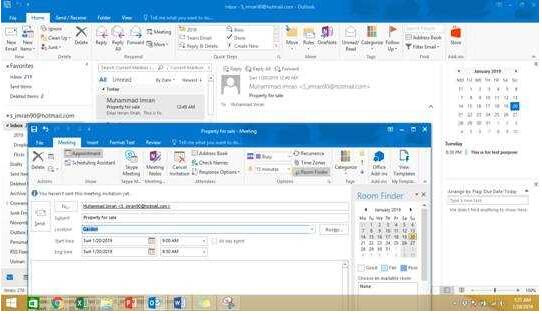
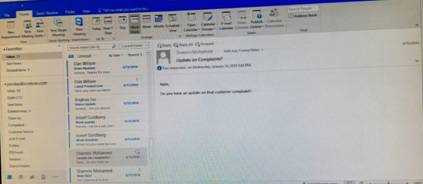
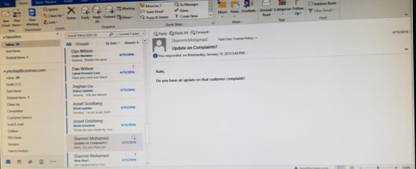
In the inbox, Locate the ''Update on Complaints?' message. From the message, create a meeting request that automatically includes the message content and invite all of the message recipients as attendees.
Schedule the meeting to take place tomorrow, from 9:00 AM to 9:30 AM, in ''Garden; Send the meeting
request.

Show answer and explanation

Locate the message-Click on "Meeting" in Home Tab -Change meeting time and include "Garden" in location

Question 7 Lab simulation

FILL BLANK

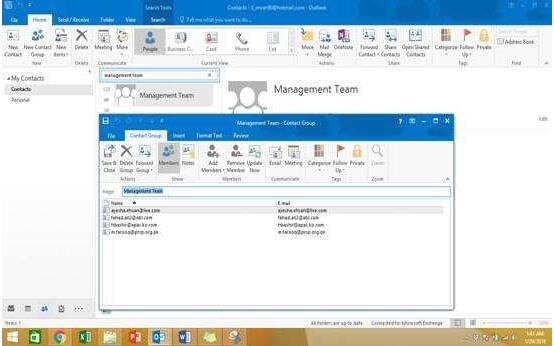
Add the contact ''Dan Wilson" to the ''Management Team'' contact group. Save and close the contact group.

Show answer and explanation

-Search the "management team" contact group Double click the contact group Click Add Members and then select the desired list and search and add members

Question 8 Lab simulation

FILL BLANK

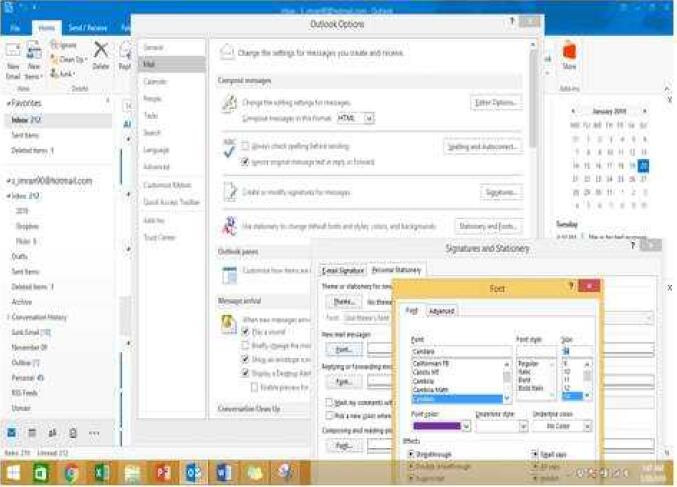
Configure Outlook to set the default font for new email messages to Purple 14-point Candara.

Show answer and explanation

GO to File -Options -Mail -Stationary and fonts -personal stationary tab -New email messages

Question 9 Lab simulation

FILL BLANK

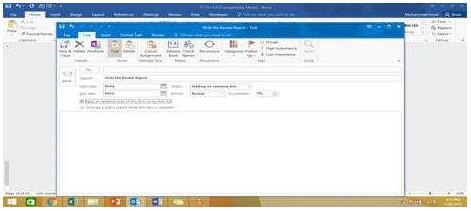
In the Tasks folder, locate the ''Write the Review Report'' task. Assign the task to ''Kim Ralls'' Set the status to Waiting on someone else. Do not keep updated copy of the task on your task list. Send the task.

Show answer and explanation

Click on the tasks on the navigation pane and locate the ''Write the Review Report'' task. Click on assign the task option. Select ''Kim Ralls'' and use the following options.

Question 10 Lab simulation

FILL BLANK

In the Drafts folder locate the message that has the subject ''Workflow for review''. Insert the Customer Service Workflow image from the pictures folder below the body text. Send the message.

Show answer and explanation

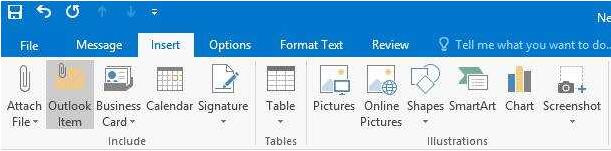
Locate and open the message. Put the curser at the end of the body text, click Insert tab ?pictures-locate
"Customer Service Workflow" image from the pictures folder. Insert and send.