70-688 Exam Details
-
Exam Code
:70-688 -
Exam Name
:Supporting Windows 8.1 -
Certification
:Microsoft Certifications -
Vendor
:Microsoft -
Total Questions
:224 Q&As -
Last Updated
:Apr 07, 2020
Microsoft 70-688 Online Questions & Answers
-
Question 61:
You administer Windows 8.1 Enterprise client computers.
You plan to distribute a new application through a corporate web portal. When you run the application, you receive a warning message as shown in the exhibit.
(Click the Exhibit button.)
You need to prevent the browser from displaying the warning message when users install the application without reducing security.
What should you do?
A. Digitally sign the application with a standard or Extended Validation (EV) code signing certificate from a trusted Certification Authority (CA).
B. Turn off Internet Explorer Enhanced Security Configuration (IE ESC).
C. Import a standard or Extended Validation (EV) code signing certificate on the client computers.
D. Rename the application with the .cat extension. -
Question 62:
HOTSPOT
You support Windows 8.1 Pro computers.
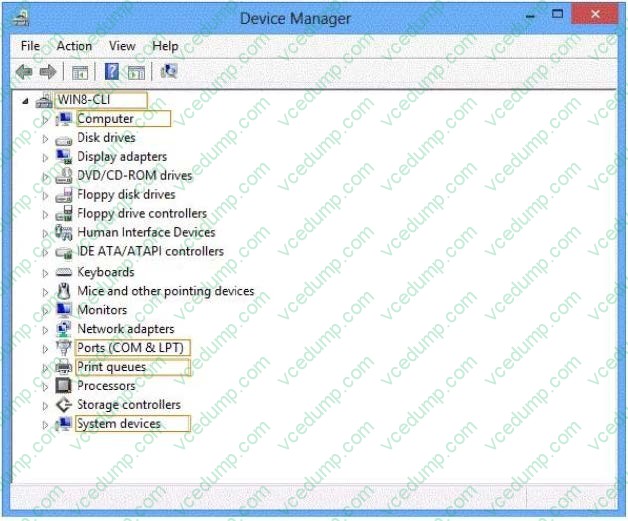
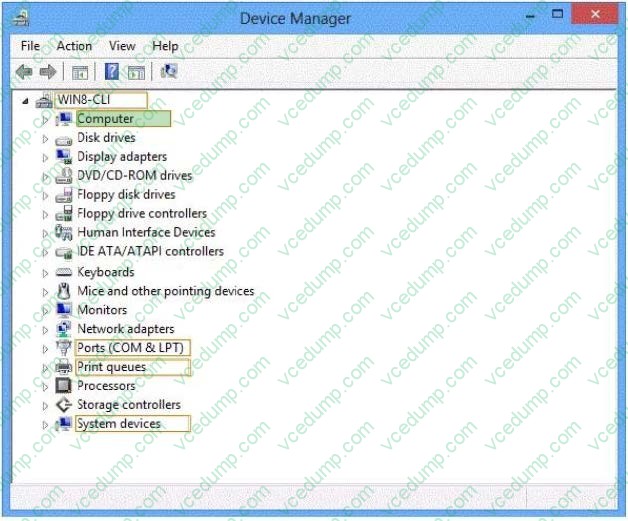
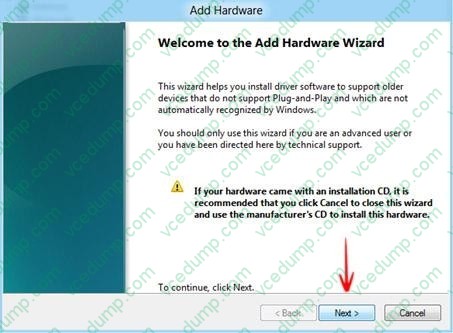
You plug a legacy hardware adapter into a computer. You open Device Manager and notice that the legacy hardware adapter is not listed.
You need to install the legacy hardware adapter.
To which node should you add the legacy hardware adapter? (To answer, select the appropriate object in the answer area.)
Hot Area:
-
Question 63:
You administer Windows 8.1 Enterprise computers in an Active Directory domain. You have purchased a subscription to Windows Intune.
Company security policy requires that Windows Intune track resolved malware for 15 days, and that a system restore point be created before malware remediation.
You need to meet the requirements specified in the security policy.
What should you do?
A. Create a new Windows Intune Mobile Security Policy in the Windows Intune Admin Console with the recommended settings.
B. Connect your Microsoft account to your domain account.
C. Create and deploy a Windows Firewall policy by using a custom policy.
D. Create a new Windows Intune Center Settings policy with custom settings.
E. Create and configure an Endpoint Protection scan.
F. Create a new Windows Intune Agent Settings policy with the recommended settings.
G. Create a new Automatic Approval Update policy.
H. Create a new Windows Intune Agent Settings policy with custom settings. -
Question 64:
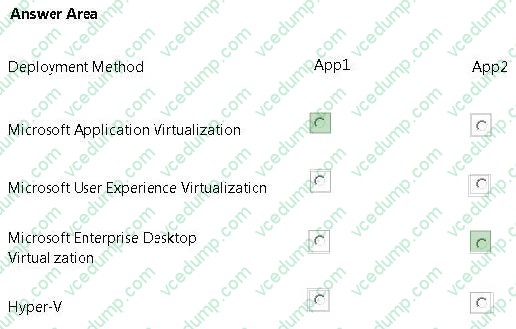
A company has client computers that run Windows 7. The company plans to migrate all of the client computers to Windows 8.1.
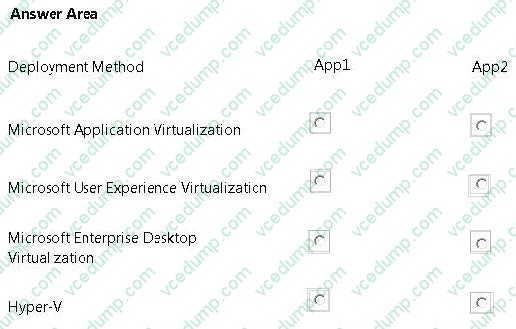
Two custom applications named App1 and App2 are installed on all client computers. A company policy restricts network connectivity when App1 is running. App2 must be run in a centralized environment.
You need to ensure that client computers can run the applications after the migration.
What should you use for each application? (Make only one selection in each column. This question is worth two points.)
Hot Area:
-
Question 65:
At home, you use a desktop computer that runs Windows 8. At work, you use a laptop that runs Windows 8 and is connected to a corporate network. You use the same Microsoft account to log on to both computers.
You have a folder with some personal documents on your desktop computer. The folder must be available and synced between both computers.
You need to ensure that the latest version of these files is available. What should you do?
A. Move the folder to the Documents folder.
B. Go to PC Settings. Under Homegroup, select Documents to be Shared.
C. Install SkyDrive for Windows. In Windows Explorer, move the folder that contains the personal documents to the SkyDrive folder.
D. Move the folder to the Libraries folder.
E. Go to PC Settings. Under Sync your settings, enable App settings.
F. Right-click the folder and click Properties. Under Security, provide Full Control for the Microsoft account. -
Question 66:
You administer computers that run Windows 8 Enterprise in an Active Directory domain in a single Active Directory Site. All user account objects in Active Directory have the Manager attribute populated. The company has purchased a
subscription to Windows Intune. The domain security groups are synchronized with the Microsoft Online directory.
You create a Windows Intune group that specifies a manager as a membership criterion.
You notice that the group has no members.
You need to ensure that users that meet the membership criteria are added to the Windows Intune group.
What should you do?
A. Force Active Directory replication within the domain.
B. Ensure that all user accounts are identified as synchronized users.
C. Ensure that the user who is performing the search has been synchronized with the Microsoft Online directory.
D. Synchronize the Active Directory Domain Service (AD DS) with the Microsoft Online directory. -
Question 67:
You are an administrator for a large company that has an Active Directory domain. Your company has tablets that run Windows RT.
Users report that their tablets get locked after one minute of inactivity. They also report that when they change the Personalization setting to 15 minutes, it resets back to 1 minute.
You need to ensure that the lockout time for inactivity is set to 15 minutes.
What should you do?
A. Log on to the tablets as a local administrator and configure the screensaver wait time and logon options.
B. Modify Group Policy.
C. Modify ActiveSync configuration.
D. Log on to the tablets as a local administrator and run the PowerShell cmdlet Set- ScreenSaverTimeout -Seconds 900.
E. Configure the local system policy Do not display the lock screen setting to Enabled. -
Question 68:
At work, you use a desktop computer that runs Windows 8 Pro. At home, you use a laptop that runs Windows 8. You use the same Microsoft account to log on to both computers.
You want to use the same settings for both computers.
You need to ensure that all computer settings, including stored passwords, are synced between the computers.
What should you do?
A. Add both computers to the same Active Directory domain.
B. Use the same local accounts for both computers.
C. Install SkyDrive for Windows on both computers.
D. Designate both computers as trusted PCs. -
Question 69:
You administer computers and printers on your company network. The computers run Window 8 Pro.
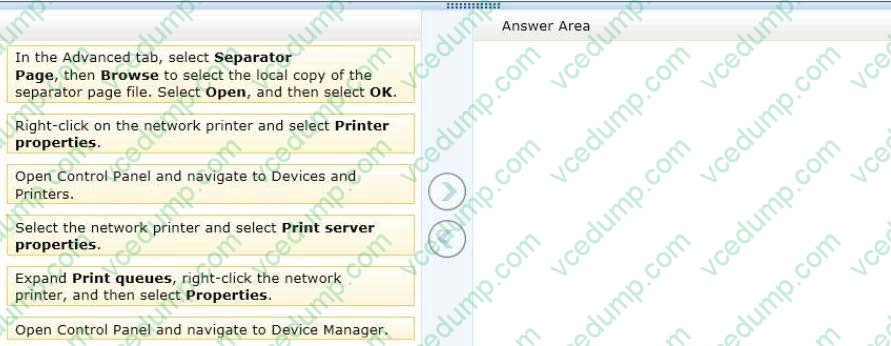
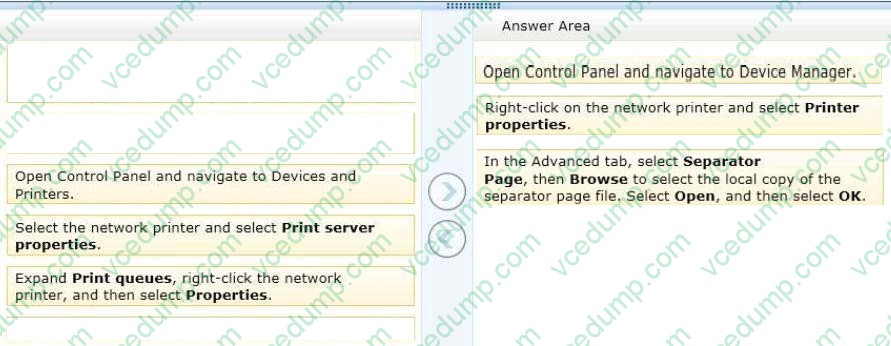
An employee wants to add a separator page to her printer task on a network printer. You create a separator page file and save it to the C:\Windows\System32 folder on her computer.
You need to configure the computer to use the separator page for the print task.
Which three actions should you perform in sequence on the computer? (To answer, move the appropriate actions from the list of actions to the answer area and arrange them in the correct order.)
Select and Place:
-
Question 70:
You have several client computers that run Windows 7 Enterprise.
You plan to configure the computers to dual-boot to Windows 8.1 Enterprise by using a native-boot VHD.
You have a VHD file that contains an installation of Windows 8.1 Enterprise,
You need to inject several device drivers into the VHD file.
Which tool should you use?
A. Bcdedit
B. Bcdboot
C. Pkgmgr
D. Dism
Related Exams:
-
62-193
Technology Literacy for Educators -
70-243
Administering and Deploying System Center 2012 Configuration Manager -
70-355
Universal Windows Platform – App Data, Services, and Coding Patterns -
77-420
Excel 2013 -
77-427
Excel 2013 Expert Part One -
77-725
Word 2016 Core Document Creation, Collaboration and Communication -
77-726
Word 2016 Expert Creating Documents for Effective Communication -
77-727
Excel 2016 Core Data Analysis, Manipulation, and Presentation -
77-728
Excel 2016 Expert: Interpreting Data for Insights -
77-731
Outlook 2016 Core Communication, Collaboration and Email Skills
Tips on How to Prepare for the Exams
Nowadays, the certification exams become more and more important and required by more and more enterprises when applying for a job. But how to prepare for the exam effectively? How to prepare for the exam in a short time with less efforts? How to get a ideal result and how to find the most reliable resources? Here on Vcedump.com, you will find all the answers. Vcedump.com provide not only Microsoft exam questions, answers and explanations but also complete assistance on your exam preparation and certification application. If you are confused on your 70-688 exam preparations and Microsoft certification application, do not hesitate to visit our Vcedump.com to find your solutions here.