MD-102 Exam Details
-
Exam Code
:MD-102 -
Exam Name
:Endpoint Administrator -
Certification
:Microsoft Certifications -
Vendor
:Microsoft -
Total Questions
:431 Q&As -
Last Updated
:May 25, 2026
Microsoft MD-102 Online Questions & Answers
-
Question 81:
You have a Microsoft 365 tenant that contains the objects shown in the following table.
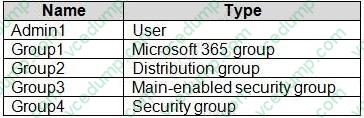
You are creating a compliance policy named Compliance1.
Which objects can you specify in Compliance1 as additional recipients of noncompliance notifications?
A. Group3 and Group4 only
B. Group3, Group4, and Admin1 only
C. Group1, Group2, and Group3 only
D. Group1, Group2, Group3, and Group4 only
E. Group1, Group2, Group3, Group4, and Admin1 -
Question 82:
HOTSPOT
You have a Microsoft Entra tenant that contains the devices shown in the following table.

The tenant contains the groups shown in the following table.
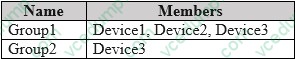
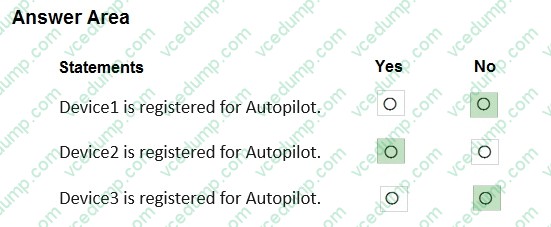
You create a Windows Autopilot deployment profile as shown in the Deployment Profile exhibit. (Click the Deployment Profile tab.)
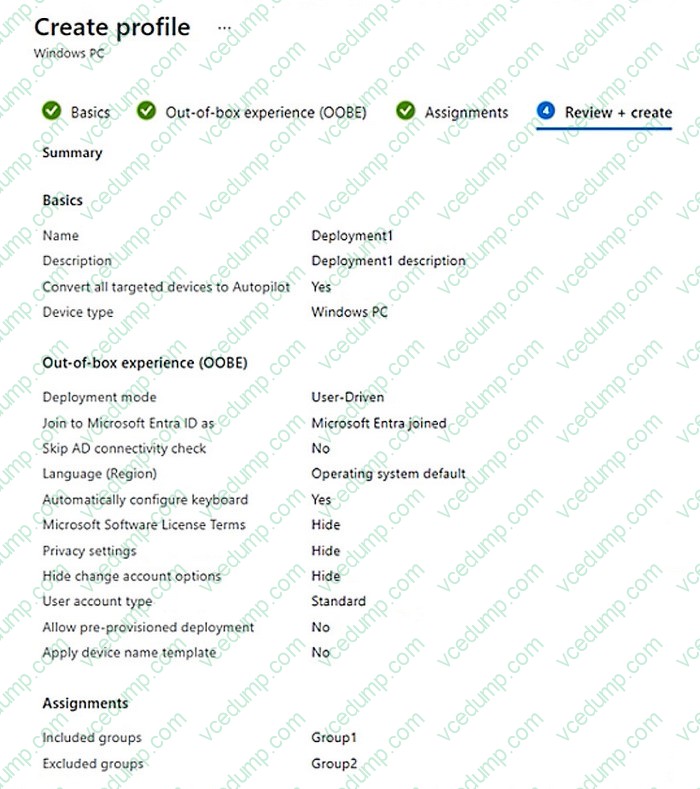
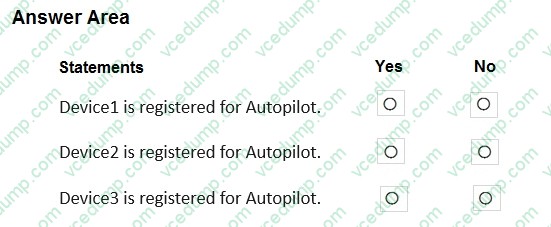
For each of the following statements, select Yes if the statement is true. Otherwise, select No.
NOTE: Each correct selection is worth one point.
-
Question 83:
You have a Microsoft Intune deployment that contains the resources shown in the following table.
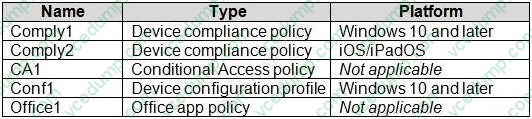
You create a policy set named Set1 and add Comply1 to Set1.
Which additional resources can you add to Set1?
A. Conf1 only
B. Comply2 only
C. Comply2 and Conf1 only
D. CA1, Conf1, and Office1 only
E. Comply2, CA1, Conf1, and Office1 -
Question 84:
Your network contains an Active Directory domain. The domain contains a computer named Computer1 that runs Windows 11.
You need to enable the Windows Remote Management (WinRM) service on Computer1 and perform the following configurations:
1. For the WinRM service, set Startup type to Automatic.
2. Create a listener that accepts requests from any IP address.
3. Enable a firewall exception for WS-Management communications.
Which PowerShell cmdlet should you use?
A. Connect-WSMan
B. Enable-PSRemoting
C. Invoke-WSManAction
D. Enable-PSSessionConfiguration -
Question 85:
HOTSPOT
You have an Azure AD Premium P2 subscription that contains the users shown in the following table.

You purchase the devices shown in the following table.
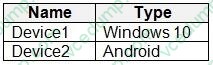
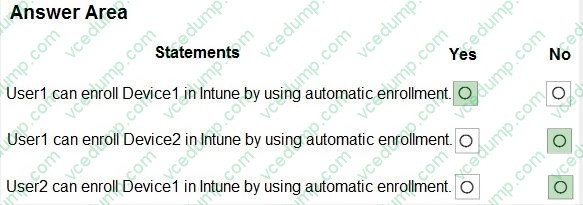
You configure automatic mobile device management (MDM) and mobile application management (MAM) enrollment by using the following settings:
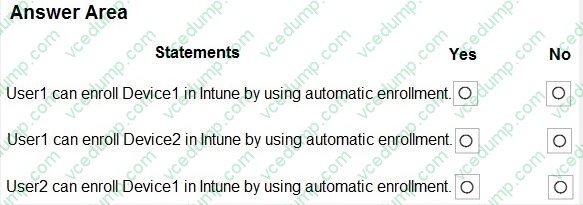
1. MDM user scope: Group1
2. MAM user scope: Group2
For each of the following statements, select Yes if the statement is true. Otherwise, select No.
NOTE: Each correct selection is worth one point.
-
Question 86:
You have a Microsoft 365 E5 subscription. The subscription contains 25 computers that run Windows 11 and are enrolled in Microsoft Intune.
You need to onboard the devices to Microsoft Defender for Endpoint.
What should you create in the Microsoft Intune admin center?
A. an attack surface reduction (ASR) policy
B. a security baseline
C. an endpoint detection and response (EDR) policy
D. an account protection policy
E. an antivirus policy -
Question 87:
HOTSPOT
You have a Microsoft 365 subscription and use the Microsoft Intune Suite.
You have the devices shown in the following table.
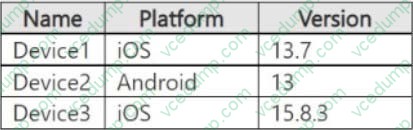
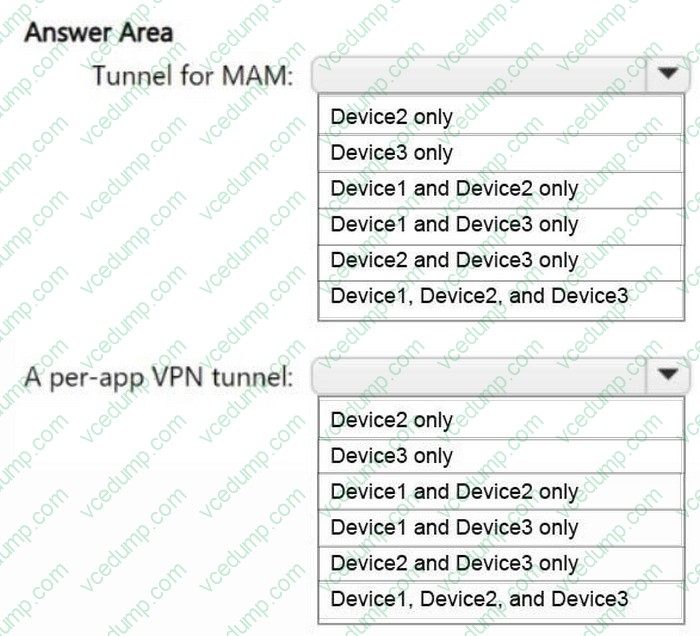
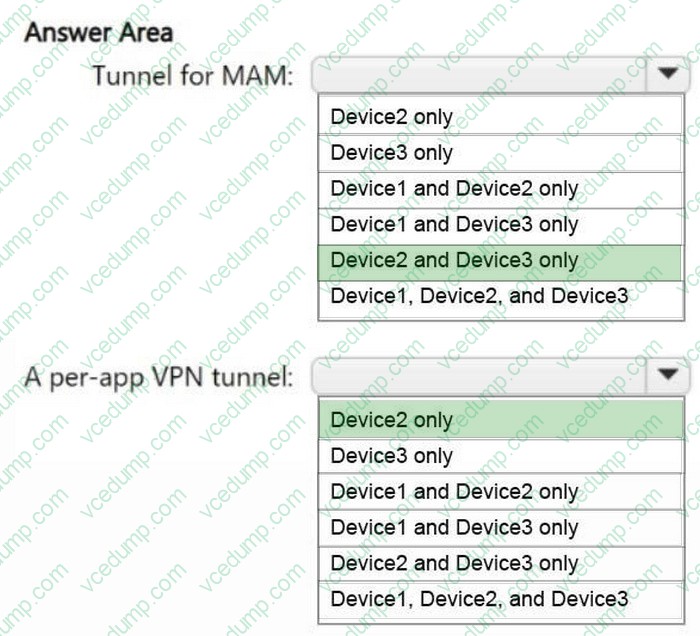
You plan to implement Microsoft Tunnel for Mobile Application Management (MAM).
Which types of tunnels are supported by the devices? To answer, select the appropriate options in the answer area.
NOTE: Each correct selection is worth one point.
-
Question 88:
You need to ensure that computer objects can be created as part of the Windows Autopilot deployment. The solution must meet the technical requirements.
To what should you grant the right to create the computer objects?
A. Server1
B. DC1
C. GroupA
D. Server2 -
Question 89:
HOTSPOT
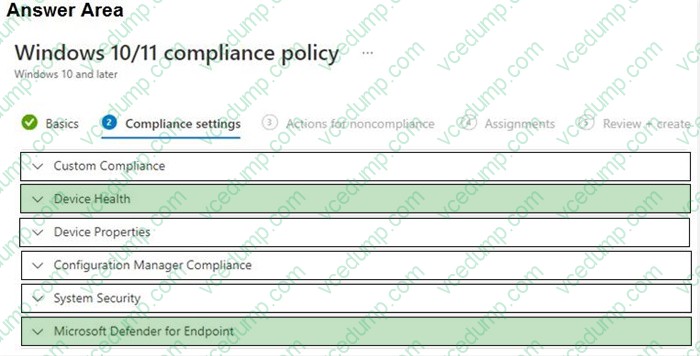
You have a Microsoft 365 subscription. The subscription contains 1,000 computers that run Windows 11 and are enrolled in Microsoft Intune.
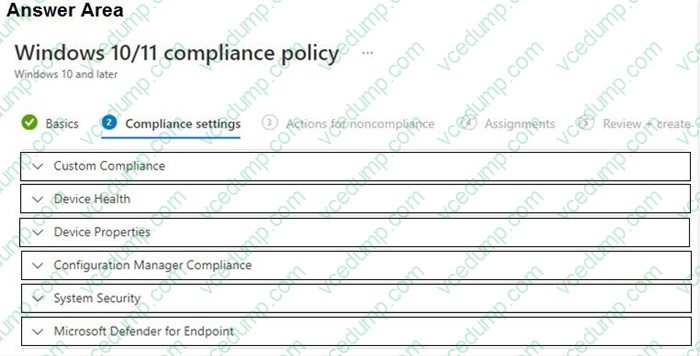
You plan to create a compliance policy that has the following options enabled:
1. Require Secure Boot to be enabled on the device.
2. Require the device to be at or under the machine risk score.
Which two Compliance settings should you configure? To answer, select the appropriate settings in the answer area.
NOTE: Each correct selection is worth one point.
-
Question 90:
You have a Microsoft 365 E5 subscription that contains a group named Group1.
You create a Conditional Access policy named CAPolicy1 and assign CAPolicy1 to Group1.
You need to configure CAPolicy1 to require the members of Group1 to reauthenticate every eight hours when they connect to Microsoft Exchange Online.
What should you configure?
A. Session access controls
B. an assignment that uses a User risk condition
C. an assignment that uses a Sign-in risk condition
D. Grant access controls
Related Exams:
-
62-193
Technology Literacy for Educators -
70-243
Administering and Deploying System Center 2012 Configuration Manager -
70-355
Universal Windows Platform – App Data, Services, and Coding Patterns -
77-420
Excel 2013 -
77-427
Excel 2013 Expert Part One -
77-725
Word 2016 Core Document Creation, Collaboration and Communication -
77-726
Word 2016 Expert Creating Documents for Effective Communication -
77-727
Excel 2016 Core Data Analysis, Manipulation, and Presentation -
77-728
Excel 2016 Expert: Interpreting Data for Insights -
77-731
Outlook 2016 Core Communication, Collaboration and Email Skills
Tips on How to Prepare for the Exams
Nowadays, the certification exams become more and more important and required by more and more enterprises when applying for a job. But how to prepare for the exam effectively? How to prepare for the exam in a short time with less efforts? How to get a ideal result and how to find the most reliable resources? Here on Vcedump.com, you will find all the answers. Vcedump.com provide not only Microsoft exam questions, answers and explanations but also complete assistance on your exam preparation and certification application. If you are confused on your MD-102 exam preparations and Microsoft certification application, do not hesitate to visit our Vcedump.com to find your solutions here.