MD-102 Exam Details
-
Exam Code
:MD-102 -
Exam Name
:Endpoint Administrator -
Certification
:Microsoft Certifications -
Vendor
:Microsoft -
Total Questions
:431 Q&As -
Last Updated
:Jul 13, 2026
Microsoft MD-102 Online Questions & Answers
-
Question 1:
SIMULATION
Username and password
Use the following login credentials as needed:
To enter your username, place your cursor in the Sign in box and select the username below.
To enter your password, place your cursor in the Enter password box and select the password below.
Microsoft 365 Username: [email protected]
Microsoft 365 Password: i7A4$3o^HGD3L~=c[9xuOhM%^4:s11Ai
If the Microsoft Edge browser or Microsoft 365 portal does not load successfully, select the Microsoft Edge browser icon from the task bar, type the URL "https://portal.office.com", and press Enter.
The following information is for technical support purposes only:
Lab Instance: 48262079
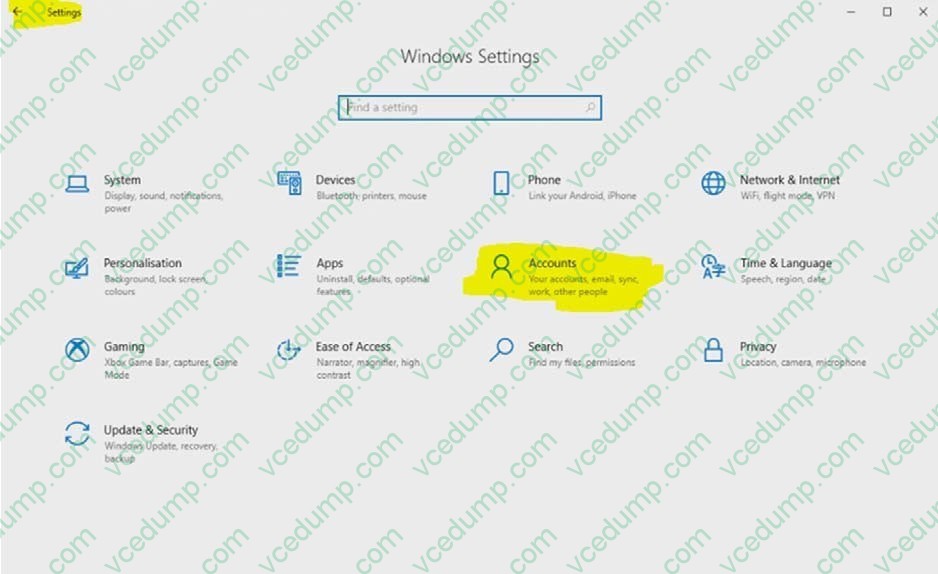
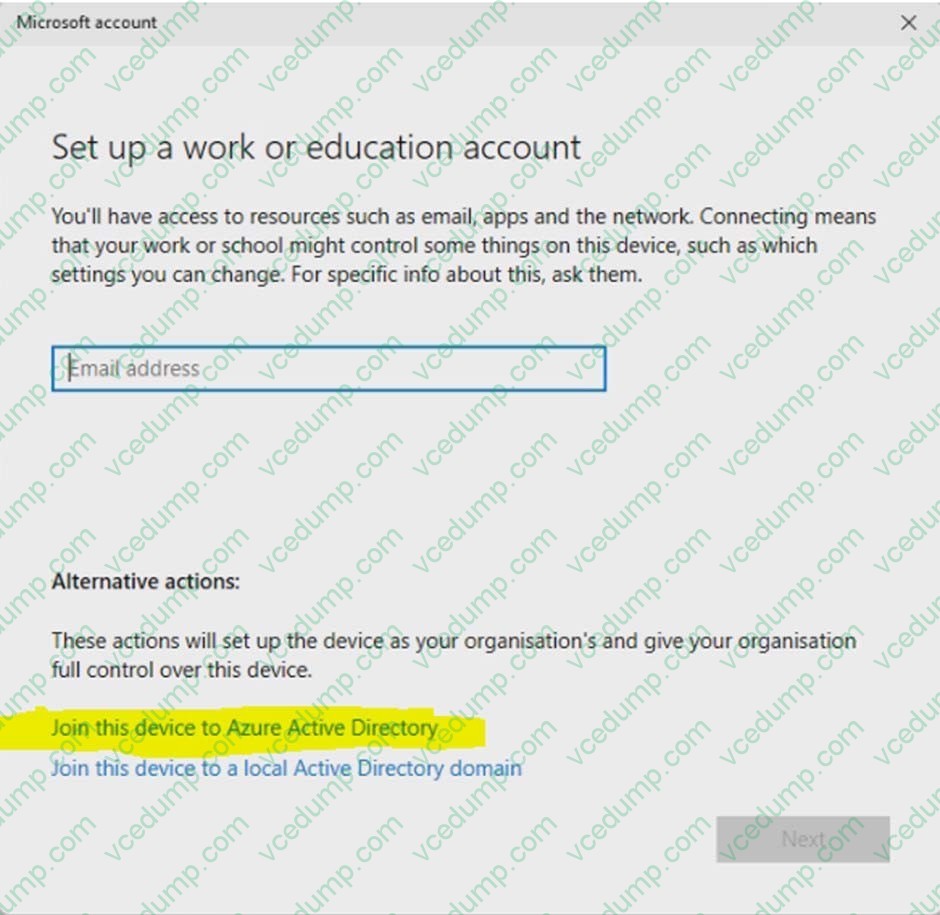
You need to join your computer to the Microsoft Entra tenant.
A. See explanation below.
B. PlaceHolder
C. PlaceHolder
D. PlaceHolder -
Question 2:
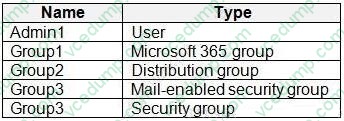
You have a Microsoft 365 tenant that contains the objects shown in the following table.
In the Microsoft Intune admin center, you are creating a Microsoft 365 Apps app named App1.
To which objects can you assign App1?
A. Group3 and Group4 only
B. Admin1, Group3, and Group4 only
C. Group1, Group3, and Group4 only
D. Group1, Group2, Group3, and Group4 only
E. Admin1, Group1, Group2, Group3, and Group4 -
Question 3:
HOTSPOT
You have 100 computers that run Windows 10. You have no servers. All the computers are joined to Azure AD.
The computers have different update settings, and some computers are configured for manual updates.
You need to configure Windows Update. The solution must meet the following requirements:
1. The configuration must be managed from a central location.
2. Internet traffic must be minimized.
3. Costs must be minimized.
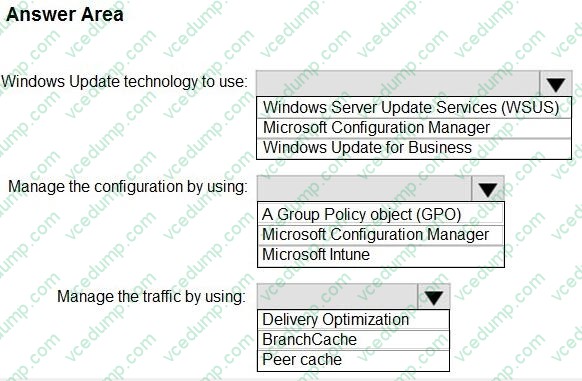
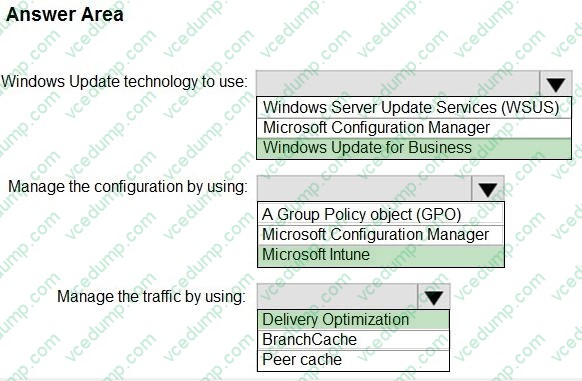
How should you configure Windows Update? To answer, select the appropriate options in the answer area.
NOTE: Each correct selection is worth one point.
-
Question 4:
You have a Microsoft 365 E5 subscription.
All Windows devices are enrolled in Microsoft Intune.
You need to create an app protection policy named Policy1 and apply Policy1 to the devices.
What can you protect by using Policy1?
A. Microsoft Outlook
B. Microsoft OneDrive
C. Microsoft Teams
D. Microsoft Edge -
Question 5:
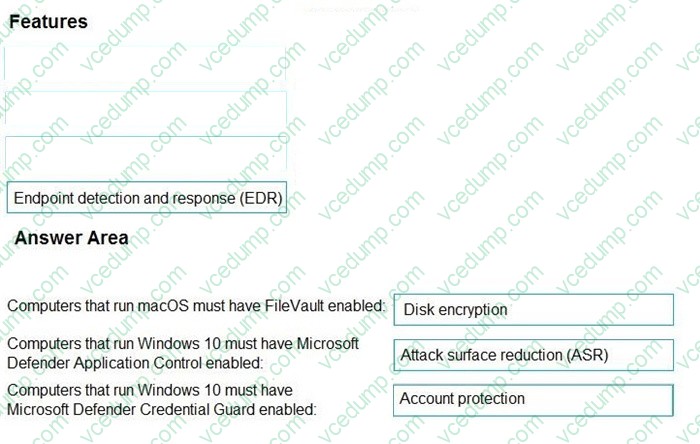
DRAG DROP
You have a Microsoft 365 subscription that contains devices enrolled in Microsoft Intune.
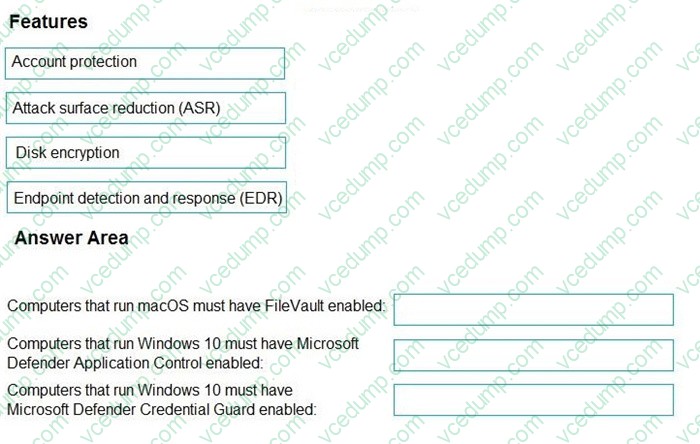
You need to create Endpoint security policies to enforce the following requirements:
1. Computers that run macOS must have FileVault enabled.
2. Computers that run Windows 10 must have Microsoft Defender Credential Guard enabled.
3. Computers that run Windows 10 must have Microsoft Defender Application Control enabled.
Which Endpoint security feature should you use for each requirement? To answer, drag the appropriate features to the correct requirements. Each feature may be used once, more than once, or not at all. You may need to drag the split bar between panes or scroll to view content.
Select and Place:
-
Question 6:
Which users can purchase and assign App1?
A. User3 only
B. User1 and User3 only
C. User1, User2, User3, and User4
D. User1, User3, and User4 only
E. User3 and User4 only -
Question 7:
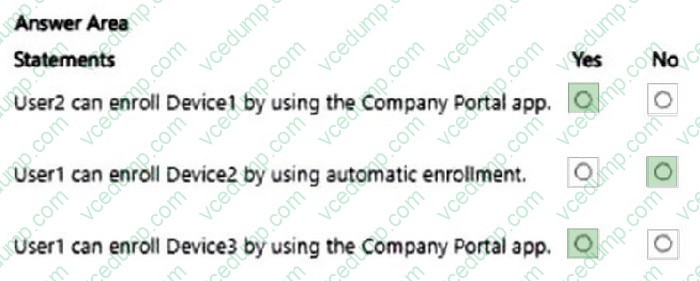
HOTSPOT
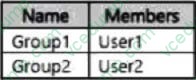
You have a Microsoft Entra tenant that contains the groups shown in the following table.
The tenant contains the devices shown in the following table.
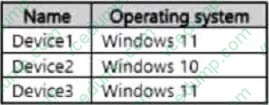
The devices have the enrollment restrictions shown in the following table.
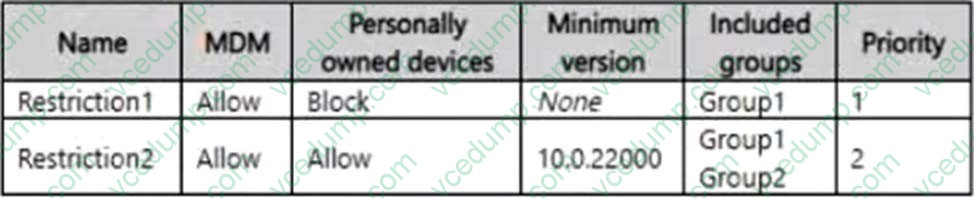
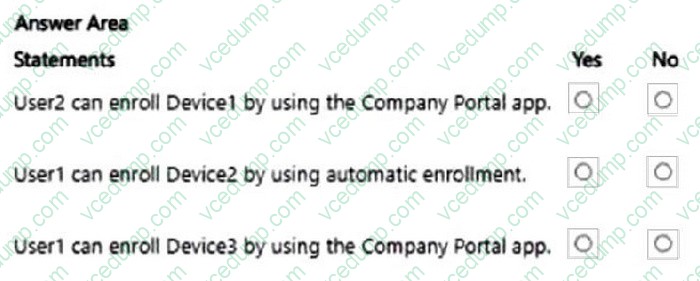
For each of the following statements select yes if the statement is true. Otherwise, select No.
NOTE: Each correct selection is worth one point.
-
Question 8:
You have 100 computers that run Windows 10 and connect to an Azure Log Analytics workspace.
Which three types of data can you collect from the computers by using Log Analytics? Each correct answer presents a complete solution.
NOTE: Each correct selection is worth one point.
A. failure events from the Security log
B. the list of processes and their execution times
C. the average processor utilization
D. error events from the System log
E. third-party application logs stored as text files -
Question 9:
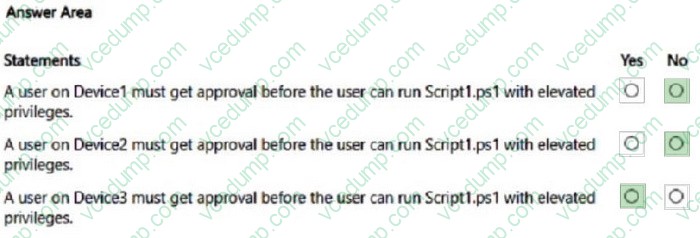
HOTSPOT
You have a Microsoft 365 E5 subscription that contains three Windows devices named Device1, Device2, and Device3. The devices are managed by using Microsoft Intune. Each device contains a file named Script1.ps1.
Users do NOT have local administrator permissions for the devices.
The subscription contains the groups shown in the following table.
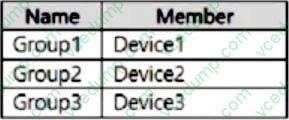
You create two Endpoint Privilege Management (EPM) elevation settings policies that have the following settings:
Name: Policy1
Endpoint Privilege Management: Enabled
- Default elevation response: Deny all requests
- Allow Elevation Detection: No
- Send elevation data for reporting: No
Assignments:
- Included groups: Group1
Name: Policy2
Endpoint Privilege Management: Require support approval
- Allow Elevation Detection: No
- Send elevation data for reporting: No Assignments:
- Included groups: Group3
You create an EPM elevation rules policy named RulesPolicy1 that has the following settings:
Rule name: Rule1
- Elevation type: Automatic
- Child process behavior: Deny all
- File name: Script1.ps1
- File hash: <Hash of Script1.ps1>
Assignments: Group 1, Group2
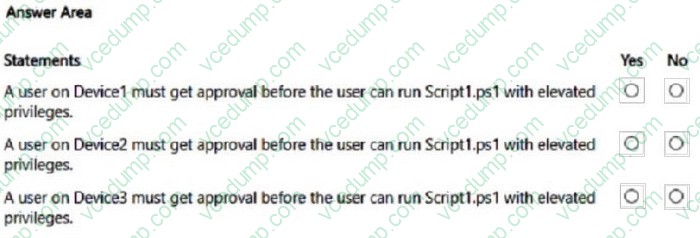
For each of the following statements, select Yes if the statement is true. Otherwise, select No.
NOTE: Each correct selection is worth one point.
-
Question 10:
You have a Windows 11 capable device named Device1 that runs the 64-bit version of Windows 10 Enterprise and has Microsoft Office 2019 installed.
You have the Windows 11 Enterprise images shown in the following table.

Which images can be used to perform an in-place upgrade of Device1?
A. Image1 only
B. Image2 only
C. Image1 and Image2
Related Exams:
-
62-193
Technology Literacy for Educators -
70-243
Administering and Deploying System Center 2012 Configuration Manager -
70-355
Universal Windows Platform – App Data, Services, and Coding Patterns -
77-420
Excel 2013 -
77-427
Excel 2013 Expert Part One -
77-725
Word 2016 Core Document Creation, Collaboration and Communication -
77-726
Word 2016 Expert Creating Documents for Effective Communication -
77-727
Excel 2016 Core Data Analysis, Manipulation, and Presentation -
77-728
Excel 2016 Expert: Interpreting Data for Insights -
77-731
Outlook 2016 Core Communication, Collaboration and Email Skills
Tips on How to Prepare for the Exams
Nowadays, the certification exams become more and more important and required by more and more enterprises when applying for a job. But how to prepare for the exam effectively? How to prepare for the exam in a short time with less efforts? How to get a ideal result and how to find the most reliable resources? Here on Vcedump.com, you will find all the answers. Vcedump.com provide not only Microsoft exam questions, answers and explanations but also complete assistance on your exam preparation and certification application. If you are confused on your MD-102 exam preparations and Microsoft certification application, do not hesitate to visit our Vcedump.com to find your solutions here.