MD-102 Exam Details
-
Exam Code
:MD-102 -
Exam Name
:Endpoint Administrator -
Certification
:Microsoft Certifications -
Vendor
:Microsoft -
Total Questions
:431 Q&As -
Last Updated
:May 25, 2026
Microsoft MD-102 Online Questions & Answers
-
Question 201:
HOTSPOT
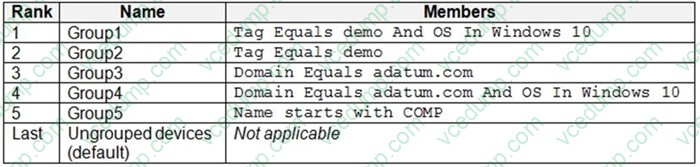
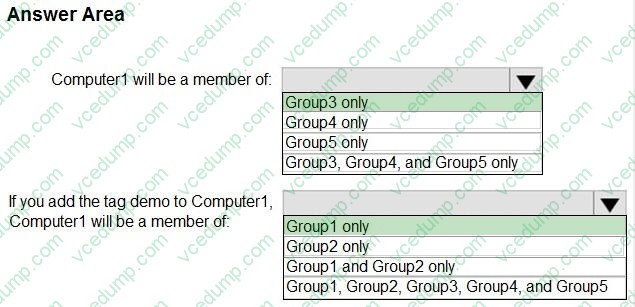
Your company uses Microsoft Defender for Endpoint. Microsoft Defender for Endpoint includes the device groups shown in the following table.
You onboard a computer to Microsoft Defender for Endpoint as shown in the following exhibit.
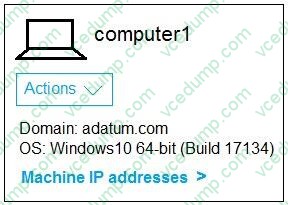
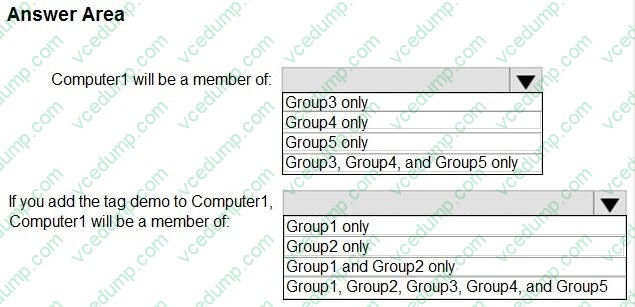
What is the effect of the Microsoft Defender for Endpoint configuration? To answer, select the appropriate options in the answer area.
NOTE: Each correct selection is worth one point.
-
Question 202:
You have a Microsoft 365 subscription that uses Microsoft Intune Suite.
You use Microsoft Intune to manage devices.
Auto-enrollment in Intune is configured.
You have 100 Windows 11 devices in a workgroup.
You need to connect the devices to the corporate wireless network and enroll 100 new Windows 11 devices in Intune.
What should you use?
A. a provisioning package
B. a Group Policy Object (GPO)
C. mobile device management (MDM) automatic enrollment
D. a device configuration policy -
Question 203:
HOTSPOT
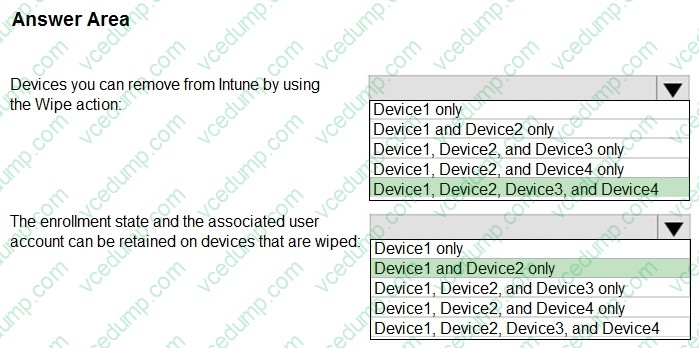
You have devices enrolled in Microsoft Intune as shown in the following table.
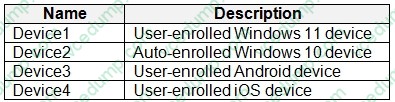
You need to identify the following:
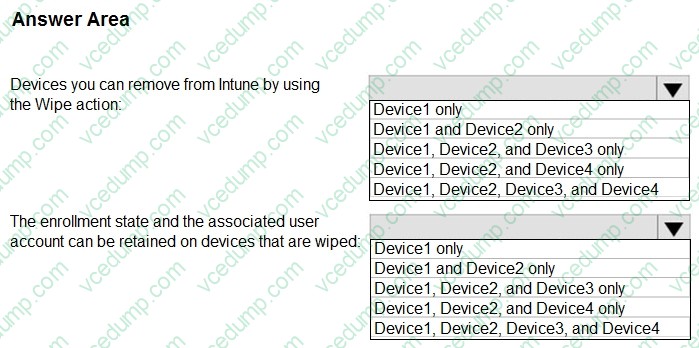
1. Device you can remove from Intune by using the Wipe action.
2. The enrollment state and the associated user account can be retained on devices that are wiped.
What should you identify? To answer, select the appropriate options in the answer area.
-
Question 204:
You have a Microsoft 365 E5 subscription that contains 10 Android Enterprise devices. Each device has a corporate-owned work profile and is enrolled in Microsoft Intune.
You need to configure the devices to run a single app in kiosk mode.
Which Configuration settings should you modify in the device restrictions profile?
A. Users and Accounts
B. General
C. System security
D. Device experience -
Question 205:
HOTSPOT
You have 100 computers that run Windows 10. The computers are joined to Azure AD and enrolled in Microsoft Intune.
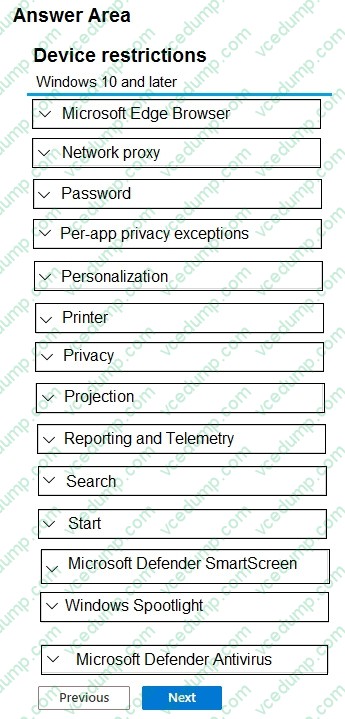
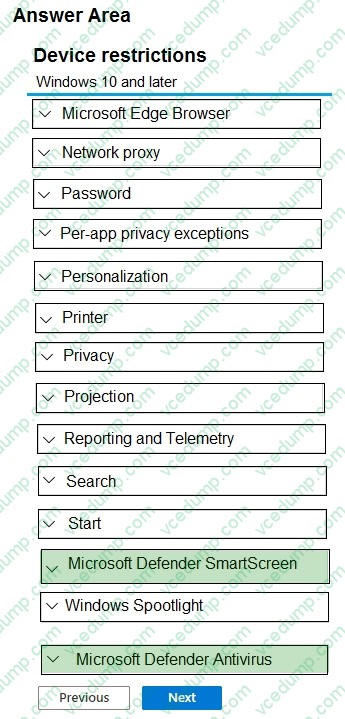
You need to configure the following device restrictions:
1. Block users from browsing to suspicious websites.
2. Scan all scripts loaded into Microsoft Edge.
Which two settings should you configure in the Device restrictions configuration profile? To answer, select the appropriate settings in the answer area.
NOTE: Each correct selection is worth one point.
-
Question 206:
You have computers that run Windows 10 and connect to an Azure Log Analytics workspace. The workspace is configured to collect all available events from the Windows event logs.
The computers have the logged events shown in the following table.
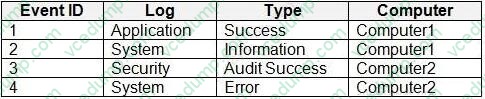
Which events are collected in the Log Analytics workspace?
A. 1 only
B. 2 and 3 only
C. 1 and 3 only
D. 1, 2, and 4 only
E. 1, 2, 3, and 4 -
Question 207:
HOTSPOT
You have a Microsoft 365 tenant that uses Microsoft Intune.
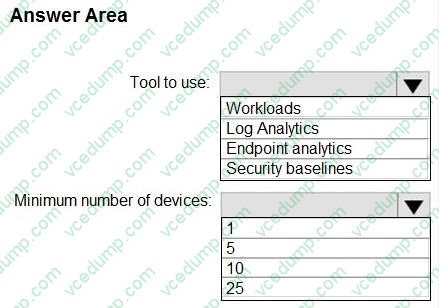
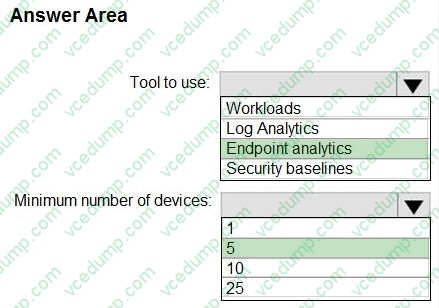
From the Microsoft Intune admin center, you plan to create a baseline to monitor the Startup score and the App reliability score of enrolled Windows 10 devices.
You need to identify which tool to use to create the baseline and the minimum number of devices required to create the baseline.
What should you identify? To answer, select the appropriate options in the answer area.
NOTE: Each correct selection is worth one point.
-
Question 208:
You have a Microsoft 365 E5 subscription.
You need to enroll Android Enterprise devices in Microsoft Intune by using zero-touch enrollment.
What should you do first?
A. From the Microsoft Intune admin center, configure enrollment restrictions.
B. From the Microsoft Intune admin center, create a zero-touch configuration.
C. From the Microsoft Intune admin center, link a Managed Google Play account.
D. From the zero-touch enrollment portal, create a zero-touch configuration. -
Question 209:
You need to prepare for the deployment of the Phoenix office computers.
What should you do first?
A. Generalize the computers and configure the Device settings from the Microsoft Entra admin center.
B. Extract the serial number of each computer to an XML file and upload the file from the Microsoft Intune admin center.
C. Extract the hardware ID information of each computer to a CSV file and upload the file from the Microsoft Intune admin center.
D. Generalize the computers and configure the Mobility (MDM and MAM) settings from the Microsoft Entra admin center.
E. Extract the serial number information of each computer to a CSV file and upload the file from the Microsoft Intune admin center. -
Question 210:
HOTSPOT
You manage devices by using Microsoft Intune. Automatic Intune enrollment is disabled.
Users report that they must enter the mobile device management (MDM) server address during device enrollment.
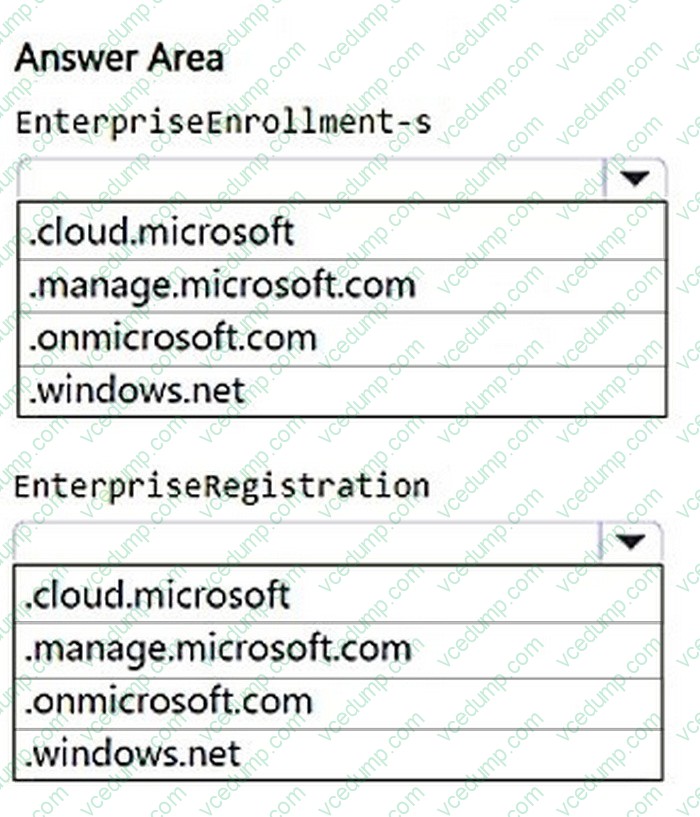
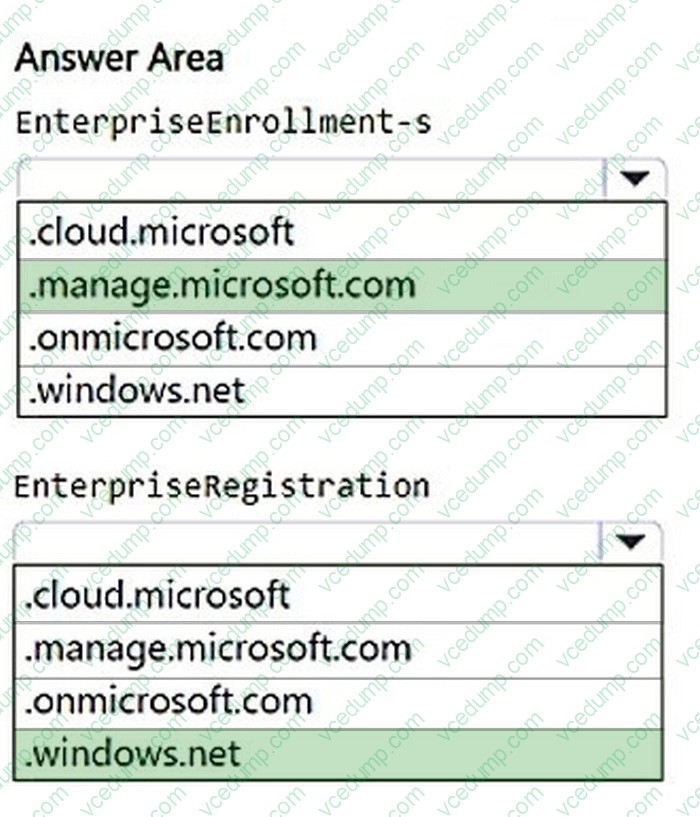
To reduce user interaction during device enrollment, you plan to create the following CNAME DNS hostname records:
1. EnterpriseEnrollment.contoso.com
2. EnterpriseRegistration.contoso.com
You need to configure a fully qualified domain name (FQDN) for each CNAME record to redirect enrollment requests to the Intune servers.
How should you configure each FQDN? To answer, select the appropriate options in the answer area.
NOTE: Each correct selection is worth one point.
Related Exams:
-
62-193
Technology Literacy for Educators -
70-243
Administering and Deploying System Center 2012 Configuration Manager -
70-355
Universal Windows Platform – App Data, Services, and Coding Patterns -
77-420
Excel 2013 -
77-427
Excel 2013 Expert Part One -
77-725
Word 2016 Core Document Creation, Collaboration and Communication -
77-726
Word 2016 Expert Creating Documents for Effective Communication -
77-727
Excel 2016 Core Data Analysis, Manipulation, and Presentation -
77-728
Excel 2016 Expert: Interpreting Data for Insights -
77-731
Outlook 2016 Core Communication, Collaboration and Email Skills
Tips on How to Prepare for the Exams
Nowadays, the certification exams become more and more important and required by more and more enterprises when applying for a job. But how to prepare for the exam effectively? How to prepare for the exam in a short time with less efforts? How to get a ideal result and how to find the most reliable resources? Here on Vcedump.com, you will find all the answers. Vcedump.com provide not only Microsoft exam questions, answers and explanations but also complete assistance on your exam preparation and certification application. If you are confused on your MD-102 exam preparations and Microsoft certification application, do not hesitate to visit our Vcedump.com to find your solutions here.