D-PE-OE-23 Online Practice Questions

Dell PowerEdge Operate 2023

50 questions available · Page 1 of 5

Updated Exam DumpsVerified AnswersPass Guarantee

Get Complete Exam Dumps
Question 1 Single choice

What is an advantage of using virtual media from a management station?

  1. A

    ISO can be transferred to the server using a USB flash drive.

  2. B

    No physical presence is required at the data center.

  3. C

    Remote file shares are supported.

  4. D

    Management station can be separated from the server by firewalls or a DMZ.

Show answer and explanation

Correct answer: B

Explanation

Advantages of Using Virtual Media from a Management Station

Server Management and Configuration Tools (14%)

Define the function of the iDRAC, login procedures, licensing, and connection methods

Explain the management interface options - LCC, racadm, OMSA, iSM, OME

Understanding Virtual Media

Virtual Media allows administrators to remotely mount media devices (such as CD/DVD drives or ISO images) over the network to a server via the Integrated Dell Remote Access Controller (iDRAC)

Purpose: Enables tasks like installing an operating system, updating firmware, or running diagnostics without needing physical access to the server.

Advantages

Option B: No physical presence is required at the data center

Remote Accessibility: Administrators can perform necessary tasks from any location, eliminating the need to be physically present at the server's location.

Efficiency: Reduces travel time and costs associated with onsite visits.

Business Continuity: Allows for prompt responses to issues, minimizing downtime.

References:
Server Management and Configuration Tools (14%): Highlights the importance of remote management capabilities provided by tools like iDRAC and the Virtual Console.
Explanation of Other Options
Option A: ISO can be transferred to the server using a USB flash drive
Analysis: This involves physical transfer and insertion of a USB drive into the server, which contradicts the advantage of using virtual media remotely.
Conclusion: Not an advantage of virtual media from a management station.
Option C: Remote file shares are supported
Analysis: While some virtual media implementations may support remote file shares, the primary advantage is the ability to mount media remotely, not necessarily accessing file shares.
Conclusion: Less accurate than Option B.
Option D: Management station can be separated from the server by firewalls or a DMZ
Analysis: Firewalls and DMZs can actually hinder the use of virtual media due to blocked ports or security restrictions.
Conclusion: Not an advantage and may present challenges.
Conclusion
Using virtual media from a management station provides the significant advantage of allowing administrators to perform tasks without needing to be physically present at the data center. This enhances operational efficiency and responsiveness.
Question 2 Lab simulation

Simulation

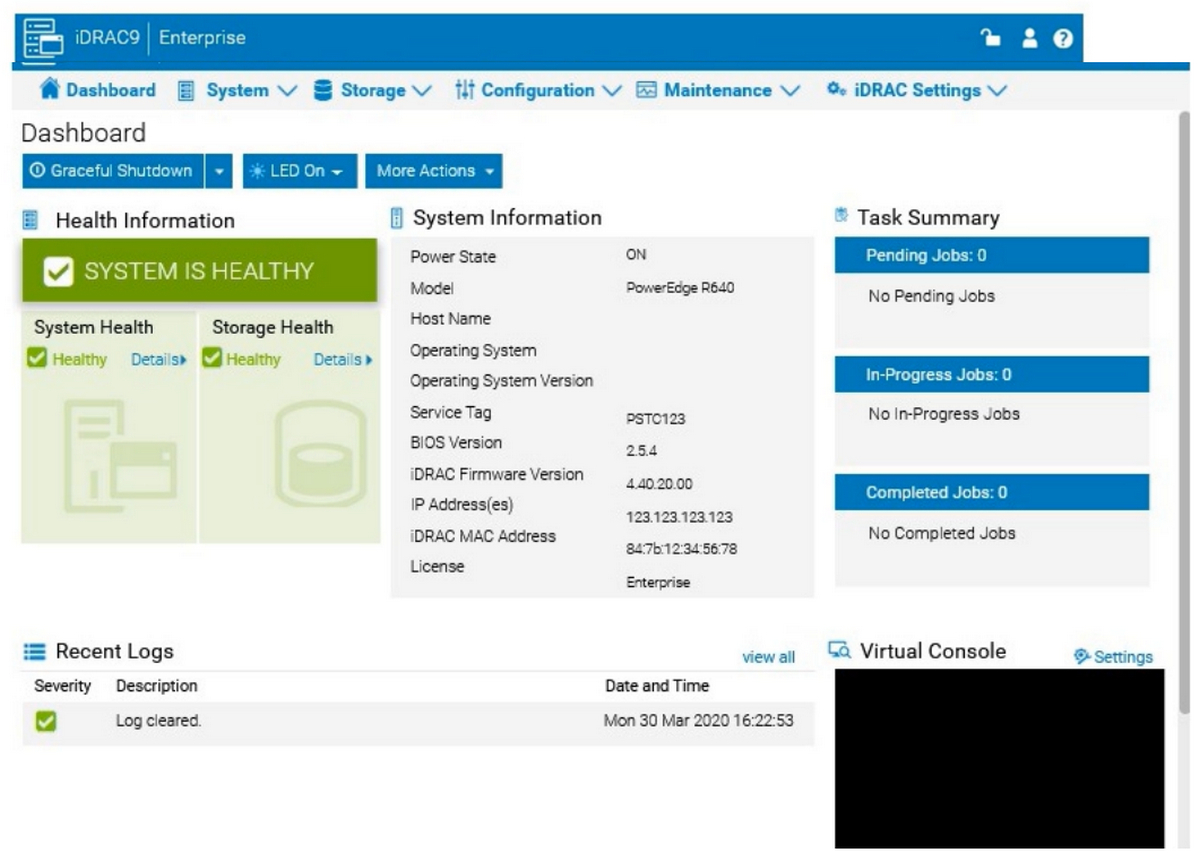
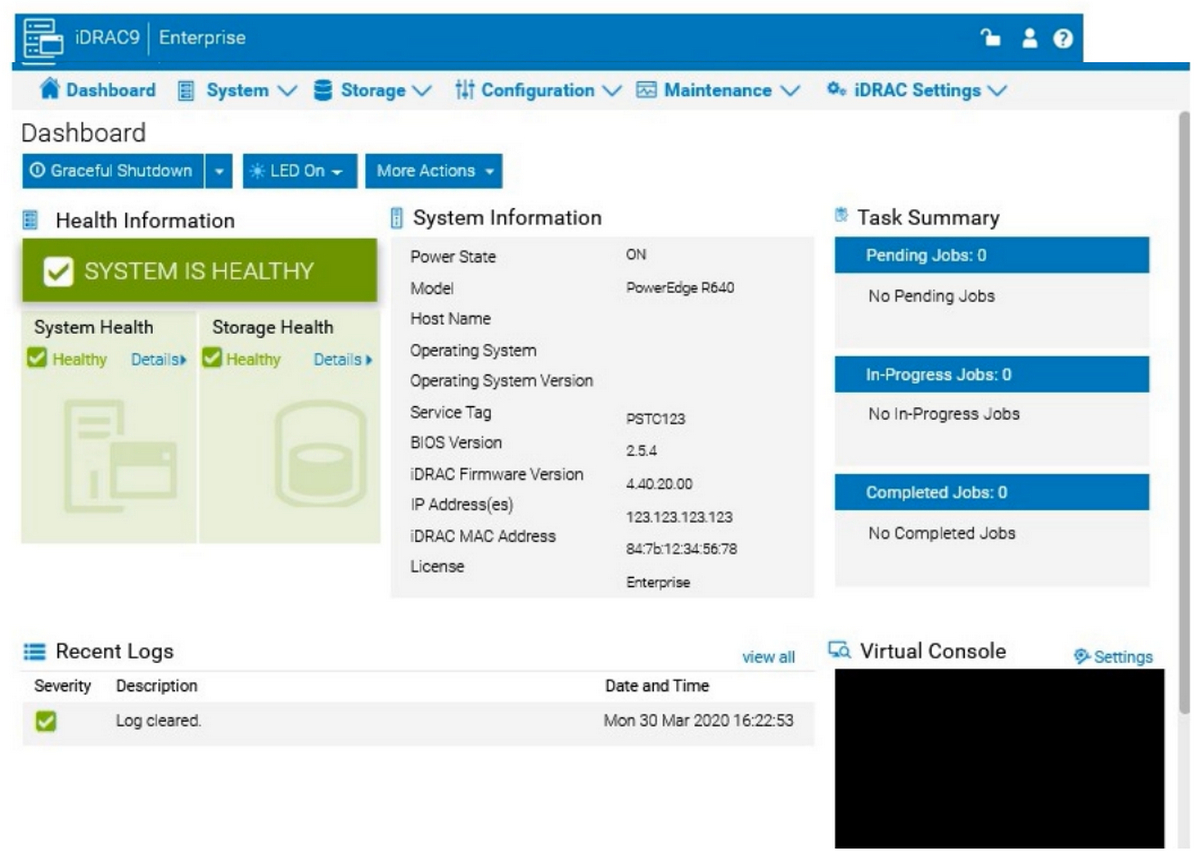
You will need to use the PowerEdge Simulator to correctly answer questions in this Part. The simulator allows you to navigate through the PowerEdge interface and configure many items. You will be scored on your ability to perform tasks, configure items, and gather information within the simulated environment.

A system administrator is asked to create an iDRAC shared management port using LOM2 and create a failover network using LOM3. Use the simulator to accomplish this task.

Show answer and explanation

To configure an iDRAC shared management port with LOM2 and set up a failover network using LOM3 in the iDRAC interface, follow these steps:

Step-by-Step Guide: Access iDRAC Network Settings: In the iDRAC interface, navigate to the iDRAC Settings tab in the top menu bar.
Select Network from the dropdown options to access network configuration settings.

Configure the Shared Management Port: In the Network settings, locate the section for Network Interface or LAN Interface Configuration.
Change the NIC Selection to Shared. This will enable the use of a LAN on Motherboard (LOM) port for iDRAC management.

Select LOM2 for the Shared Management Port: Once you've selected Shared, additional options should appear for selecting the specific port.
Choose LOM2 as the Shared Management Port. This configures iDRAC to use LOM2 for its primary network connection.

Enable Failover and Select LOM3: Look for the Failover settings within the same Network Interface configuration.
Enable Failover and select LOM3 as the failover network port. This configuration allows iDRAC to switch to LOM3 automatically if there is an issue with the connection on LOM2.

Save and Apply Settings: Once you have configured the shared management port and failover settings, click Apply or Save to confirm the configuration.
The iDRAC interface may briefly refresh, and you should receive a confirmation that the settings have been applied successfully.

Verify Configuration:
After the settings are saved, you can verify that LOM2 is listed as the shared management port and that LOM3 is set as the failover port under Network settings.
By following these steps in the simulator, you should be able to configure iDRAC to use LOM2 for the shared management port and set up a failover network with LOM3. Make sure to save your changes to apply the configuration.

Question 3 Multiple choice

Which three components do Dell PowerEdge Servers leverage to maximize Al workload throughput? (Select 3)

  1. A

    DPU

  2. B

    ASIC

  3. C

    FPGA

  4. D

    GPU

  5. E

    CPU

Show answer and explanation

Correct answers: C, D, E

Explanation

Understanding Components that Maximize AI Workload Throughput in Dell PowerEdge Servers

Server Components (26%)

Explain how expansion cards are connected and the features of the GPU, NDC, LOM, and OCP options

Define the different processor, memory options, and memory configurations

Overview

Dell PowerEdge servers are designed to handle demanding workloads, including Artificial Intelligence (AI) applications. To maximize AI workload throughput, these servers leverage specific components that enhance computational capabilities and data processing efficiency.
Components that Maximize AI Workload Throughput

CPU (Central Processing Unit)

The CPU is the primary processor in a server, responsible for executing general computing tasks. In AI workloads, CPUs handle tasks that require complex logic and sequential processing.

Features in Dell PowerEdge Servers:

High core counts for parallel processing.

Support for advanced instruction sets optimized for AI computations.

Multi-threading capabilities to handle multiple processes simultaneously.

GPU (Graphics Processing Unit)

GPUs are specialized processors designed to handle parallel processing tasks efficiently. They excel in performing the matrix and vector operations common in AI algorithms, such as deep learning and neural networks.

Features in Dell PowerEdge Servers:

Integration of high-performance GPUs from leading vendors like NVIDIA.

Support for multiple GPUs in a single server to scale performance.

High memory bandwidth to handle large datasets.

FPGA (Field-Programmable Gate Array)

FPGAs are integrated circuits that can be configured by the customer or designer after manufacturing. They offer customizable hardware acceleration for specific tasks, making them suitable for specialized AI applications.

Features in Dell PowerEdge Servers:

Ability to offload specific AI algorithms for faster processing.

Reconfigurable to adapt to different AI models or workloads.

Lower latency compared to general-purpose processors.

Evaluation of Options

Option A: DPU (Data Processing Unit)

DPUs are specialized processors designed to offload networking and storage tasks from the CPU. While beneficial for certain workloads, they are not primarily used to maximize AI workload throughput in Dell PowerEdge servers.

Conclusion: Not one of the primary components leveraged for AI workloads.

Option B: ASIC (Application-Specific Integrated Circuit)

ASICs are custom-designed chips optimized for a particular application. While they can be used in AI applications, they are not commonly leveraged in Dell PowerEdge servers for AI workload throughput.

Conclusion: Not a standard component in Dell PowerEdge servers for AI workloads.

Option C: FPGA

Correct Answer: FPGAs are leveraged in Dell PowerEdge servers to accelerate AI workloads through
hardware customization.

Option D: GPU

Correct Answer: GPUs are extensively used in Dell PowerEdge servers to maximize AI workload throughput
due to their parallel processing capabilities.

Option E: CPU

Correct Answer: CPUs are fundamental components that, when combined with GPUs and FPGAs,
contribute to maximizing AI workload throughput.

Dell Operate References

Server Components (26%):

Understanding how CPUs, GPUs, and FPGAs function and their roles in enhancing server performance for AI workloads is crucial.

Define the different processor, memory options, and memory configurations: Knowledge of CPU capabilities is essential.

Explain how expansion cards are connected and the features of the GPU, NDC, LOM, and OCP options: Understanding GPU and FPGA integration into servers.

Conclusion

Dell PowerEdge servers leverage CPUs GPUs , , and FPGAs to maximize AI workload throughput. These components work together to provide the necessary computational power and efficiency required for demanding AI applications.

Question 4 Single choice

What operating system supports the last crash tool in iDRAC?

  1. A

    MS Windows

  2. B

    ESXi

  3. C

    SUSE Linux

  4. D

    Unix

Show answer and explanation

Correct answer: C

Explanation

Understanding the Last Crash Tool in iDRAC

Server Troubleshooting (32%)

Explain Configuration Validation, crash capture, and minimum to POST

What is the Last Crash Tool in iDRAC?

Last Crash Screen: A feature in iDRAC that captures the last crash screen output from the operating system before a system crash or unexpected reboot.

Purpose: Provides valuable information for diagnosing the cause of a system crash, aiding in troubleshooting efforts.

Operating System Support

The Last Crash Screen feature is dependent on the operating system's ability to output crash information to the VGA console, which iDRAC can then capture.

Explanation of Options

Option A: MS Windows

While Windows systems do produce crash screens (Blue Screen of Death), capturing this screen via iDRAC requires specific configurations and may not be fully supported.

Conclusion: Less likely to be the correct answer.

Option B: ESXi

VMware ESXi can produce Purple Screen of Death (PSOD), but capturing this via iDRAC's Last Crash Screen feature is not typically supported without additional configuration.

Conclusion: Less likely to be the correct answer.

Option C: SUSE Linux

SUSE Linux supports kernel crash dumps and can output crash information to the console, which iDRAC can capture using the Last Crash Screen feature.

Conclusion: Correct Answer .

Option D: Unix

"Unix" is a broad term encompassing various operating systems. Without specifying, it's unclear which Unix variant is being referred to, and support may vary.

Conclusion: Less specific; not the best answer.

Dell Operate References

Server Troubleshooting (32%)

Explain Configuration Validation, crash capture, and minimum to POST: Emphasizes the importance of understanding features like the Last Crash Screen for troubleshooting.

System Administration (18%)

Verify health status and iDRAC license: Ensuring that the necessary features are enabled and supported on the operating system in use.

Conclusion

SUSE Linux supports the Last Crash Screen tool in iDRAC, allowing for the capture and analysis of crash information directly from the server's console output.

Question 5 Single choice

The Dell PowerEdge server uses SEDs. The server is being repurposed for a new solution, and the data on the drives must be permanently deleted.

How can this be accomplished?

  1. A

    Remove RAID configuration

  2. B

    NVRAM Clear

  3. C

    Format and Reinstall

  4. D

    Secure Erase

Show answer and explanation

Correct answer: D

Explanation

Permanently Deleting Data on Self-Encrypting Drives (SEDs) in a Dell PowerEdge Server

Server Components (26%)

Define storage options, Drives, PERC, IDSDM, and BOSS

Analyze server security features

Understanding Self-Encrypting Drives (SEDs)

SEDs are hard drives or SSDs that automatically encrypt all data written to them using a built-in encryption engine.

Benefits:

Enhanced data security.

Protection of data at rest.

Simplified disposal or repurposing processes through secure key management.

Methods to Permanently Delete Data on SEDs

Secure Erase:

Secure Erase is a process that performs a cryptographic erase by deleting the encryption keys stored within the drive.

Once the encryption key is erased, all data on the drive becomes unrecoverable , as it cannot be decrypted.

Advantages:

Fast and efficient method to render data inaccessible.

Complies with data sanitization standards and regulations.

Implementation:

Can be initiated via the drive's firmware commands.

Dell provides tools within the iDRAC or BIOS to perform Secure Erase operations on SEDs.

Explanation of Options

Option A: Remove RAID configuration

Deleting the RAID configuration removes the logical drive mappings but does not erase the actual data stored on the physical drives.

Data can potentially be recovered using data recovery tools.

Conclusion: Does not securely delete data.

Option B: NVRAM Clear

Clearing NVRAM resets BIOS settings to default.

Does not affect data stored on drives.

Conclusion: Ineffective for deleting drive data.

Option C: Format and Reinstall

Formatting the drives and reinstalling the operating system overwrites some data areas.

Does not guarantee that all data is overwritten.

Data recovery techniques can potentially retrieve residual data.

Conclusion: Not a secure method for data deletion on SEDs.

Option D: Secure Erase

Performs a cryptographic erase by deleting the encryption keys.

Ensures that data cannot be recovered.

Conclusion: Correct Answer .

Dell Operate References

Server Components (26%)

Define storage options, Drives: Understanding the types of drives used and their management.

Analyze server security features: Knowledge of data protection and sanitization methods is crucial for maintaining data security.

Server Troubleshooting (32%)

Explain Configuration Validation, crash capture, and minimum to POST: While not directly related, understanding system configurations assists in performing operations like Secure Erase.

Conclusion

To permanently delete data on SEDs in a Dell PowerEdge server, Secure Erase should be performed. This method ensures that the encryption keys are destroyed, rendering all data on the drives inaccessible and irrecoverable.

Question 6 Single choice

Under which heading can the user locate Lifecycle logs in the iDRAC Ul?

  1. A

    System

  2. B

    System event log

  3. C

    Diagnostics

  4. D

    Maintenance

Show answer and explanation

Correct answer: D

Explanation

ocating Lifecycle Logs in the iDRAC UI

Server Troubleshooting (32%)

Explain the server logs and memory error

Understanding Lifecycle Logs
The Lifecycle Controller logs (Lifecycle Logs) are essential for tracking system events related to hardware configuration, firmware updates, and system health. These logs provide valuable information for troubleshooting and auditing purposes.

Accessing Lifecycle Logs in iDRAC UI

In the iDRAC web interface, administrators can navigate through various sections to access system information and logs.

To locate the Lifecycle Logs:

Log into the iDRAC Web Interface using your administrative credentials.

Navigate to the "Maintenance" Tab:

This section is dedicated to maintenance tasks and logs.

Select "System Event Log" or "Lifecycle Log" under the Maintenance section to view the detailed logs.

Explanation of Options

Option A: System

Incorrect: This section provides system overview and hardware information but does not contain the Lifecycle Logs.

Option B: System Event Log

Incorrect: While this log contains events, the Lifecycle Logs are specifically found under the Maintenance section.

Option C: Diagnostics

Incorrect: This area is used for running diagnostic tests, not for accessing Lifecycle Logs.

Option D: Maintenance

Correct Answer: The Lifecycle Logs are located under the Maintenance heading in the iDRAC UI.

Dell Operate References

Server Troubleshooting (32%): Accessing and interpreting server logs is vital for diagnosing issues.

Explain the server logs and memory error: Understanding where logs are stored helps in efficient troubleshooting.

Server Management and Configuration Tools (14%): Navigating the iDRAC UI is crucial for system administration tasks.
Conclusion

By knowing that the Lifecycle Logs are located under the Maintenance section, administrators can quickly access important system event information necessary for troubleshooting and maintaining server health.

Question 7 Multiple choice

Which two iDRAC license types allow for the use of the virtual console? (Select 2)

  1. A

    iDRAC Basic

  2. B

    iDRAC Datacenter

  3. C

    iDRAC Express

  4. D

    iDRAC Enterprise

Show answer and explanation

Correct answers: B, D

Explanation

Understanding iDRAC License Types and Virtual Console Availability Server Management and Configuration Tools (14%)

Define the function of the iDRAC, login procedures, licensing, and connection methods Overview of iDRAC Licensing
The Integrated Dell Remote Access Controller (iDRAC) provides administrators with remote management capabilities for Dell PowerEdge servers. iDRAC comes with different license levels, each offering various features:

iDRAC Basic

Limited remote management functionality.

Does not support Virtual Console or Virtual Media.

Included by default with most servers.

iDRAC Express

Adds basic remote management features over iDRAC Basic.

Includes monitoring and alerting capabilities.

Does not include Virtual Console access.

iDRAC Enterprise

Offers advanced management features.

Includes Virtual Console and Virtual Media support.

Provides full remote administration capabilities.

iDRAC Datacenter

Includes all features of iDRAC Enterprise.

Adds advanced data center management features, such as telemetry streaming.

Includes Virtual Console functionality.
Explanation of Options

Option A: iDRAC Basic

Incorrect: iDRAC Basic does not provide Virtual Console access.

Option B: iDRAC Datacenter

Correct: Supports Virtual Console, offering advanced remote management features.

Option C: iDRAC Express

Incorrect: Does not include Virtual Console capabilities.

Option D: iDRAC Enterprise

Correct: Provides Virtual Console access and advanced management features.

Dell Operate References

Server Management and Configuration Tools (14%)

Define the function of the iDRAC, login procedures, licensing, and connection methods: Understanding the different iDRAC license levels and their associated features is crucial for effective server management.

System Administration (18%)

Configure user access: Knowing which licenses enable certain features helps in setting up appropriate user permissions.
Conclusion
The Virtual Console feature is available with both iDRAC Enterprise and iDRAC Datacenter licenses. These licenses enable administrators to perform comprehensive remote management tasks, including accessing the server's console over the network.

Question 8 Lab simulation

Simulation

You will need to use the PowerEdge Simulator to correctly answer questions in this Part. The simulator allows you to navigate through the PowerEdge interface and configure many items. You will be scored on your ability to perform tasks, configure items, and gather information within the simulated environment.

A customer wants to change the PSU configuration to a 2+0 with PSU2 as the primary. Use the simulator to complete this task in the iDRAC UI.

Show answer and explanation

To change the Power Supply Unit (PSU) configuration to a 2+0 setup with PSU2 as the primary in the iDRAC interface, follow these steps: Step-by-Step Guide: Navigate to Power Management Settings: In the iDRAC interface, go to the Configuration tab at the top.
Select Power Management from the dropdown options.

Locate the Power Configuration Section: Within the Power Management settings, look for a section labeled Power Configuration or Power Supply Configuration.

Select the Redundancy Policy: Change the Redundancy Policy to 2+0. In this configuration, there will be no redundancy, and both power supplies will be active but configured as independent power sources without failover.

Set PSU2 as the Primary PSU: Locate the option to designate the Primary PSU. Select PSU2 as the primary power source.
This setting ensures that PSU2 will handle the primary power load under normal conditions.

Apply and Save Changes: Once you have made these changes, click Apply or Save to confirm the new configuration.
The interface may prompt for confirmation, after which the settings will be saved, and PSU2 will become the primary power supply under a 2+0 configuration.

Verify Configuration:
Review the updated settings to confirm that PSU2 is now set as primary and that the redundancy policy is 2
+0, meaning only PSU2 is actively providing power without a secondary backup.
By following these steps in the iDRAC simulator, you will set up PSU2 as the primary power source with no redundancy, ensuring a 2+0 configuration. This setup will leverage PSU2 exclusively without automatic failover to another power supply.

Question 9 Lab simulation

Simulation

You will need to use the PowerEdge Simulator to correctly answer questions in this Part. The simulator allows you to navigate through the PowerEdge interface and configure many items. You will be scored on your ability to perform tasks, configure items, and gather information within the simulated environment.

A customer has relocated one of their Dell PowerEdge platform servers from their main data center to a remote edge location, which uses a different network segment.

Reconfigure the iDRAC network settings with the following information: IP Address (CIDR):

192.168.0.120 (/24)
Gateway: 192.168.0.1
DNS Server 1: 10.10.0.1
DNS Server 2: 10.10.0.2

Show answer and explanation

To reconfigure the iDRAC network settings with a new IP address, gateway, and DNS servers, follow these steps in the iDRAC interface:

Step-by-Step Guide:

Access iDRAC Network Settings:
Log into the iDRAC interface.
Go to the iDRAC Settings tab in the top menu.
Select Network from the dropdown options. This will open the network configuration page.

Change IP Address and Subnet Mask: In the Network settings, locate the section for IPv4 Settings.
Set the IP Address to 192.168.0.120.
For the Subnet Mask, since it's a /24 CIDR, set it to 255.255.255.0.

Configure the Gateway:
In the same section, find the field for Default Gateway.
Enter the Gateway as 192.168.0.1.

Update DNS Server Information:
Scroll down to the DNS Server settings.
Enter DNS Server 1 as 10.10.0.1.
Enter DNS Server 2 as 10.10.0.2.

Apply the Settings:
After entering all the new network information, click on Apply or Save to confirm the changes.
The iDRAC interface may prompt for a restart to apply network changes. Follow any prompts as needed.

Verify the Configuration:
After applying the changes, check that the iDRAC is accessible at the new IP address 192.168.0.120.
Confirm that the gateway and DNS settings are properly configured by testing connectivity or accessing the iDRAC from a device within the same network segment.

By completing these steps, you will have reconfigured the iDRAC network settings for the new network segment, allowing remote management of the Dell PowerEdge server at the edge location.

Question 10 Single choice

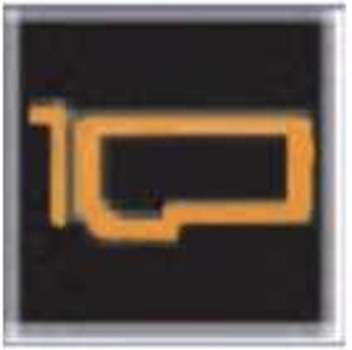
Exhibit.

A customer notices that an indicator on the left control panel of the PowerEdge Server has turned solid amber.

What does this indicate?

  1. A

    PCIe card is present.

  2. B

    PCIe card performing a firmware update.

  3. C

    PCIe card temperature is normal.

  4. D

    PCIe card experiences an error.

Show answer and explanation

Correct answer: D

Explanation

Dell PowerEdge servers are equipped with various LED indicators on the left control panel to provide immediate visual feedback about the server's status and component health. These indicators help in quickly identifying and troubleshooting issues without needing to access the system logs immediately.

Analyzing the Visual Indicators (Server Troubleshooting - 32%)

As per the "Server Troubleshooting" section, one of the key skills is to "Analyze the visual indicators on server components - system ID, PSU, and BLINK."

Color Codes and Their Meanings

Solid Green Light: Indicates normal operation.

Blinking Green Light: Indicates activity (such as data transfer).

Solid Amber Light: Indicates a fault or error condition.

Blinking Amber Light: Indicates a critical error or failure.

Application to the PCIe Card Indicator

In this scenario, the customer notices that an indicator on the left control panel has turned solid amber .
Specifically, this indicator is associated with the PCIe card.

Option A: "PCIe card is present."

Presence is usually indicated by a solid green light, not amber.

Option B: "PCIe card performing a firmware update."

Firmware updates are often indicated by blinking lights but typically not solid amber.

Option C: "PCIe card temperature is normal."

Normal temperature conditions would not trigger an amber light; instead, they would maintain a solid green
light.

Option D: "PCIe card experiences an error."

A solid amber light directly correlates with an error condition in the component.

Conclusion

Given the meaning of the solid amber indicator and its association with error conditions in Dell PowerEdge servers, the correct interpretation is that the PCIe card is experiencing an error.

Dell Operate References

Server Components (26%): Understanding server components like PCIe cards is crucial.

Server Troubleshooting (32%): Analyzing visual indicators is a key troubleshooting step.

Analyze the visual indicators on server components: Knowing the significance of LED colors aids in swift problem identification.