If the Azure portal does not load successfully in the browser, press CTRL-K to reload the portal in a new browser tab.
The following information is for technical support purposes only:
Lab Instance: 12345678
You plan to deploy two DNS servers to subnet2-1. Each server will host a DNS zone for fabrikam,com. The DNS zones will contain records from the on-premises network only. The IP address of the DNS servers will be 10.2.1.4 and 10.2.1.5.
You need to ensure that virtual machines on VNET2 can resolve the names of the on-premises servers in fabrikam.com.
To complete this task, sign in to the Azure portal.
A. See explanation below. B. PlaceHolder C. PlaceHolder D. PlaceHolder
A. See explanation below.
Explanation
Azure DNS Private Resolver
The Azure DNS Private Resolver is a service that can resolve on-premises DNS queries for Azure DNS private zones. Previously, it was necessary to deploy a VM-based custom DNS resolver, or use non-Microsoft DNS, DHCP, and IPAM (DDI) solutions to perform this function.
Create a DNS resolver inside the virtual network
Step 1: In the Azure portal, search for DNS Private Resolvers.
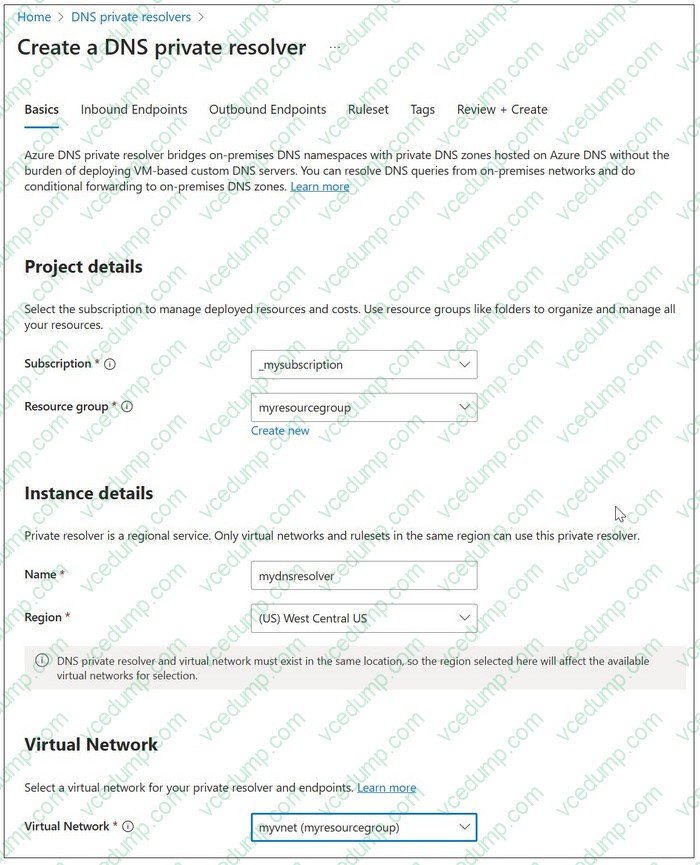
Step 2: Select DNS Private Resolvers, select Create, and then on the Basics tab for Create a DNS Private Resolver, enter the following:
1. Subscription
2. Resource group
3. Name: Enter a name for your DNS resolver (e.g., mydnsresolver)
4. Region: Choose the region you used for the VNET2 virtual network
5. Virtual Network: Select VNET2
Don't create the DNS resolver yet.
Add rules to the forwarding ruleset
Add two new conditional forwarding rules to the ruleset.
Step 3: On the myruleset | Rules page, select Add, and enter the following rule data:
1. Rule Name: Internal
2. Domain Name: internal.fabrikam.com (fabrikam.com domain in the question)
3. Rule State: Enabled
4. Under Destination IP address, enter 10.2.1.4, and then select Add
The question has the IP address of the DNS servers as 10.2.1.4 and 10.2.1.5.
Step 4: On the myruleset | Rules page, select Add, and enter the following rule data:
1. Rule Name: Internal
2. Domain Name: internal.fabrikam.com (fabrikam.com domain in the question)
3. Rule State: Enabled
4. Under Destination IP address, enter 10.2.1.5, and then select Add
You are planning the IP addressing for the subnets in Azure virtual networks.
Which type of resource requires IP addresses in the subnets?
A. internal load balancers B. Azure DDoS Protection for virtual networks C. service endpoint policies D. service endpoints
A. internal load balancers
Explanation
During the creation of the load balancer, you'll configure:
Frontend IP address
Backend pool
Inbound load-balancing rules
When you create an internal load balancer, a virtual network is configured as the network for the load balancer.
A private IP address in the virtual network is configured as the frontend for the load balancer. The frontend IP address can be Static or Dynamic.
Incorrect:
* service endpoints
A service endpoint is created in a virtual subnet, but there is no IP address defined for the Service endpoint.
Service endpoints are a way for Azure DevOps to connect to external systems or services. They're a bundle of properties securely stored by Azure DevOps, which includes but isn't limited to the following properties:
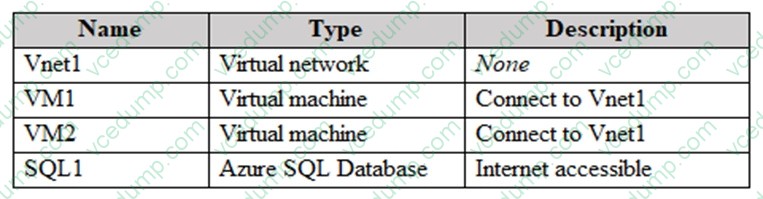
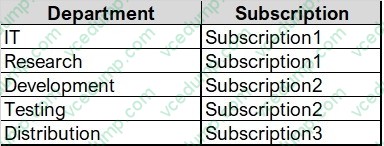
You have an Azure subscription that contains the resources shown in the following table.
You need to implement an ExpressRoute circuit to access the resources in the subscription. The solution must ensure that the on-premises network connects to the Azure resources by using the ExpressRoute circuit.
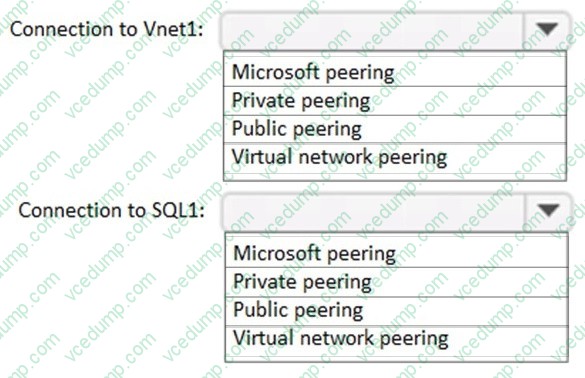
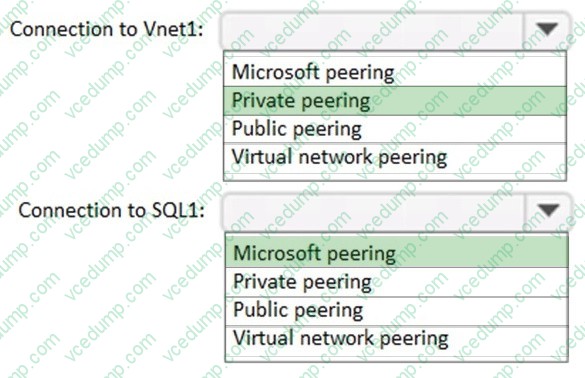
Which type of peering should you use for each connection? To answer, select the appropriate options in the answer area.
NOTE: Each correct selection is worth one point.
Box 1: Private peering
Azure Private Peering. One goal of implementing ExpressRoute is to connect on-premises networks with remote Azure networks. Private peering connects an on-premises network with Azure Cloud services such as virtual networks and resources connected to those virtual networks. Azure private peering makes the Azure networks a trusted extension of the core, on-premises network.
Note: In order for you to successfully establish private peering connectivity from on-premises to the ExpressRoute circuit, you'll need to engage your service provider with the circuit service key.
Incorrect:
* Public peering, Microsoft peering
Note that if the ExpressRoute circuit is unavailable, the VPN route will handle only private peering connections. Public peering and Microsoft peering connections pass over the Internet.
* Public Peering.
It's not really an option because public peering is depreciated for all new ExpressRoute circuits. We won't go into details on public peering because it's depreciated, but it's worth mentioning if you ever run into it on older ExpressRoute circuits.
Box 2: Microsoft peering
Microsoft peering connection on-premises networks to Microsoft 365 and Azure PaaS services, Office products for example.
Azure SQL Database is a fully managed platform as a service (PaaS) database engine that handles most of the database management functions such as upgrading, patching, backups, and monitoring without user involvement.
You have an Azure subscription that contains the resources shown in the following table.
Gateway1 provides access to App1 by using a URL of https://app1.contoso.com.
You create a new web app named App2.
You need to configure Gateway1 to enable access to App2 by using a URL of https://app2.contoso.com.Thesolutionmustminimizeadministrativeeffort.
What should you configure on Gateway1?
A. a backend pool and a routing rule B. a listener and a routing rule C. a listener, a backend pool, and a routing rule D. a listener and a backend pool
C. a listener, a backend pool, and a routing rule
Question 235:
SIMULATION
Username and password
Use the following login credentials as needed:
To enter your username, place your cursor in the Sign in box and click on the username below.
To enter your password, place your cursor in the Enter password box and click on the password below.
If the Azure portal does not load successfully in the browser, press CTRL-K to reload the portal in a new browser tab.
The following information is for technical support purposes only:
Lab Instance: 12345678
You need to ensure that virtual machines on VNET1 and VNET2 are included automatically in a DNS zone named contoso.azure. The solution must ensure that the virtual machines on VNET1 and VNET2 can resolve the names of the virtual machines on either virtual network.
To complete this task, sign in to the Azure portal.
A. See explanation below. B. Placeholder C. Placeholder D. Placeholder
A. See explanation below.
Explanation
What is the auto registration feature in Azure DNS private zones?
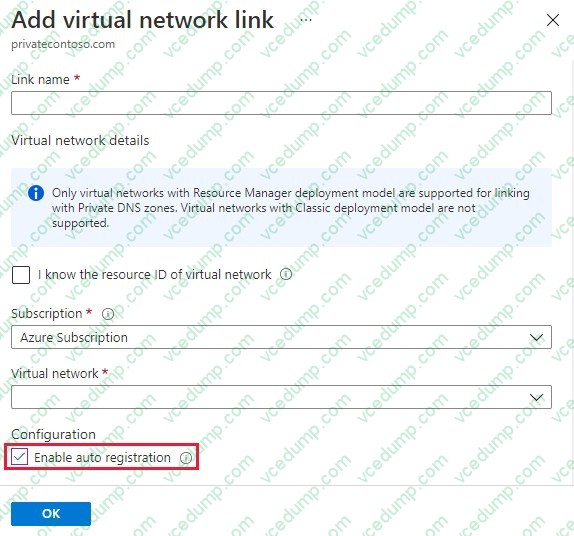
The Azure DNS private zones auto registration feature manages DNS records for virtual machines deployed in a virtual network. When you link a virtual network with a private DNS zone with this setting enabled, a DNS record gets created for each virtual machine deployed in the virtual network.
For each virtual machine, an A record and a PTR record are created. DNS records for newly deployed virtual machines are also automatically created in the linked private DNS zone. When a virtual machine gets deleted, any associated DNS records also get deleted from the private DNS zone.
Step 1: Locate the DNS zone contosoazure
Step 2: On the left pane, select Virtual network links.
Step 3: Select Add.
Step 4: Type myLink for the Link name.
Step 5: For Virtual network, select VNET1.
Step 6: Select the Enable auto registration check box.
To enable auto registration, select the checkbox for "Enable auto registration" when you create the virtual network link.
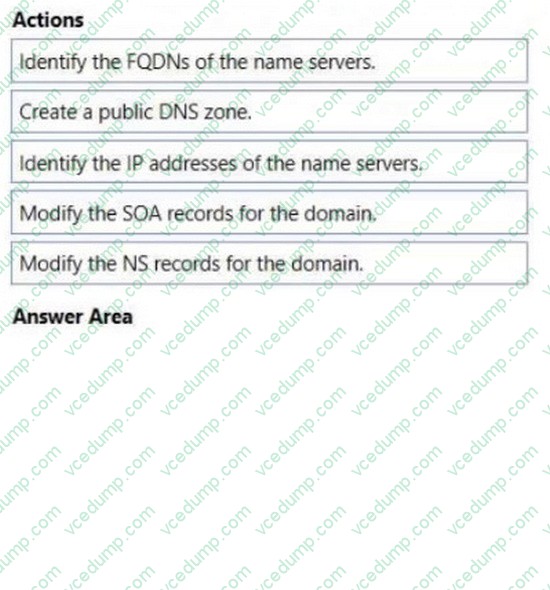
You register a DNS domain with a third-party registrar.
You need to host the DNS zone on Azure.
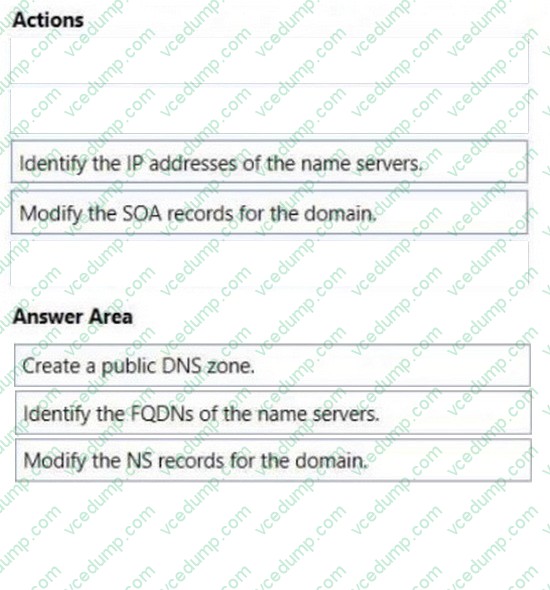
Which three actions should you perform in sequence? To answer, move the appropriate actions from the list of actions to the answer area and arrange them in the correct order.
Select and Place:
Step 1: Create a public DNS zone.
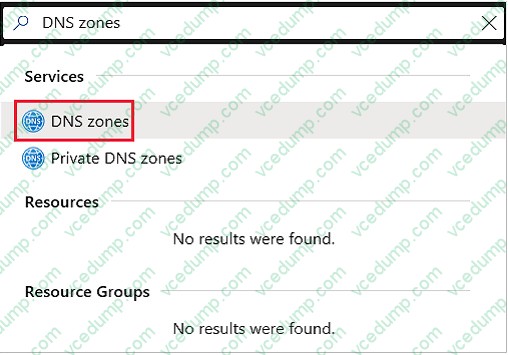
Create a DNS zone 1. Go to the Azure portal to create a DNS zone. Search for and select DNS zones.
2. Select Create DNS zone.
3. On the Create DNS zone page, enter the following values, and then select Create.
Step 2: Identify the FQDNs of the name servers.
Retrieve name servers.
Before you can delegate your DNS zone to Azure DNS, you need to know the name servers for your zone.
Azure DNS gives name servers from a pool each time a zone is created.
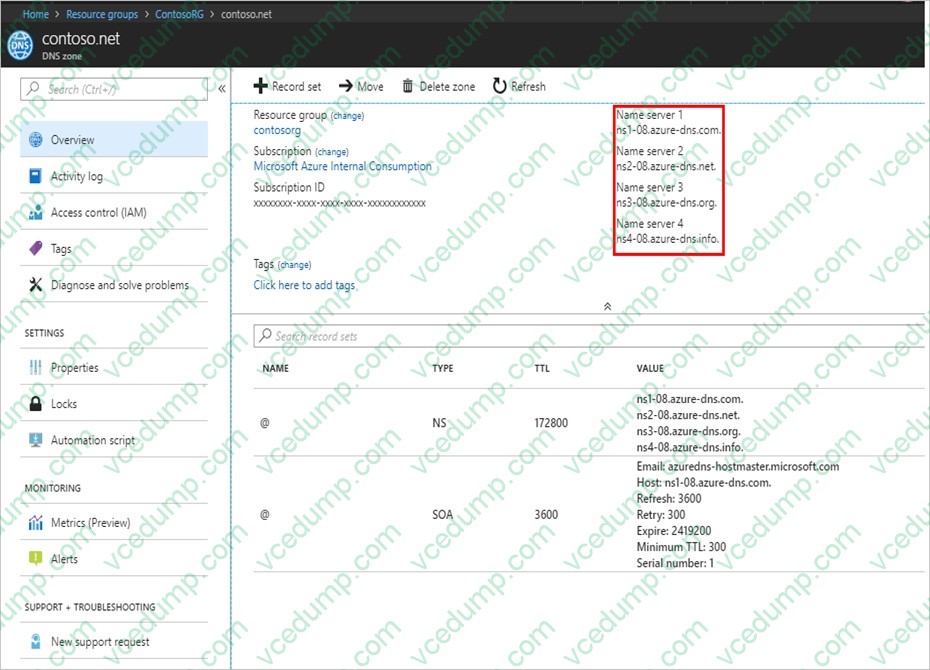
With the DNS zone created, in the Azure portal Favorites pane, select All resources. On the All resources page, select your DNS zone. If the subscription you've selected already has several resources in it, you can enter your domain name in the Filter by name box to easily access the application gateway.
Retrieve the name servers from the DNS zone page. In this example, the zone contoso.net has been assigned name servers ns1-01.azure-dns.com, ns2-01.azure-dns.net, *ns3-01.azure-dns.org, and ns4- 01.azure-dns.info:
Azure DNS automatically creates authoritative NS records in your zone for the assigned name servers.
Step 3: Modify the NS records for the domain.
Delegate the domain
Once the DNS zone gets created and you have the name servers, you'll need to update the parent domain with the Azure DNS name servers.
Each registrar has its own DNS management tools to change the name server records for a domain.
1. In the registrar's DNS management page, edit the NS records and replace the NS records with the Azure DNS name servers.
2. When you delegate a domain to Azure DNS, you must use the name servers that Azure DNS provides.
Use all four name servers, regardless of the name of your domain. Domain delegation doesn't require a name server to use the same top-level domain as your domain.
Note: This question is part of a series of questions that present the same scenario. Each question in the series contains a unique solution that might meet the stated goals. Some question sets might have more than one correct solution, while others might not have a correct solution.
After you answer a question in this section, you will NOT be able to return to it. As a result, these questions will not appear in the review screen.
You have an Azure application gateway that has Azure Web Application Firewall (WAF) enabled.
You configure the application gateway to direct traffic to the URL of the application gateway.
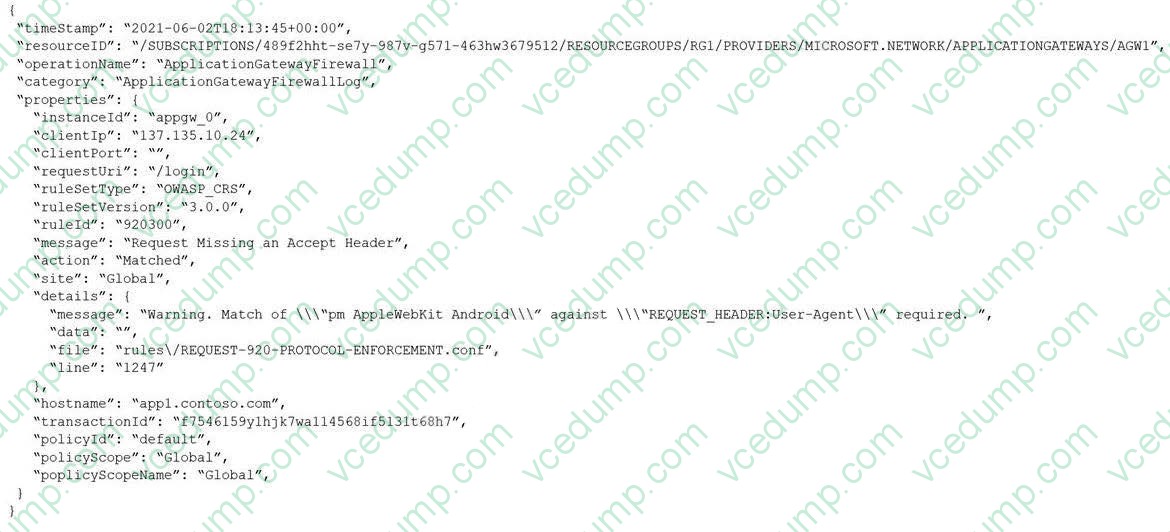
You attempt to access the URL and receive an HTTP 403 error. You view the diagnostics log and discover the following error.
You need to ensure that the URL is accessible through the application gateway.
Solution: You create a WAF policy exclusion for request headers that contain 137.135.10.24.
Does this meet the goal?
A. Yes B. No
B. No
Explanation
The parameter here should be RemoteAddr not Request header.
Nowadays, the certification exams become more and more important and required by more and more
enterprises when applying for a job. But how to prepare for the exam effectively? How to prepare
for the exam in a short time with less efforts? How to get a ideal result and how to find the
most reliable resources? Here on Vcedump.com, you will find all the answers.
Vcedump.com provide not only Microsoft exam questions,
answers and explanations but also complete assistance on your exam preparation and certification
application. If you are confused on your AZ-700 exam preparations
and Microsoft certification application, do not hesitate to visit our
Vcedump.com to find your solutions here.