MD-102 Exam Details
-
Exam Code
:MD-102 -
Exam Name
:Endpoint Administrator -
Certification
:Microsoft Certifications -
Vendor
:Microsoft -
Total Questions
:431 Q&As -
Last Updated
:May 25, 2026
Microsoft MD-102 Online Questions & Answers
-
Question 241:
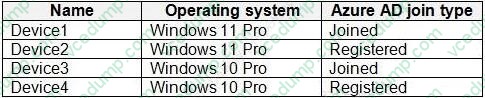
You have an Azure AD tenant that contains the devices shown in the following table.
You purchase Windows 11 Enterprise E5 licenses.
Which devices can use Subscription Activation to upgrade to Windows 11 Enterprise?
A. Device1 only
B. Device1 and Device2 only
C. Device1 and Device3 only
D. Device1, Device2, Device3, and Device4 -
Question 242:
HOTSPOT
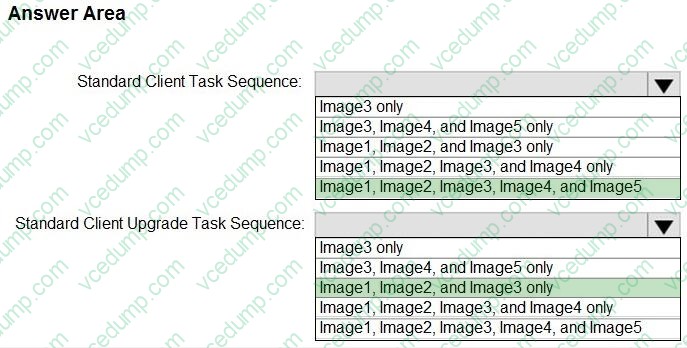
You have a Microsoft Deployment Toolkit (MDT) deployment share named Share1.
You add Windows 10 images to Share1 as shown in the following table.
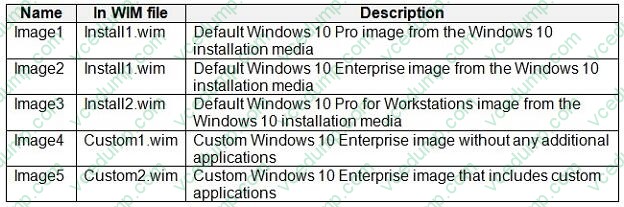
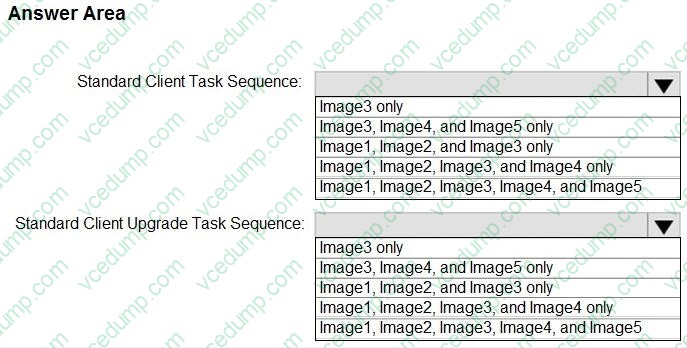
Which images can be used in the Standard Client Task Sequence, and which images can be used in the Standard Client Upgrade Task Sequence?
NOTE: Each correct selection is worth one point.
-
Question 243:
You have a Microsoft 365 E5 subscription that contains the devices shown in the following table.
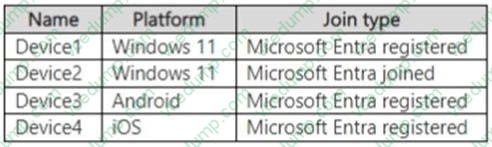
All the devices are enrolled in Microsoft Intune and have Microsoft 365 Apps for enterprise installed.
On which devices can you use the Cloud Policy service for Microsoft 365 to manage Microsoft 365 Apps for enterprise?
A. Device2 only
B. Device1 and Device2 only
C. Device1, Device2, and Device3 only
D. Device1, Device2, and Device4 only
E. Device1, Device2, Device3, and Device4 -
Question 244:
DRAG DROP
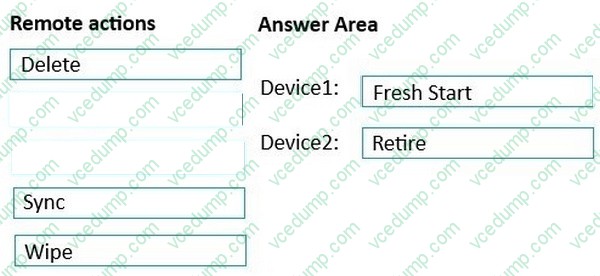
You have a Microsoft 365 subscription that contains the following devices enrolled in Microsoft Intune:
1. A corporate-owned Windows device named Device1
2. A personally-owned Android device named Device2
You need to use a remote action on each device.
The solution must meet the following requirements:
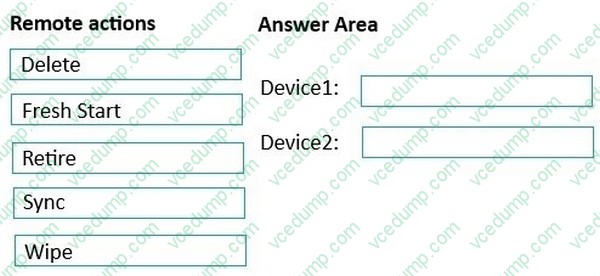
1. Repurpose Device1 by returning the device to the factory default settings.
2. Remove only corporate data from Device2 and remove the device from Intune when the device checks in.
Which remote action should you use on each device? To answer, drag the appropriate remote actions to the correct devices. Each remote action may be used once, more than once, or not at all. You may need to drag the split bar between panes or scroll to view content.
Select and Place:
-
Question 245:
You have a Microsoft 365 E5 subscription.
You have a Windows device named Device1 that is enrolled in Microsoft Intune.
On January 1,2024, you assign an app named App1 to Device1 as a required app.
The install of App1 fails.
What is the next date that Intune will attempt to install App1?
A. January 2, 2024
B. January 5, 2024
C. January 8, 2024
D. January 31, 2024 -
Question 246:
HOTSPOT
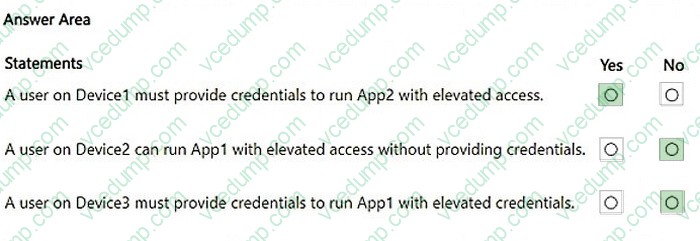
You have a Microsoft 365 E5 subscription that contains three Windows devices named Device1, Device2, and Device3.
Each device contains two apps named App1 and App2.
You manage the devices by using Microsoft Intune.
The subscription contains the groups shown in the following table.
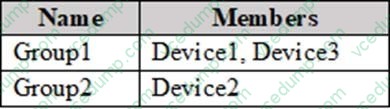
You have an Endpoint Privilege Management (EPM) elevation settings policy named Policy1 that has the following settings:
1. Endpoint Privilege Management: Enabled
2. Default elevation response: Require user confirmation
3. Validation: Windows authentication
4. Assignments: Group1, Group2
You create an Endpoint Privilege Management elevation rules policy named RulesPolicy1 that has the following settings:
1. Rule name: Rule1
2. Elevation type: Automatic
3. Child process behavior: Deny all
4. File name: App1.exe
5. Assignments: Group1
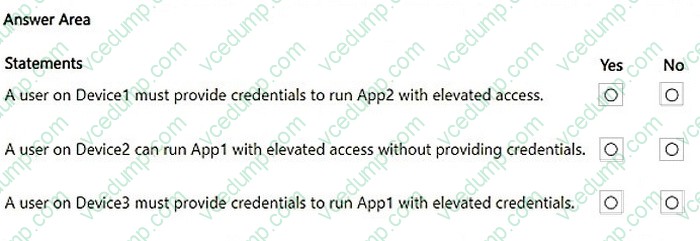
For each of the following statements, select Yes if the statement is true. Otherwise, select No.
NOTE: Each correct selection is worth one point.
-
Question 247:
You have a Microsoft 365 subscription that contains 500 Android Enterprise devices.
All the devices are enrolled in Microsoft Intune.
You need to deliver bookmarks to the Chrome browser on the devices.
What should you create?
A. a compliance policy
B. a configuration profile
C. an app protection policy
D. an app configuration policy -
Question 248:
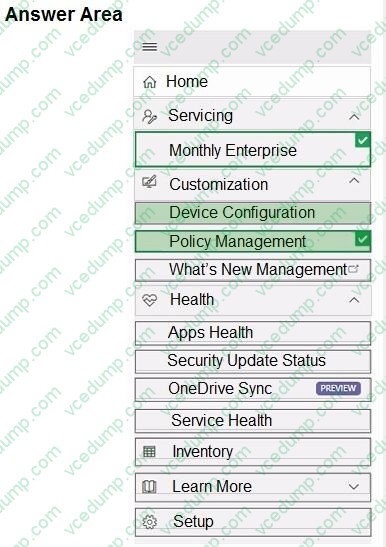
HOTSPOT
All users have Microsoft 365 apps deployed.
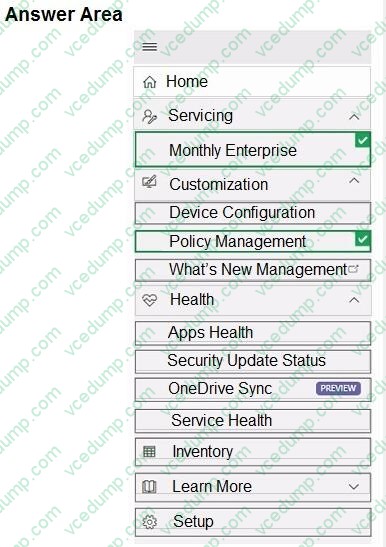
You need to configure Microsoft 365 apps to meet the following requirements:
1. Enable the automatic installation of WebView2 Runtime.
2. Prevent users from submitting feedback.
Which two settings should you configure in the Microsoft 365 Apps admin center? To answer, select the appropriate settings in the answer area.
NOTE: Each correct selection is worth one point.
-
Question 249:
You have a Microsoft 365 subscription that uses Microsoft Intune Suite.
You use Microsoft Intune to deploy and manage Windows devices.
You have 100 devices from users that left your company.
You need to repurpose the devices for new users by removing all the data and applications installed by the previous users. The solution must minimize administrative effort.
What should you do?
A. Deploy a new configuration profile to the devices.
B. Perform a Windows Autopilot reset on the devices.
C. Perform an in-place upgrade on the devices.
D. Perform a clean installation of Windows 11 on the devices. -
Question 250:
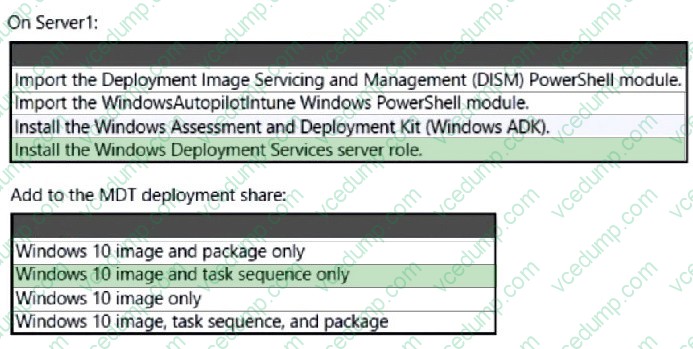
HOTSPOT
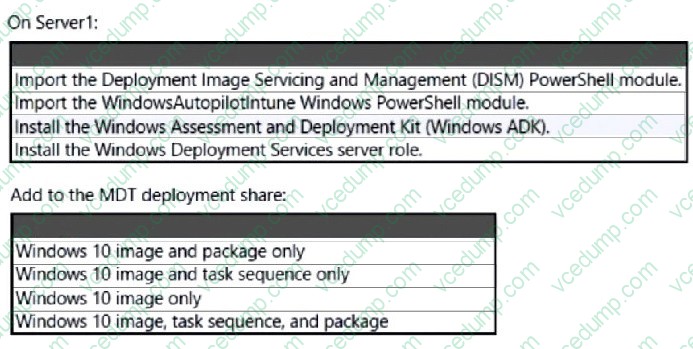
You have a server named Server1 and computers that run Windows 8.1. Server1 has the Microsoft Deployment Toolkit (MDT) installed.
You plan to upgrade the Windows 8.1 computers to Windows 10 by using the MDT deployment wizard.
You need to create a deployment share on Server1.
What should you do on Server1, and what are the minimum components you should add to the MDT deployment share? To answer, select the appropriate options in the answer area. NOTE: Each correct selection is worth one point.
Related Exams:
-
62-193
Technology Literacy for Educators -
70-243
Administering and Deploying System Center 2012 Configuration Manager -
70-355
Universal Windows Platform – App Data, Services, and Coding Patterns -
77-420
Excel 2013 -
77-427
Excel 2013 Expert Part One -
77-725
Word 2016 Core Document Creation, Collaboration and Communication -
77-726
Word 2016 Expert Creating Documents for Effective Communication -
77-727
Excel 2016 Core Data Analysis, Manipulation, and Presentation -
77-728
Excel 2016 Expert: Interpreting Data for Insights -
77-731
Outlook 2016 Core Communication, Collaboration and Email Skills
Tips on How to Prepare for the Exams
Nowadays, the certification exams become more and more important and required by more and more enterprises when applying for a job. But how to prepare for the exam effectively? How to prepare for the exam in a short time with less efforts? How to get a ideal result and how to find the most reliable resources? Here on Vcedump.com, you will find all the answers. Vcedump.com provide not only Microsoft exam questions, answers and explanations but also complete assistance on your exam preparation and certification application. If you are confused on your MD-102 exam preparations and Microsoft certification application, do not hesitate to visit our Vcedump.com to find your solutions here.