MD-102 Exam Details
-
Exam Code
:MD-102 -
Exam Name
:Endpoint Administrator -
Certification
:Microsoft Certifications -
Vendor
:Microsoft -
Total Questions
:431 Q&As -
Last Updated
:May 25, 2026
Microsoft MD-102 Online Questions & Answers
-
Question 151:
HOTSPOT
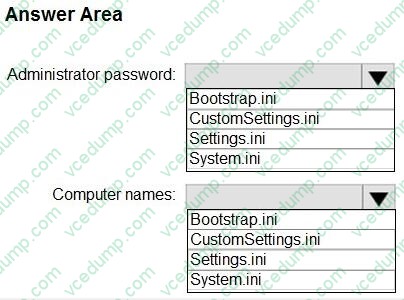
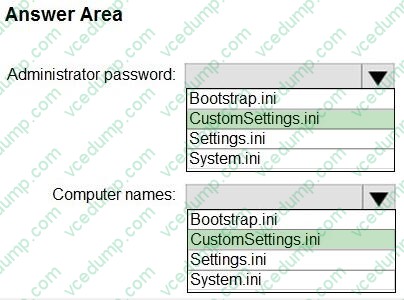
You use the Microsoft Deployment Toolkit (MDT) to deploy Windows 11.
You need to modify the deployment share to meet the following requirements:
1. Ensure that the user who performs the installation is prompted to set the local Administrator password
2. Define a rule for how to name computers during the deployment.
The solution must NOT replace the existing WinPE image.
Which file should you modify for each requirement? To answer, select the appropriate options in the answer area,
NOTE: Each correct selection is worth one point.
-
Question 152:
You have a Microsoft 365 ES subscription.
You use Microsoft Intune to manage all devices.
You need to prepare a Win32 app named Appl.exe for deployment.
What should you do first?
A. From the Microsoft Intune admin center, create an app configuration policy.
B. Change App1.exe to the INIUNEW1N format.
C. Change App1.exe to the INIUNEW1N format.
D. Upload App1 exe to Azure Blob Storage. -
Question 153:
Your company implements Azure AD, Microsoft 365, Microsoft Intune, and Azure Information Protection.
The company's security policy states the following:
1. Personal devices do not need to be enrolled in Intune.
2. Users must authenticate by using a PIN before they can access corporate email data.
3. Users can use their personal iOS and Android devices to access corporate cloud services.
4. Users must be prevented from copying corporate email data to a cloud storage service other than Microsoft OneDrive for Business.
You need to configure a solution to enforce the security policy.
What should you create?
A. a device configuration profile from the Microsoft Intune admin center
B. a data loss prevention (DLP) policy from the Microsoft Purview compliance portal
C. an insider risk management policy from the Microsoft Purview compliance portal
D. an app protection policy from the Microsoft Intune admin center -
Question 154:
DRAG DROP
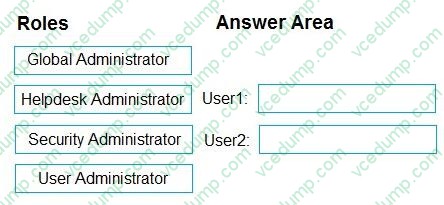
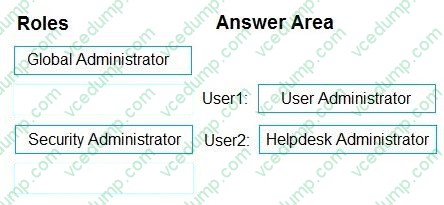
You have a Microsoft 365 subscription that contains two users named User1 and User2.
You need to ensure that the users can perform the following tasks:
1. User1 must be able to create groups and manage users.
2. User2 must be able to reset passwords for nonadministrative users.
The solution must use the principle of least privilege.
Which role should you assign to each user? To answer, drag the appropriate roles to the correct users. Each role may be used once, more than once, or not at all. You may need to drag the split bar between panes or scroll to view content.
NOTE: Each correct selection is worth one point.
Select and Place:
-
Question 155:
You have a Microsoft Deployment Toolkit (MDT) deployment share.
From the Deployment Workbench, you open the New Task Sequence Wizard and select the Standard Client Upgrade Task Sequence task sequence template.
You discover that there are no operating system images listed on the Select OS page as shown in the following exhibit.
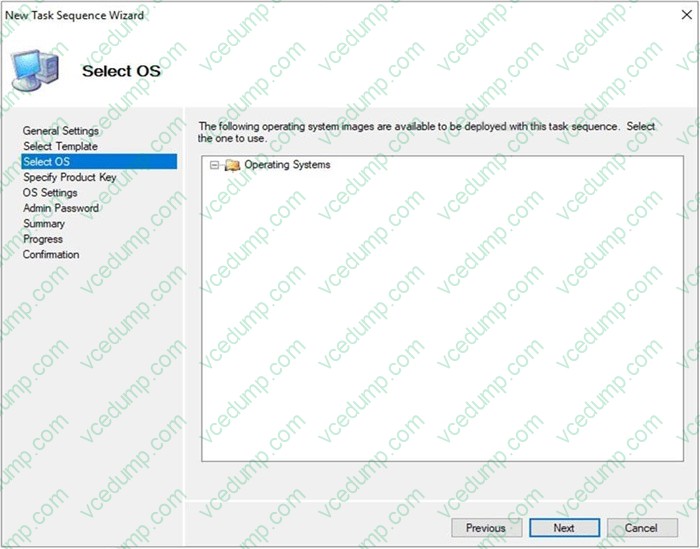
You need to be able to select an operating system image to perform a Windows 11 in-place upgrade.
What should you do?
A. Enable monitoring for the deployment share.
B. Import a full set of source files.
C. Import a custom image file.
D. Run the Update Deployment Share Wizard. -
Question 156:
HOTSPOT
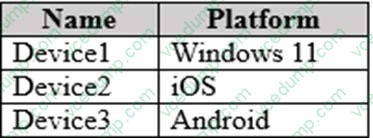
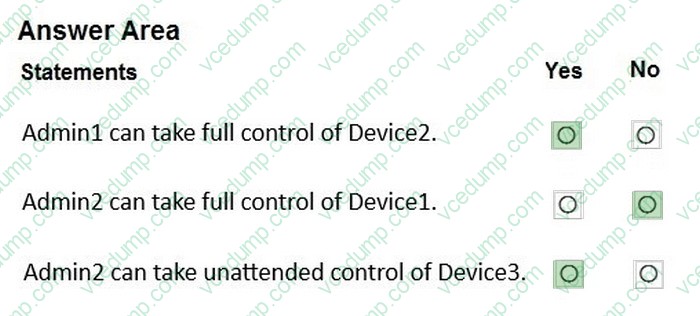
You have a Microsoft 365 E5 subscription that contains devices enrolled in Microsoft Intune as shown in the following table.
The subscription contains the users shown in the following table.

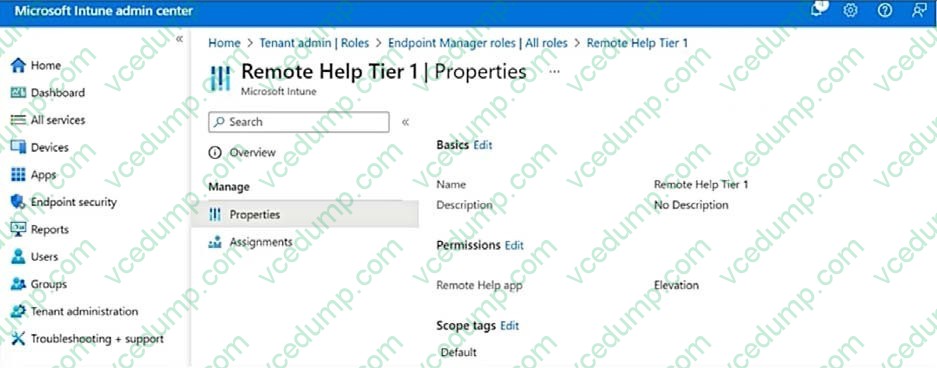
The Remote Help Tier1 role is configured as shown in the following exhibit.
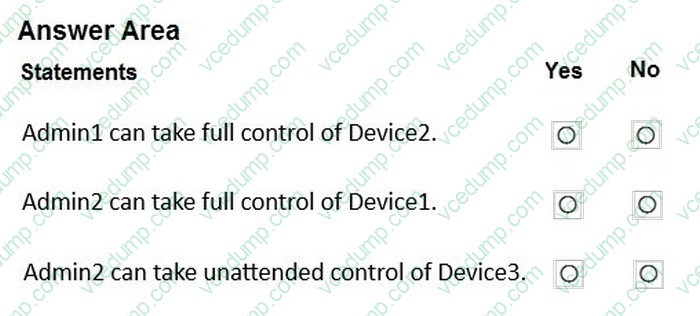
For each of the following statements, select Yes if the statement is true. Otherwise, select No.
NOTE: Each correct selection is worth one point.
-
Question 157:
Note: This section contains one or more sets of questions with the same scenario and problem. Each question presents a unique solution to the problem. You must determine whether the solution meets the stated goals. More than one solution in the set might solve the problem. It is also possible that none of the solutions in the set solve the problem.
After you answer a question in this section, you will NOT be able to return. As a result, these questions do not appear on the Review Screen.
You have a Microsoft Entra tenant named contoso.com.
You purchase an Android device named Device1.
You need to register Device1 in contoso.com.
Solution: You use the Google Chrome app.
Does this meet the goal?
A. Yes
B. No -
Question 158:
HOTSPOT
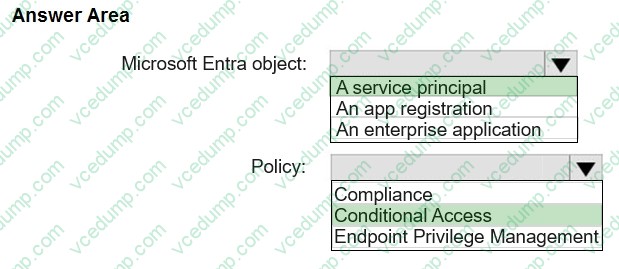
You have a Microsoft 365 E5 subscription that includes Microsoft Intune. The subscription contains a group named Group1. Group1 contains devices enrolled in Intune.
You deploy Remote Help in Intune.
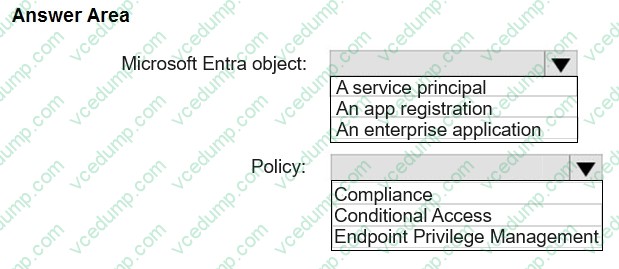
You need to configure Remote Help to only allow support administrators to join Remote Help sessions from the devices in Group1.
Which type of Microsoft Entra object should you create, and which type of policy should you configure? To answer, select the appropriate options in the answer area.
NOTE: Each correct selection is worth one point.
-
Question 159:
You have a Microsoft 365 E5 subscription.
You have a Microsoft Intune enrollment profile for Android Enterprise devices that has the following settings:
Name: Profile1
Token type: Corporate-owned, fully managed
You need to enroll a new Android device in Intune by using Profile1.
What should you use to enroll the device?
A. a QR code
B. the Company Portal app
C. the Microsoft Authenticator app
D. the Intune app -
Question 160:
SIMULATION
Username and password
Use the following login credentials as needed:
To enter your username, place your cursor in the Sign in box and select the username below.
To enter your password, place your cursor in the Enter password box and select the password below.
Microsoft 365 Username: [email protected]
Microsoft 365 Password: i7A4$3o^HGD3L~=c[9xuOhM%^4:s11Ai
If the Microsoft Edge browser or Microsoft 365 portal does not load successfully, select the Microsoft Edge browser icon from the task bar, type the URL "https://portal.office.com", and press Enter.
The following information is for technical support purposes only:
Lab Instance: 48262079
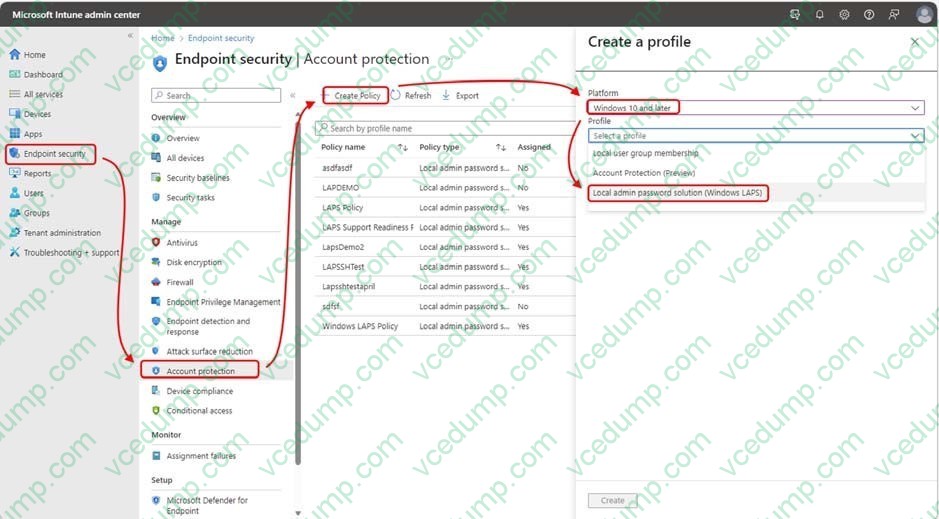
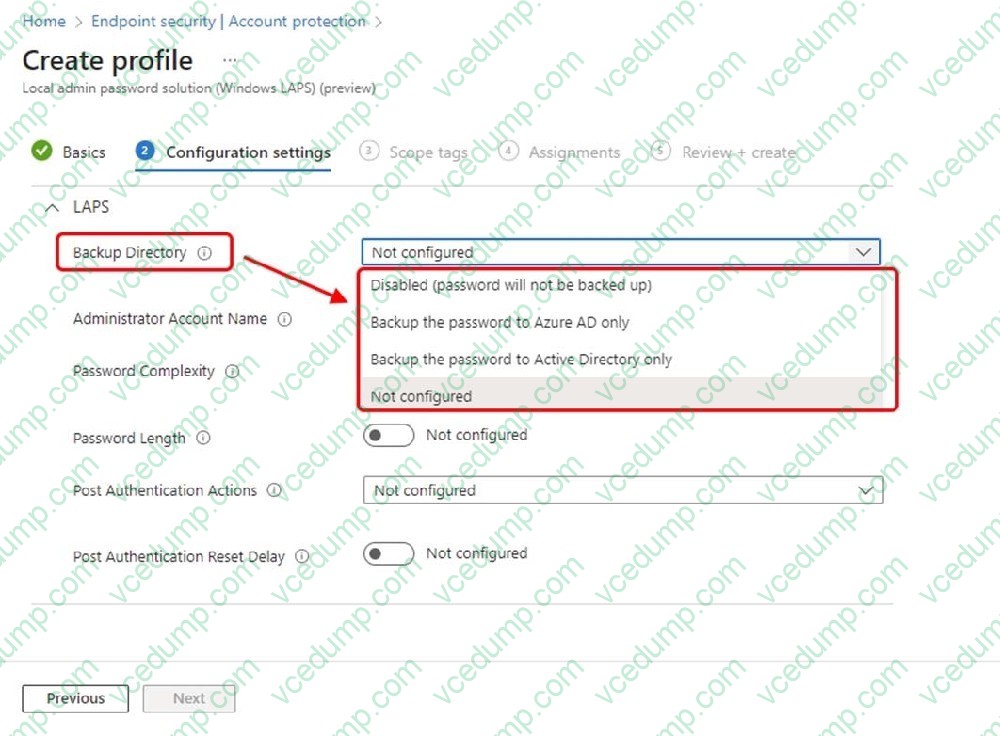
You need to configure a policy to ensure that all Microsoft Intune-enrolled Windows devices back up their local admin account password to Microsoft Entra only.
A. See explanation below.
B. PlaceHolder
C. PlaceHolder
D. PlaceHolder
Related Exams:
-
62-193
Technology Literacy for Educators -
70-243
Administering and Deploying System Center 2012 Configuration Manager -
70-355
Universal Windows Platform – App Data, Services, and Coding Patterns -
77-420
Excel 2013 -
77-427
Excel 2013 Expert Part One -
77-725
Word 2016 Core Document Creation, Collaboration and Communication -
77-726
Word 2016 Expert Creating Documents for Effective Communication -
77-727
Excel 2016 Core Data Analysis, Manipulation, and Presentation -
77-728
Excel 2016 Expert: Interpreting Data for Insights -
77-731
Outlook 2016 Core Communication, Collaboration and Email Skills
Tips on How to Prepare for the Exams
Nowadays, the certification exams become more and more important and required by more and more enterprises when applying for a job. But how to prepare for the exam effectively? How to prepare for the exam in a short time with less efforts? How to get a ideal result and how to find the most reliable resources? Here on Vcedump.com, you will find all the answers. Vcedump.com provide not only Microsoft exam questions, answers and explanations but also complete assistance on your exam preparation and certification application. If you are confused on your MD-102 exam preparations and Microsoft certification application, do not hesitate to visit our Vcedump.com to find your solutions here.