GSUITE Exam Details

  • Exam Code
    :GSUITE
  • Exam Name
    :Google GSuite
  • Certification
    :Google Certifications
  • Vendor
    :Google
  • Total Questions
    :48 Q&As
  • Last Updated
    :Jan 17, 2026

Google GSUITE Online Questions & Answers

  • Question 1:

    You are presenting a Google Slides presentation and need to remind yourself of what to say. You want to see your notes while you are in presenter view. What should you do?

    A. In your presentation, on each slide, click Insert, then click Comment, and add your speaking notes
    B. In your presentation, add notes below each slide, where it says Click to add speaker notes
    C. Write your notes in a Google Doc and link to that document in your Google Slides presentation
    D. In your presentation, click Insert, select Text box, and add your notes to a textbox below each slide

  • Question 2:

    Your manager is working from a different office today during your regularly scheduled weekly meeting. You want to schedule a Google Hangouts video call to meet virtually. What should you do?

    A. Within the existing Google Calendar event for your meeting, update the location to Virtual and click Save
    B. Within the existing Google Calendar event for your meeting, click Add conferencing, select Hangouts and then click Save
    C. Go to Settings, click Add calendar for video calls, and add your meeting to this calendar
    D. On your Google Calendar landing page, create a new event to schedule a new video meeting

  • Question 3:

    You want to send an email to your team with a photo in the body of the email. Which steps should you take?

    A. In the body of the email, put the cursor where you want the photo to be. Click Insert photo from the email options toolbar. Select the photo and insert it inline.
    B. In the body of the email, put the cursor where you want the photo to be. Click Insert photo from the email options toolbar. Select the photo and insert it as an attachment.
    C. Put the cursor where you want the photo to be. In the email options toolbar, click Insert files using Drive. Choose the photo you want to send. Insert it as an attachment.
    D. Put the cursor where you want the photo to be. In the email options toolbar, click Attach files. Choose the photo you want to send, and add it to the email.

  • Question 4:

    You have a folder saved locally on your laptop. You need to upload the folder to Google Drive. What should you do?

    A. In Google Drive, click New, and then click File Upload. Select the file you want to upload from your laptop
    B. In Google Drive, click New, and then click Folder. Give a name to the new folder, and then click Create
    C. In Google Drive, navigate to My Drive. Click Upload files and upload the relevant files from your local drive to Google Drive
    D. In Google Drive, click New, and then click Folder Upload. Select a folder you want to upload, and then click Upload

  • Question 5:

    You just started your new job and received an email with a Getting Started manual attached. After a few weeks, you want to remove this email from your Gmail inbox but preserve it for future reference. What should you do?

    A. Mark as not important
    B. Delete the email
    C. Archive the email
    D. Label the email

  • Question 6:

    You need to set up a way to easily access a Google Drive folder that your team shared with you. The Team Drive with this shared folder has over 1,000 different folders. What should you do to have quick access to the shared folder?

    A. Create a new folder in My Drive on Google Drive. Copy all the files from your team's folder to the new folder
    B. Create a new folder in My Drive on Google Drive. Move your team's folder into this new folder
    C. Find the shared folder on Google Drive. Change the color of the folder to red
    D. Find the shared folder in Shared with me on Google Drive. Right-click on the folder, and then click Add to My Drive

  • Question 7:

    You need to find an audio file on Google Drive that your manager shared with you recently. You know that the type of file you are looking for is audio, and the owner of the file is lisa@kelvincars.com. What should you do to quickly find the file on Google Drive?

    A. Click on the dropdown menu in the search bar of Google Drive, select audio as the typo of file, select owned by me as owner, and then click Search.
    B. Click on the dropdown menu in the search bar of Google Drive, select audio as the type of file, enter lisa@kelvincars.com as owner, and then click Search.
    C. In the search bar of Google Drive, enter type:video owner:me
    D. In the search bar of Google Drive, enter type:video owner:lisa@kelvincars.com

  • Question 8:

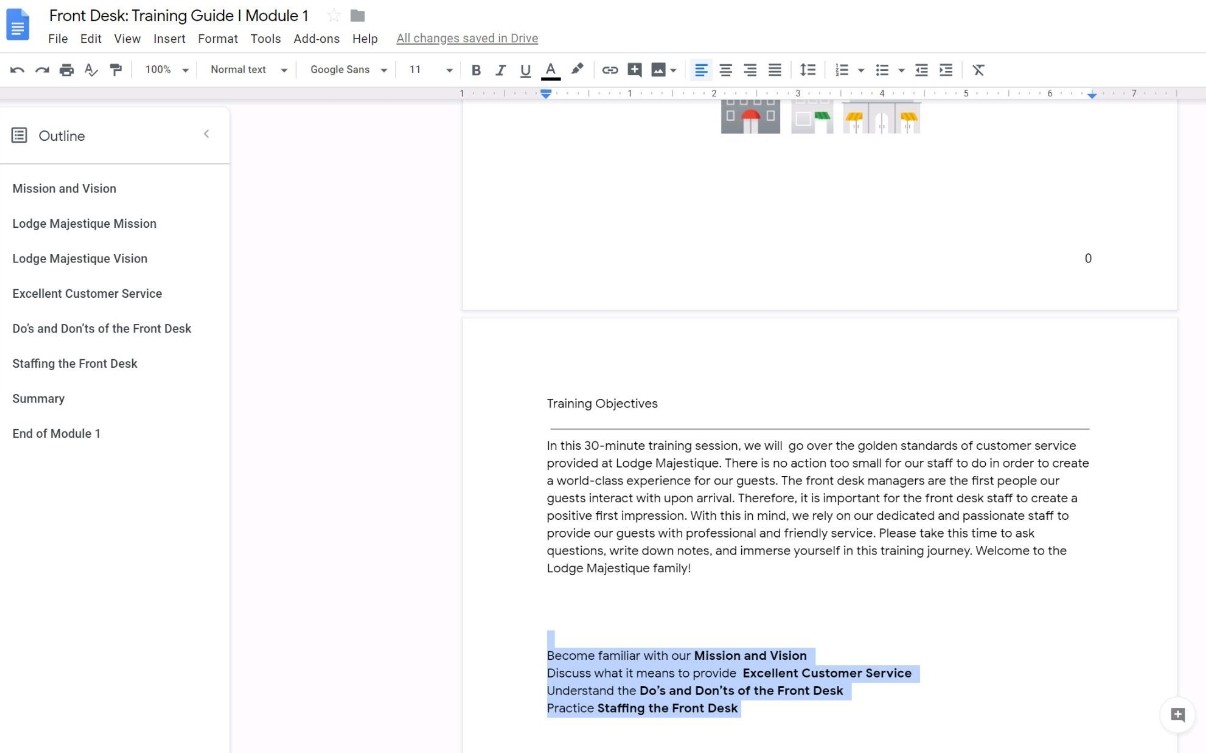
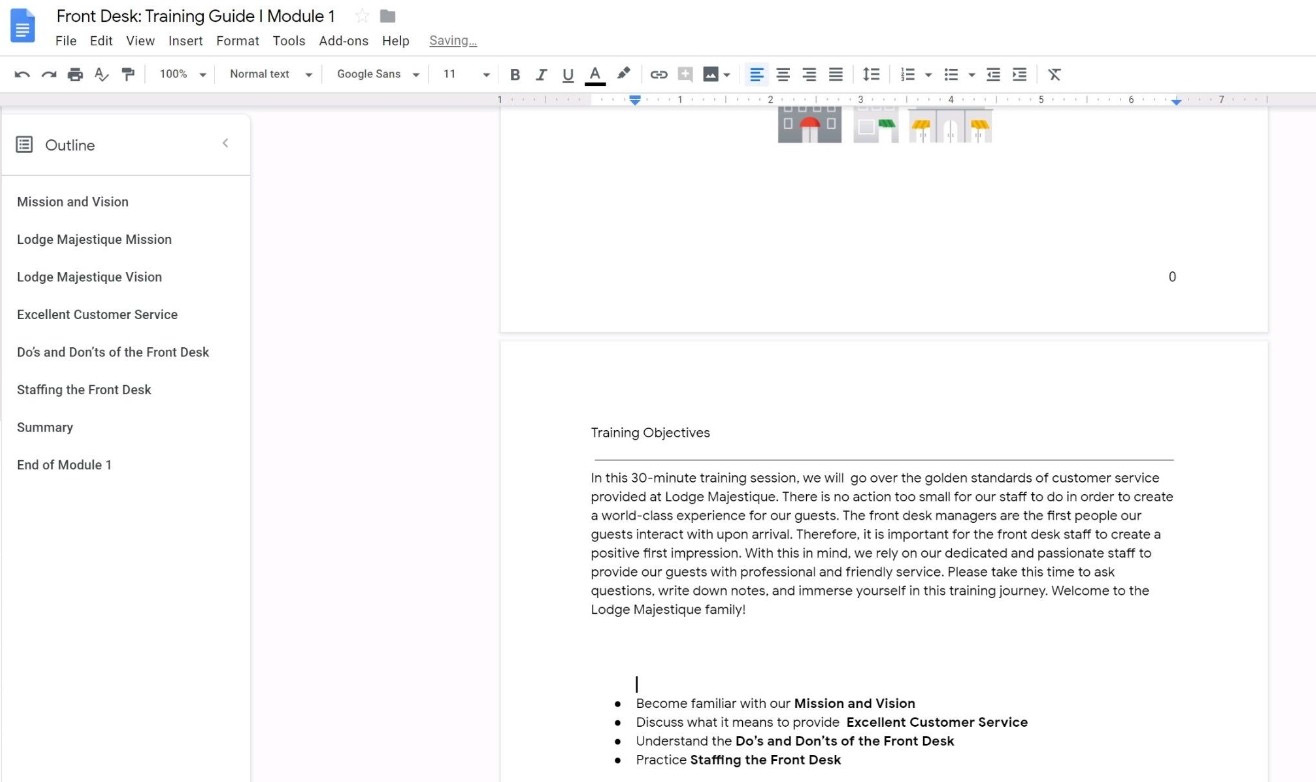
    SIMULATION Overview In the following tasks, you will demonstrate your ability to work in Google Docs. Lodge Majestique is a prominent vacation destination known for its great customer service. You will be finalizing a training guide for the Lodge Majestique Front

    Desk. Use the Front Desk: Training Guide | Module 1 for all the tasks in this scenario.
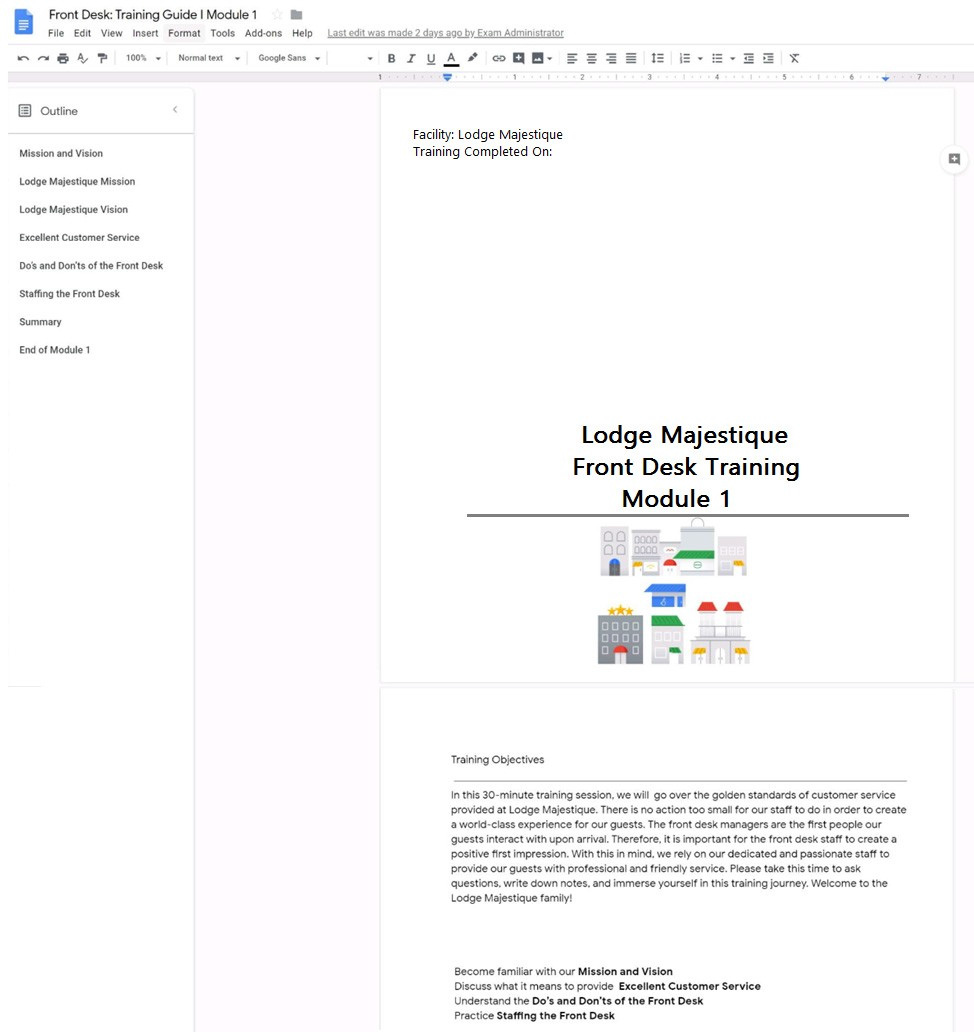
    On the front page of the training guide, highlight Module 1 and leave a comment for your manager, anna@lodgemajestique.com. The comment should say Approved, ready for print.

  • Question 9:

    SIMULATION Overview

    In the following tasks, you will demonstrate your ability to work in Google Docs. Lodge Majestique is a prominent vacation destination known for its great customer service. You will be finalizing a training guide for the Lodge Majestique Front Desk. Use the Front Desk: Training Guide | Module 1 for all the tasks in this scenario.

    On page 2 of the training guide, make the Training Objectives title bold.

  • Question 10:

    SIMULATION Overview In the following tasks, you will demonstrate your ability to work in Google Docs. Lodge Majestique is a prominent vacation destination known for its great customer service. You will be finalizing a training guide for the Lodge Majestique Front

    Desk. Use the Front Desk: Training Guide | Module 1 for all the tasks in this scenario.

    On page 2 of the Front Desk: Training Guide | Module 1, increase the font size of the Training Objectives section title to 14.

Tips on How to Prepare for the Exams

Nowadays, the certification exams become more and more important and required by more and more enterprises when applying for a job. But how to prepare for the exam effectively? How to prepare for the exam in a short time with less efforts? How to get a ideal result and how to find the most reliable resources? Here on Vcedump.com, you will find all the answers. Vcedump.com provide not only Google exam questions, answers and explanations but also complete assistance on your exam preparation and certification application. If you are confused on your GSUITE exam preparations and Google certification application, do not hesitate to visit our Vcedump.com to find your solutions here.