AZ-800 Exam Details
-
Exam Code
:AZ-800 -
Exam Name
:Administering Windows Server Hybrid Core Infrastructure -
Certification
:Microsoft Certifications -
Vendor
:Microsoft -
Total Questions
:289 Q&As -
Last Updated
:Jul 08, 2026
Microsoft AZ-800 Online Questions & Answers
-
Question 241:
HOTSPOT
You have on-premises servers that run Windows Server as shown in the following table.
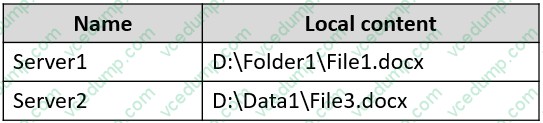
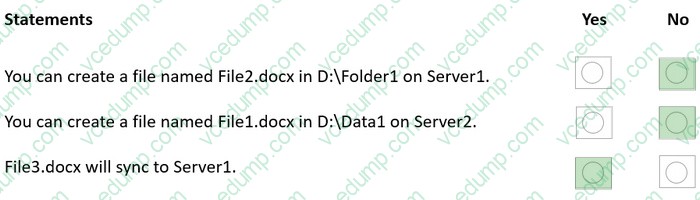
You have an Azure file share named share1 that stores two files named File2.docx and File3.docx.
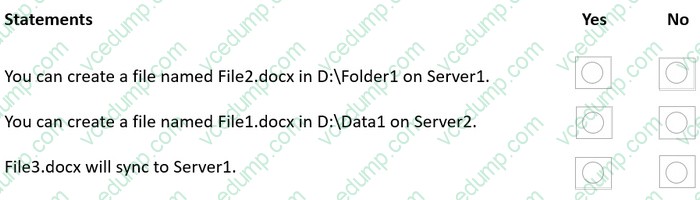
You create an Azure File Sync sync group that includes the following endpoints:
1. share
2. D:\Folder1 on Server1
3. D:\Datal on Server2
For each of the following statements, select Yes if the statement is true. Otherwise, select No.
NOTE: Each correct selection is worth one point.
-
Question 242:
You have an Active Directory domain that contains a file server named Server1. Server1 runs Windows Server and includes the file shares shown in the following table.
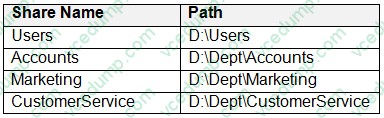
When users login to the network they receive the following network drive mappings.
1. H: maps to \\server1\users\%UserName%
2. G: maps to \\server1\%Department%
You need to limit the amount of space consumed by user's on Server1. The solution must meet the following requirements:
1. Prevent users using more than 5GB of space on their H: drive
2. Prevent Accounts department users from using more than 10GB of space on the G: drive
3. Prevent Marketing department users from using more than 15GB of space on the G: drive
4. Prevent Customer Service department users from using more than 2GB of space on the G: drive
5. Minimize administrative effort
What should you use?
A. File Server Resource Manager (FSRM) quotas
B. Storage tiering
C. NTFS Disk quotas
D. Group Policy Preferences -
Question 243:
SIMULATION
You need to create a user named Admin1 in contoso.com. Admin1 must be able to back up and restore files on SRV1. The solution must use principle of the least privilege.
To complete this task, sign in the required computer or computers.
A. See explanation below.
B. PlaceHolder
C. PlaceHolder
D. PlaceHolder -
Question 244:
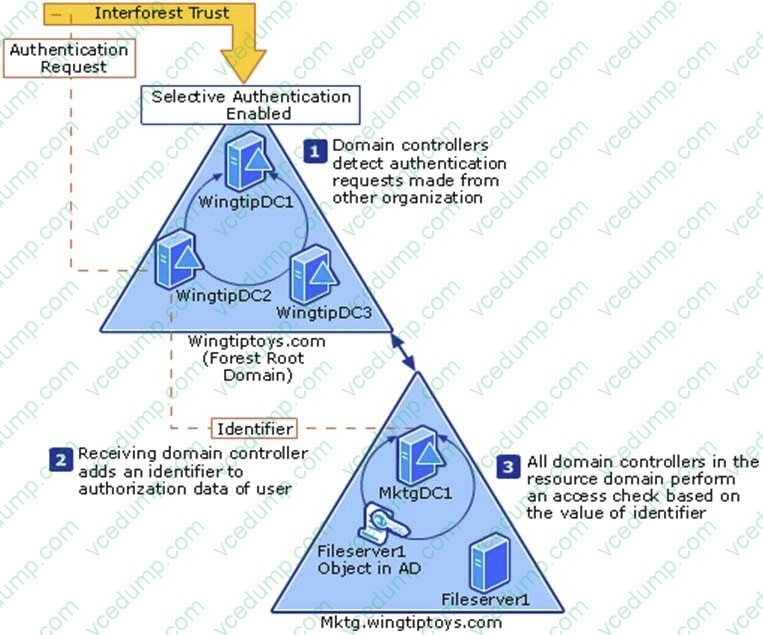
Your network contains an Active Directory Domain Services (AD DS) forest named contoso.com.
The forest contains the domain controllers shown in the following table.
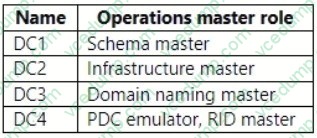
You have a partner organization that has an AD DS forest named fabrikam.com.
You create a trust relationship between contoso.com and fabrikam.com.
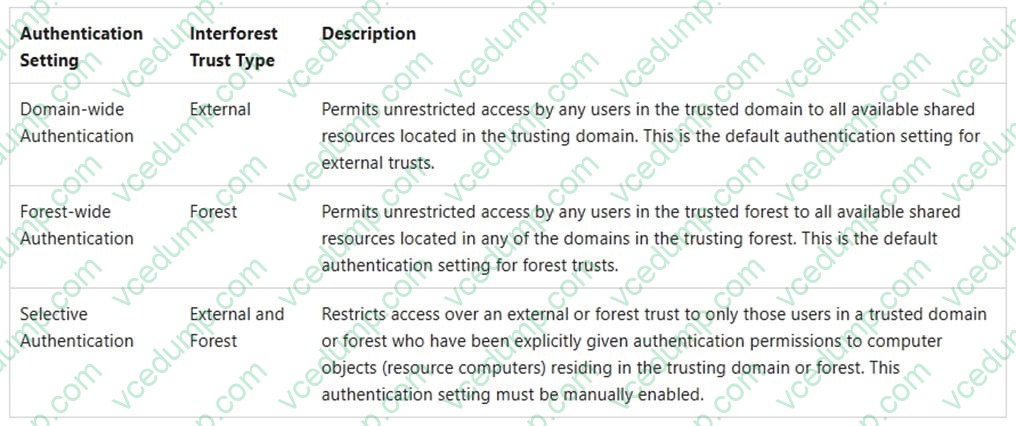
You need to configure selective authentication for the trust relationship.
Which domain controller should be granted permissions to fabrikam.com?
A. DC1
B. DC2
C. DC3
D. DC4 -
Question 245:
HOTSPOT
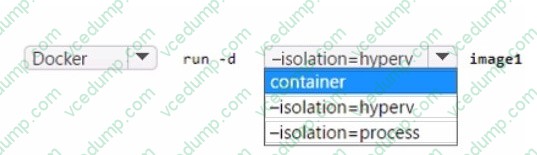
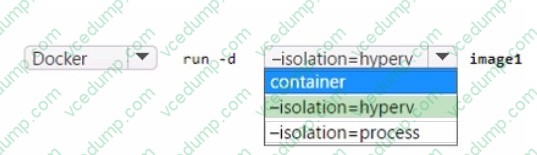
You have a server named Host1 that runs Windows Server 2022 and is configured as a container host. Host1 stores a container image named image1 that is based on Windows Server 2019.
You need to start a container from image1 on Host1.
How should you complete the command? To answer, select the appropriate options in the answer area.
NOTE: Each correct selection is worth one point.
-
Question 246:
Your network contains an Active Directory Domain Services (AD DS) domain. The domain contains a server named Server1.
On Server 1, you install Windows Admin Center and use Windows Admin Center to remove BUILTlN\Users from the allowed groups.
You discover that all users can still sign in to Windows Admin Center.
You need to prevent unauthorized users from signing in to Windows Admin Center.
What should you do in Windows Admin Center?
A. Set Performance Profile to On
B. Set Require manage-as sessions to re-authenticate to On
C. From the Proxy settings, configure a bypass list.
D. Add a security group to the allowed groups. -
Question 247:
Note: This section contains one or more sets of questions with the same scenario and problem. Each question presents a unique solution to the problem. You must determine whether the solution meets the stated goals. More than one solution in the set might solve the problem. It is also possible that none of the solutions in the set solve the problem.
After you answer a question in this section, you will NOT be able to return. As a result, these questions do not appear on the Review Screen.
Your network contains an Active Directory Domains Services (AD DS) domain named contoso.com.
You implement a central store.
You create a new Group Policy Object (GPO) named GPO1.
When you attempt to edit GPO1, you see the settings shown in the exhibit. (Click the Exhibit tab.)
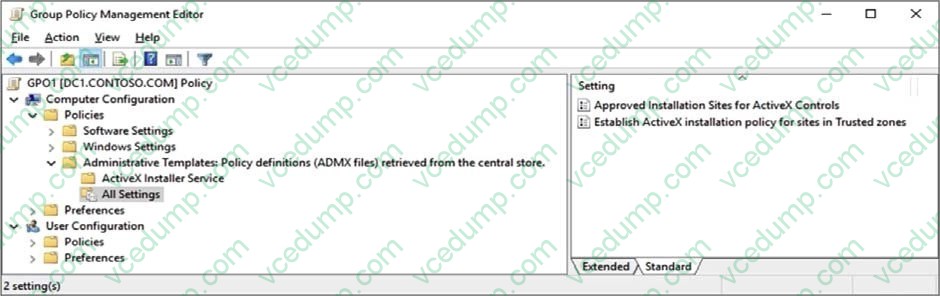
You need to ensure that all settings are available.
Solution: You modify the properties of GPO1.
Does this meet the goal?
A. Yes
B. No -
Question 248:
HOTSPOT
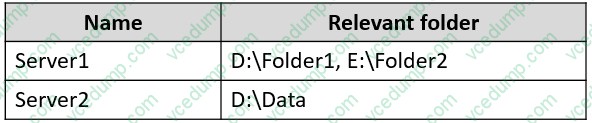
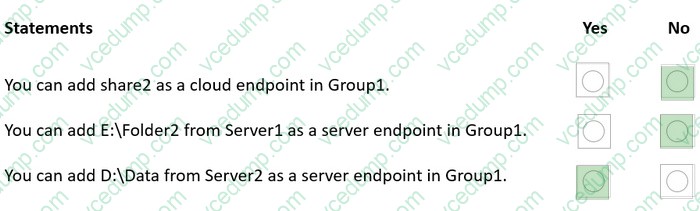
You have on-premises file servers that run Windows Server as shown in the following table.
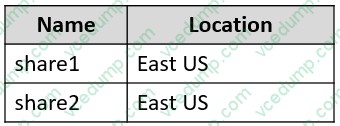
You have the Azure file shares shown in the following table.
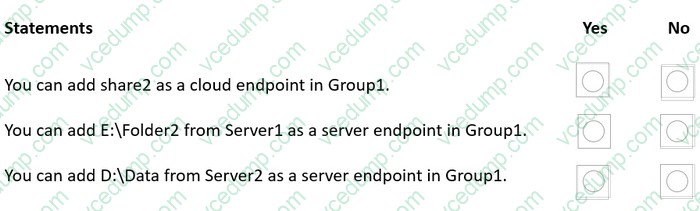
You add a Storage Sync Service named Sync1 and an Azure File Sync sync group named Group1. Group1 uses share1 as a cloud endpoint.
You register Server1 and Server2 with Sync1. You add D:\Folder1 from Server1 as a server endpoint in Group1.
For each of the following statements, select Yes if the statement is true. Otherwise, select No.
NOTE: Each correct selection is worth one point.
-
Question 249:
DRAG DROP
Your network contains an Active Directory Domain Services (AD DS) domain.
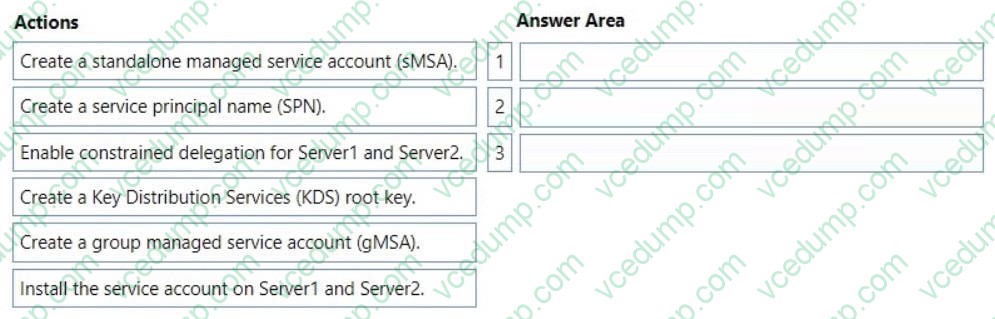
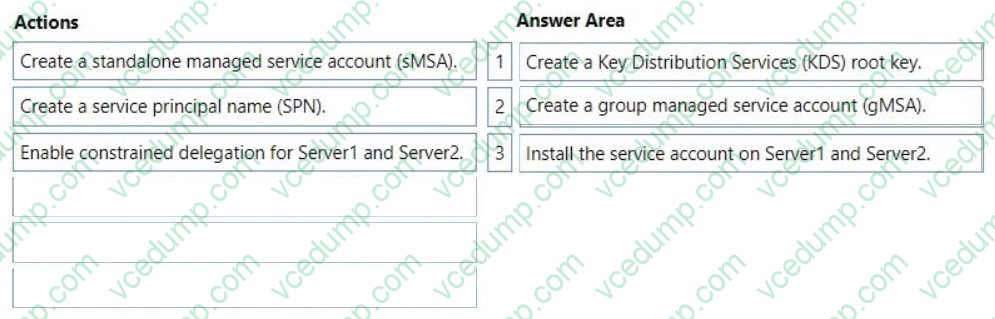
The domain contains two servers named Server1 and Server2 that run Windows Server 2022. You plan to deploy an app named App1 that will be load balanced between Server1 and Server2.
You need to create an identity that will be used to run App1 on Server1 and Server2. The solution must meet the following requirements:
1. The password for the identity must be changed regularly.
2. Administrative effort must be minimized.
Which three actions should you perform in sequence? To answer, move the appropriate actions from the list of actions to the answer area and arrange them in the correct order.
Select and Place:
-
Question 250:
You have an on-premises Active Directory Domain Services (AD DS) domain that syncs with a Microsoft Entra tenant. Group writeback is enabled in Microsoft Entra Connect.
The AD DS domain contains a server named Server1. Server1 contains a shared folder named share1.
You have an Azure Storage account named storage2 that uses Azure AD-based access control. The storage2 account contains a share named share2.
You need to create a security group that meets the following requirements:
1. Can contain users from the AD DS domain
2. Can be used to authorize user access to share1 and share2
What should you do?
A. In the Microsoft Entra tenant, create a security group that has assigned membership.
B. In the AD DS domain, create a universal security group.
C. In the Microsoft Entra tenant, create a security group that has dynamic membership.
D. In the Microsoft Entra tenant, create a Microsoft 365 group.
Related Exams:
-
62-193
Technology Literacy for Educators -
70-243
Administering and Deploying System Center 2012 Configuration Manager -
70-355
Universal Windows Platform – App Data, Services, and Coding Patterns -
77-420
Excel 2013 -
77-427
Excel 2013 Expert Part One -
77-725
Word 2016 Core Document Creation, Collaboration and Communication -
77-726
Word 2016 Expert Creating Documents for Effective Communication -
77-727
Excel 2016 Core Data Analysis, Manipulation, and Presentation -
77-728
Excel 2016 Expert: Interpreting Data for Insights -
77-731
Outlook 2016 Core Communication, Collaboration and Email Skills
Tips on How to Prepare for the Exams
Nowadays, the certification exams become more and more important and required by more and more enterprises when applying for a job. But how to prepare for the exam effectively? How to prepare for the exam in a short time with less efforts? How to get a ideal result and how to find the most reliable resources? Here on Vcedump.com, you will find all the answers. Vcedump.com provide not only Microsoft exam questions, answers and explanations but also complete assistance on your exam preparation and certification application. If you are confused on your AZ-800 exam preparations and Microsoft certification application, do not hesitate to visit our Vcedump.com to find your solutions here.