Open the worksheets you want to consolidate.
Ensure the data in each spreadsheet is listed in a consistent format. Make sure the labels on each spreadsheet are listed in a consistent format. For example, if you have the date listed in the top row, and the product listed in the left column, make sure this is the same format for each spreadsheet. Make sure the rows and columns are in the same location for each spreadsheet. Delete any blank rows or columns in the spreadsheets.
Open a the "Summary" worksheet.
Click the cell that you want the consolidated rows and/or columns to start. Click the row and/or column that is consistent with where the tables are located in the other spreadsheets.
Click Data. It's in the menu bar at the top of Excel. This displays the Data panel at the top of the page.
Click the Consolidate icon. It's the icon that resembles two sheets with a blue arrow in between them pointing to a blue third sheet. This opens the consolidate menu.
Select a function. Use the drop-down menu below "Function" to select the method that the data will be consolidated. For example, if you want to add all the data together, select Sum. You can also select Count, Average, Min, Max and other functions.
Select a reference source. This is the first spreadsheet that you want to consolidate. If you want to consolidate sheets within the same file, click the arrow icon to the right of the bar below "References".
Highlight the data you want to consolidate. If you are consolidating data from a separate sheet within the same file, click and drag to highlight data and labels you want to consolidate. This will display sheet name followed by an exclamation mark followed by the row and column range in the references column (For example: "Q1SalesSheet!$A$2:$F$5").
Click Add. It's to the right of the "All References" list box. This adds the reference and range you select to the list of references. Repeat steps 6 through 10 for all sheets and files you want to consolidate.
Select the row or column for the labels. Click one or both checkboxes next to "Top row" and/or "Left column" to select which row or column contains the labels. Click the checkbox next to "Create links to sources" (optional). By checking this option, the consolidated data will be updated automatically if one of the source references is updated Click Ok. This adds the consolidated data to the "Summary" worksheet. You can see the source data from the consolidated data by clicking the plus icons (+) to the left of the cell numbers on the left side.
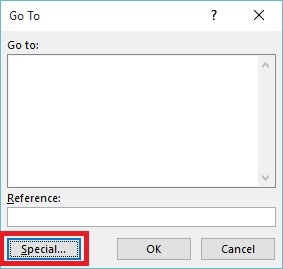
1. With your spreadsheet open, press F5 on the keyboard. The `Go To' window will open.
2. Click on the `Special' button
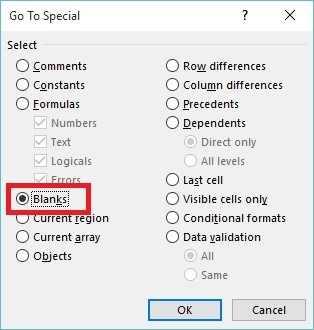
3. Click on `Blanks' then click `OK'
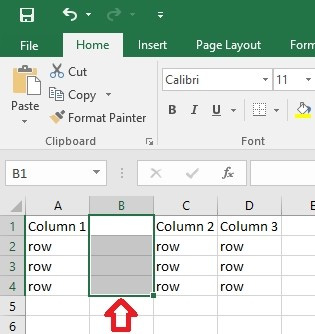
4. This will select all the empty fields within your table.
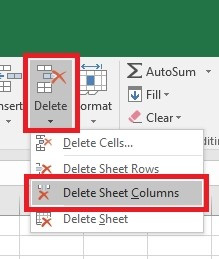
5. In the `Home' ribbon, click on the arrow below the `Delete' button then click on `Delete Sheet Columns'
6. Your empty columns have now been removed.