Preview real exam questions, verified answers and available explanations before choosing a study plan.
Question 1
Hotspot
HOTSPOT
Scenario: Ozzy contacted you about issues obtaining 5G service on his iPhone. You confirmed that his device is compatible with the carrier's 5G service, in a coverage area, and using the latest version of iOS. The
carrier's support website indicates that a carrier settings update is needed to fully support its 5G service.
Where in Settings should you go to manually check for carrier settings updates on iPhone?
Reveal answer detailsClose answer details
Explanation
General > About, then follow the onscreen instructions
Question 2
Single choice
Which Console report details events while macOS is being used?
A
Crash Reports
B
Diagnostic Reports
C
Spin Reports
D
system.log file
Reveal answer detailsClose answer details
Correct answerD
Question 3
Single choice
What happens when you restore a Mac with Apple silicon with Apple Configurator?
A
It updates the firmware and recoveryOS, and erases and installs macOS.
B
It restores the system state from before a corrupted battery drain.
C
It recovers data from a Time Machine snapshot on the internal storage.
D
It forces the Mac to perform any pending software updates.
Reveal answer detailsClose answer details
Correct answerA
Explanation
Restoring a Mac with Apple silicon using Apple Configurator is a process that updates the firmware, updates recoveryOS to the latest version, and erases and installs the latest version of macOS on the internal storage. When this process is complete, any data on any internal volumes is unrecoverable. You must restore the firmware and erase the internal flash storage if reviving the firmware is unsuccessful or if you can't start the Mac from the startup volume or the recoveryOS. References: Revive or restore a Mac with Apple silicon using Apple Configurator, Apple Support.
Question 4
Single choice
What should you do before you use safe mode?
A
Run Apple Diagnostics.
B
Disconnect from all networks and disable Wi-Fi and Bluetooth.
C
Run Disk Utility from macOS Recovery.
D
Disconnect peripherals and accessories.
Reveal answer detailsClose answer details
Correct answerD
Question 5
Single choice
What could be a reason you can't update your compatible iPad to the latest iPadOS?
A
Your iPad is connected to cellular only.
B
Your iPad battery level is lower than 50 percent.
C
Your iPad doesn't have enough available storage space.
D
The Apple Account used to update to the latest iPadOS doesn't have iPadOS in Purchase History.
Reveal answer detailsClose answer details
Correct answerC
Question 6
Single choice
While setting up a new iPad from their organization, a user notices that several setup screens are missing.
What is the most likely reason?
A
The iPad failed to activate during setup.
B
The device was released from Apple School Manager.
C
The organization's MDM solution is managing Setup Assistant.
D
The user selected "Skip all setup screens".
Reveal answer detailsClose answer details
Correct answerC
Question 7
Single choice
What's required to use Migration Assistant with two installed?
A
Wi-Fi must be on and the Mac computers
B
Must be placed near each other
C
Mac computers with the same version of macOS
Reveal answer detailsClose answer details
Correct answerA
Explanation
Migration Assistant is a tool that allows you to transfer your data, apps, and settings from one Mac to another. To use Migration Assistant with two Macs, you need to have Wi-Fi turned on and the Macs must be near each other. You also need to update the software on both Macs, if possible, and turn off any antivirus, firewall, or VPN software that might interfere with the transfer. You can then launch Migration Assistant on both Macs and follow the onscreen instructions to select the source and destination Macs, choose the content to transfer, and start the migration process. References: Transfer to a new Mac with Migration Assistant - Apple Support, How to Use Migration Assistant to Move Files from One Mac to Another
Question 8
Single choice
Which feature requires apps to ask permission before they collect data about your activity across other apps and websites?
A
App Tracking Transparency
B
Safety Check
C
Sensitive Content Warning
D
Private Browsing
Reveal answer detailsClose answer details
Correct answerA
Question 9
Single choice
ACME, Inc. wants all users to see mounted servers in the Finder by default.
Which terminal command should you use to modify the Finder preferences to display mounted servers?
The terminal command defaults write com.apple.finder ShowMountedServersOnDesktop true sets the Finder preference to show mounted servers on the desktop. This is equivalent to checking the box for "Connected Servers" in the Finder settings under the General tab. The other commands are either invalid or do not change the preference value. defaults read com.apple.finder ShowMountedServersOnDesktop true reads the current value of the preference, but does not modify it. defaults cat com.apple.finder ShowMountedServersOnDesktop true is not a valid command, as cat is not a valid subcommand for defaults. defaults append ShowMountedServersOnDesktop com.apple.finder true appends the value true to the preference key ShowMountedServersOnDesktop, which is not a valid operation, as the preference value should be a boolean, not a list. References: Apple Device Support Exam Prep Guide, page 11 Change Finder settings on Mac How to show Hard Disk icon on Desktop via Terminal?
Question 10
Single choice
Which tool should you use first to troubleshoot Mail connectivity issues in macOS?
A
Message Viewer
B
Network Diagnostics
C
Wireless Diagnostics
D
Connection Doctor
Reveal answer detailsClose answer details
Correct answerD
Explanation
Connection Doctor is a built-in tool in Mail that helps you diagnose and fix problems with your email accounts and connections. It shows the status of each account, whether it is online or offline, and any errors that occurred. It also lets you test the connection to the incoming and outgoing mail servers, and view the details of the connection attempt. Connection Doctor is the first tool you should use when you encounter Mail connectivity issues in macOS, as it can help you identify the source and nature of the problem quickly and easily. References: = Apple Device Support Exam Prep Guide, page 11 [Mail User Guide for Mac], section "Check the status of your email accounts".
Question 11
Hotspot
HOTSPOT
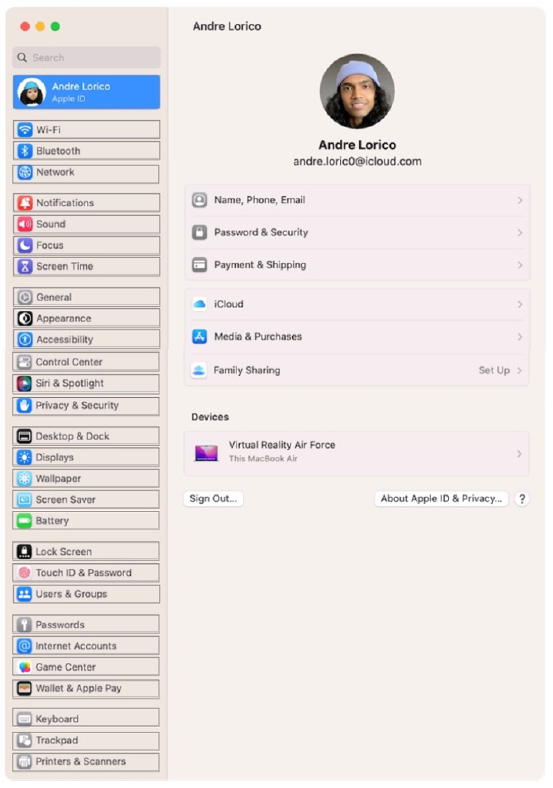
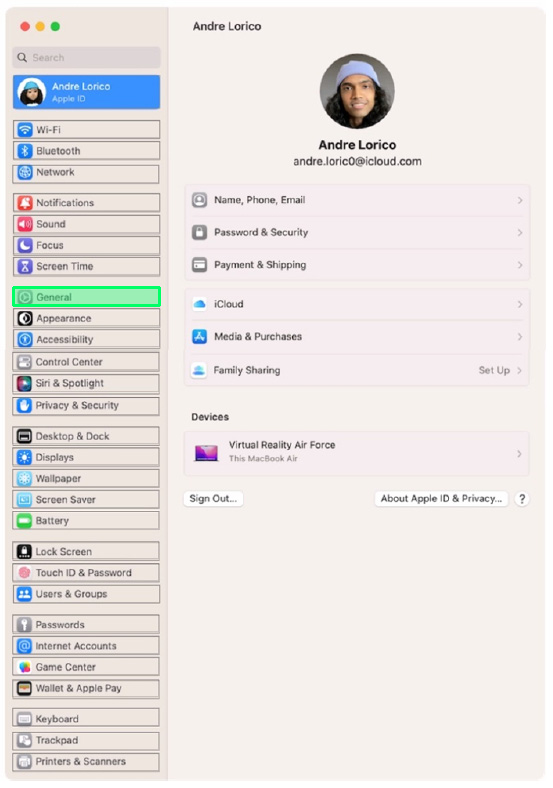
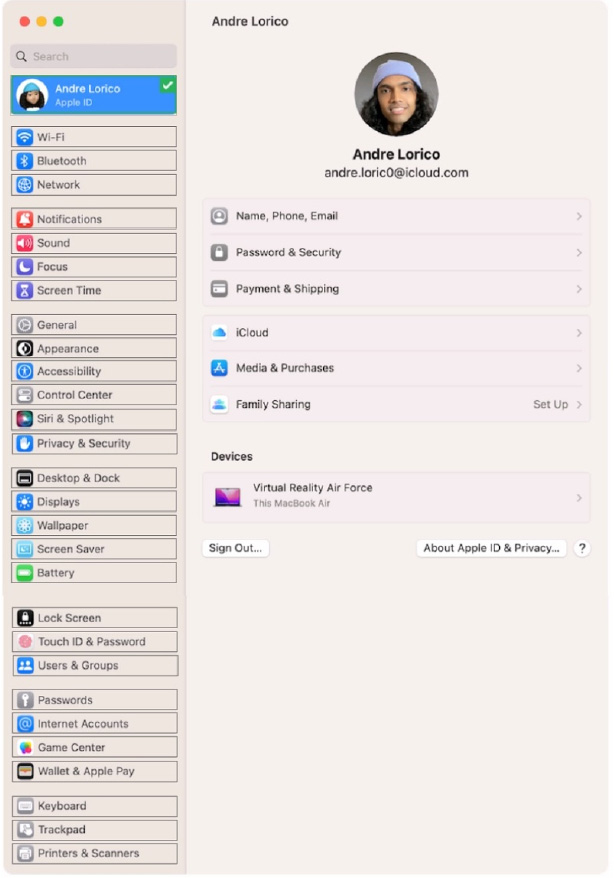
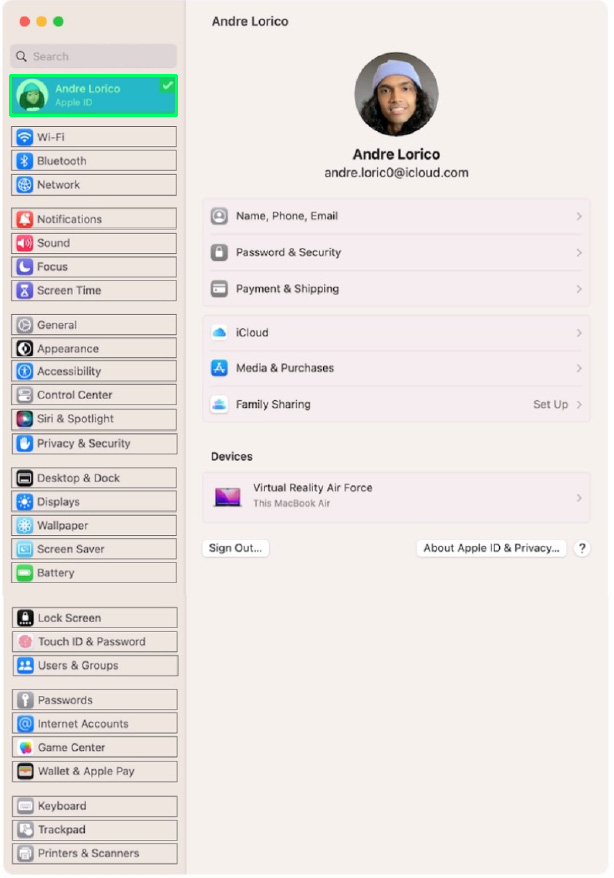
Select the setting in the sidebar that you should use to turn on Find My on your Mac.
Reveal answer detailsClose answer details
Explanation
Turn on Find My Mac in iCloud settings so you can locate, lock, or erase your Mac.
On your Mac, choose Apple menu > System Settings, then click [your name] at the top of the sidebar. ... Click iCloud on the right, then click Find My Mac. https://support.apple.com/guide/findmy-mac/set-up-fmm53101237/mac
Question 12
Single choice
Your MDM administrator set a Recovery Lock on your supervised MacBook Pro.
What additional steps must you complete to start your MacBook Pro in macOS Recovery?
A
Enter the Recovery Lock password in System Settings > General > Startup Disk, then restart.
B
Take the Mac to an Apple Authorized Service Provider with proof of purchase.
C
When prompted, enter the recoveryOS password.
D
When prompted, enter the Bypass Key.
Reveal answer detailsClose answer details
Correct answerC
Question 13
Single choice
Where in Recovery app > Recovery Log can you set the view to display only error messages?
A
Message Type
B
Detail Level
C
Log Type
D
Filter Level
Reveal answer detailsClose answer details
Correct answerB
Question 14
Single choice
How do you limit access to your location in "Precise Location Access" for certain apps on your iPad?
A
Go to Settings > General > Location Services, then edit the settings for each app.
B
Open each app and edit the Location Access settings.
C
Delete and reinstall the app.
D
Go to Settings > Privacy & Security > Location Services, then edit settings for each app.
Reveal answer detailsClose answer details
Correct answerD
Question 15
Single choice
Scenario
You have an iPhone and iPad device. You bought five new App Store apps on your iPhone. but you also want to use these apps on your iPad.
How can you configure your iPad to automatically download and install the App Store apps you bought on your iPhone?
A
In Settings, tap App Store and tap to turn on App Downloads.
B
In the iTunes Store, tap Settings and tap to turn on Automatic Downloads.
C
In the App Store, tap Settings and tap to turn on App Downloads.
D
In Settings, tap General > Software Update > Automatic Updates.
Reveal answer detailsClose answer details
Correct answerA
Question 16
Single choice
How many times will Face ID attempt to recognize your face before asking for your passcode?
A
Seven
B
Ten
C
Five
D
Three
Reveal answer detailsClose answer details
Correct answerC
Question 17
Multiple choice
Select three responses.
Which three steps should you take if your iPad stops responding to your keyboard or trackpad that's connected with the Smart Connector?
A
Go to Settings > General > Trackpad & Mouse > Reset.
B
Restart your iPad.
C
Remove any other iPad case or cover.
D
Contact AppleCare.
E
Update your iPad to the latest version of iPadOS.
Reveal answer detailsClose answer details
Correct answersB, C, E
Explanation
The Smart Connector is a magnetic port that allows you to connect compatible accessories, such as the Smart Keyboard or the Magic Keyboard, to your iPad. Sometimes, your iPad may stop responding to your keyboard or trackpad that's connected with the Smart Connector. This could be due to various reasons, such as software issues, dirt or debris on the connectors, or interference from other cases or covers. According to the Apple Device Support Reference Materials, the following steps can help you troubleshoot the problem: Restart your iPad. This can resolve many software glitches that may prevent your iPad from recognizing your accessory. To restart your iPad, press and hold the Top button and either volume button until the power off slider appears. Drag the slider, then wait for 30 seconds for your device to turn off. To turn your device back on, press and hold the Top button until you see the Apple logo. Remove any other iPad case or cover. Some cases or covers may interfere with the Smart Connector or the accessory's magnets, causing connection issues. Make sure you remove any other case or cover from your iPad before attaching your accessory. Also, make sure the Smart Connector and the accessory's connectors are clean and free of any dirt or debris. You can use a soft, lint-free cloth to gently wipe the connectors. Update your iPad to the latest version of iPadOS. Updating your iPad can ensure that you have the latest features and bug fixes that may improve the compatibility and performance of your accessory. To update your iPad, go to Settings > General > Software Update and follow the onscreen instructions. References: Allow USB and other accessories to connect to your iPhone, iPad, or iPod touch.
Question 18
Single choice
Which feature is available for Managed Apple Accounts but not for personal Apple Accounts?
A
Access to the Appleseed for IT beta program
B
Security Key Rotation
C
Managed iCloud Keychain
D
Managed and verified two-factor authentication
Reveal answer detailsClose answer details
Correct answerA
Question 19
Single choice
A user finds several Recovered Files folders in the Trash.
What should you advise the user to do?
A
Do nothing. Malware was detected.
B
Retrieve useful files, then empty the Trash.
C
Change preference files.
D
Delete all the folders immediately.
Reveal answer detailsClose answer details
Correct answerB
Question 20
Single choice
Which app should you configure to get live image descriptions of your surroundings on iPhone?
A
Camera
B
Magnifier
C
Scanner
D
Settings
E
Photos
Reveal answer detailsClose answer details
Correct answerB
Explanation
Magnifier is an app that lets you use your iPhone as a magnifying glass to zoom in on objects and text. You can also use Magnifier to scan your surroundings and receive live image descriptions of the scenes and people detected in the camera view. You can customize the settings for image descriptions to receive text or speech feedback. To use Magnifier, you need to enable it in Settings > Accessibility > Magnifier. References: Receive image descriptions of your surroundings in Magnifier on iPhone, Apple Support.
Question 21
Single choice
How to access Emergency SOS on your iPhone?
A
Press and hold the side button and one of the volume buttons until the appears.
B
Press and hold the volume button and swipe down on your screen.
C
Press the home button 5 times quickly.
D
Press and hold the side button until the Emergency SOS slider appears.
Reveal answer detailsClose answer details
Correct answerA
Explanation
Emergency SOS is a feature on your iPhone that lets you quickly and easily call for help and alert your emergency contacts. To access Emergency SOS on your iPhone, you need to press and hold the side button and one of the volume buttons until the Emergency SOS slider appears on the screen. You can then drag the slider to call emergency services, or continue holding the buttons to start a countdown and an alert sound. If you release the buttons after the countdown, your iPhone automatically calls emergency services. Emergency SOS works differently depending on your iPhone model and region. For example, in India, you need to press the side button three times rapidly to call emergency services. You can also customize the settings for Emergency SOS, such as adding emergency contacts, enabling auto call, and turning off the countdown sound. References: Use Emergency SOS on your iPhone - Apple Support, How to trigger Emergency SOS on your iPhone (and shut it off)
Question 22
Multiple choice
Select Three.
In MacOS on APFS volumes, when are FileVault encryption keys generated?
A
When a user is deleted
B
During the first login by a user on the Mac
C
When a user turns on FileVault
D
Setting the first user's password
E
During user creation
Reveal answer detailsClose answer details
Correct answersB, C, E
Explanation
FileVault is a feature that encrypts the entire APFS volume on a Mac using the AES-XTS data encryption algorithm. FileVault encryption keys are generated at different times depending on the scenario. According to the Apple Support documents, FileVault encryption keys are generated in the following situations: During the first login by a user on the Mac: This happens when FileVault is turned on during the initial Setup Assistant process. The user's password and the hardware UID are used to protect the class key, which wraps the volume encryption key. The user's password is also used to generate a personal recovery key, which can be used to unlock the volume if the user forgets their password or their account is deleted. When a user turns on FileVault: This happens when FileVault is turned on later from the System Settings. The user's password and the hardware UID are used to protect the class key, which wraps the volume encryption key. The user's password is also used to generate a personal recovery key, which can be used to unlock the volume if the user forgets their password or their account is deleted. An anti-replay mechanism prevents the old key (based on hardware UID only) from being used to decrypt the volume. During user creation: This happens when a new user is added to the Mac after FileVault is turned on. The new user's password and the hardware UID are used to protect the class key, which wraps the volume encryption key. The new user's password is also used to generate a personal recovery key, which can be used to unlock the volume if the user forgets their password or their account is deleted. The other options are not correct because FileVault encryption keys are not generated in those situations. When a user is deleted, their FileVault encryption key is removed from the Mac, but the volume encryption key remains the same. Setting the first user's password does not generate FileVault encryption keys unless FileVault is turned on during the Setup Assistant process or later from the System Settings. References: Intro to FileVault - Apple Support, Volume encryption with FileVault in macOS - Apple Support
Question 23
Single choice
A user wants to use AirDrop to send items.
What is a reason a user can't use AirDrop?
A
They turned off Bluetooth.
B
They didn't install AirDrop.
C
They turned on Handoff.
D
They turned off Personal Hot-spot.
Reveal answer detailsClose answer details
Correct answerA
Question 24
Single choice
How should you view live log messages using Console on your Mac?
A
Select Log Reports in the sidebar, click the log message, and choose View > Expand Selected Row.
B
Select system.log in the sidebar, click the log message, and choose View > Expand Selected Row.
C
Select Mac in the sidebar, then click info from the toolbar.
D
Select Mac in the sidebar, then click Start Streaming.
Reveal answer detailsClose answer details
Correct answerD
Explanation
To view live log messages using Console on your Mac, you need to select Mac in the sidebar, then click Start Streaming in the toolbar. This will display the log messages for your Mac as they are generated. You can also use the Touch Bar to start or stop streaming. The type of log message is indicated by a dot in the Type column: red for faults, yellow for errors, dark gray for debug messages, and light gray for info messages. References: View log messages in Console on Mac, Apple Support.
Question 25
Multiple choice
Select Three.
When do you need your Passcode to Enable Face ID?
A
You updated your phone.
B
After five attempts to recognize a face unsuccessfully.
C
You haven't unlocked the phone using a passcode for more tha hasn't been used in the last 4 hours.
D
Your phone has been in sleep mode for the last 8 hours.
E
You haven't unlocked your phone in more than 2 days.
Reveal answer detailsClose answer details
Correct answersA, B, E
Explanation
According to the Apple Device Support Reference Materials, you need your passcode to enable Face ID when: You have just turned on or restarted your device by force restart or automatically after an OTA software update. Your device has failed to match a face for 5 times. You haven't unlocked your device for more than 48 hours. The other two options, C and D, are not correct because they are based on incorrect or incomplete information. The correct condition for option C is that the passcode hasn't been used to unlock the device in the last six and a half days and Face ID hasn't unlocked the device in the last 4 hours. The correct condition for option D is that your device has received a remote lock command. References: 1: Use Face ID on your iPhone or iPad Pro - Apple Support, Section "Require a passcode".
Question 26
Single choice
Where are sysdiagnose log files located on iPhone?
Sysdiagnose log files are located on iPhone in Settings > Privacy & Security > Analytics & Improvements > Analytics Data. Sysdiagnose is a tool that collects information from the iPhone and saves it in a log file. You can use sysdiagnose to troubleshoot general iOS issues or report them to AppleCare. To generate a sysdiagnose log file, you need to press and hold both volume buttons and the side or top button for 1 to 1.5 seconds, then release them. You will see a screenshot and a message that says "Diagnostics are in flight". Sysdiagnose can take up to 10 minutes to finish. After that, you can find the log file in the Analytics Data section of the Settings app. The log file name will start with "sysdiagnose_" and include the date and time of the generation, the device type, and the iOS version. For example, "sysdiagnose_2024.01.06_17-14- 34 +0500_iPhone_OS_iPhone_19A344.tar.gz". References: Using Sysdiagnose to Troubleshoot iOS or iPadOS -- Apple Device Support Tutorials | Apple Training, How to extract sysdiagnose logs for forensic purposes on iOS | Andrea Fortuna
Question 27
Single choice
How many times can you enter your iPhone passcode wrong before your account is disabled?
A
Five
B
Ten
C
Three
D
Six
Reveal answer detailsClose answer details
Correct answerB
Explanation
You can enter your iPhone passcode wrong up to ten times before your account is disabled. After six failed attempts, your iPhone will be disabled for one minute. After seven attempts, it will be disabled for five minutes. After eight attempts, it will be disabled for 15 minutes. After nine attempts, it will be disabled for 60 minutes. After ten attempts, it will be disabled until you connect it to a computer and restore it using iTunes or Finder. References: = If you forgot your iPhone passcode - Apple Support What to do when your iPhone is disabled | Tom's Guide.
Question 28
Single choice
You install software that contains a system extension on a Mac. An alert appears.
What should you do?
A
Restart the Mac in Safe Mode, and use Control Center to reinstall the extension.
B
Use System Information to inspect and notarize the extension, then restart the Mac.
C
Open Migration Assistant, and update the extension to be compatible with the current version of macOS.
D
Open Privacy & Security settings, allow the extension, and restart the Mac.
Reveal answer detailsClose answer details
Correct answerD
Question 29
Single choice
Which setting should you check to find out if ACME manages her iPhone?
A
Privacy & Security > Device Management
B
Control Center > Device Profile
C
General > Software Update
D
General > VPN & Device Management
E
General > Profile & Device Management
Reveal answer detailsClose answer details
Correct answerD
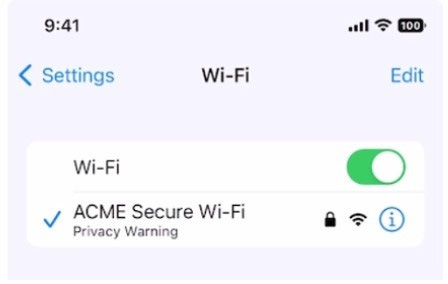
Question 30
Single choice
Use this image to answer the question.
What does this iPhone Privacy Warning message indicate?
A
Limit IP Address Tracking is disabled for this network
B
iOS has detected a spoofed MAC address on the network
C
Private Wi-Fi Address is disabled for this network
D
Local network access is enabled for a third-party app
Reveal answer detailsClose answer details
Correct answerC
Explanation
The iPhone Privacy Warning message indicates that the device is using its original MAC address to join the Wi-Fi network, which could allow the network operator or other parties to track the device or profile its online activity. To prevent this, the device can use a different MAC address for each Wi-Fi network, which is called a Private Wi-Fi Address. This feature is enabled by default on devices running iOS 14 or later, but it can be turned off manually or automatically by some networks. To turn on the Private Wi-Fi Address, the user needs to go to Settings > Wi-Fi, tap the info icon next to the network name, and toggle on the Private Wi-Fi Address option. This will generate a new MAC address for the device and rejoin the network. References: = Use private Wi-Fi addresses in iOS 14, iPadOS 14, and watchOS 7, Wi-Fi Privacy Warning on an iPhone: What It Means & What To Do
Question 31
Single choice
Which Wireless Diagnostics window should you use to see a live view of current Wi-Fi signal strength, quality, and rate?
A
Logs
B
Diagnostics
C
Performance
D
Monitor
Reveal answer detailsClose answer details
Correct answerC
Explanation
The Performance window in Wireless Diagnostics shows a live view of the current Wi-Fi signal strength, quality, and rate. It also displays a graph of the signal-to-noise ratio (SNR) over time, which can help you identify sources of interference or other problems with your Wi-Fi connection. The Performance window can be accessed by opening Wireless Diagnostics from the Spotlight menu, clicking Window on the menu bar, and selecting Performance. References: Apple Support: Use Wireless Diagnostics on your Mac, How to determine Wi-Fi signal strength on Windows 10
Question 32
Single choice
You attempt to start up a Mac with Apple silicon to recoveryOS, but a lock icon appears on the screen and you're asked to enter a password.
What is the most likely reason that this screen appears?
A
Your Mac is enrolled in an MDM solution and has a FileVault password set.
B
Your Mac has a security policy set that disallows access to recoveryOS.
C
Your Mac is enrolled in an MDM solution and has a recoveryOS password set.
D
Your Mac has a Startup Utility password set.
Reveal answer detailsClose answer details
Correct answerC
Explanation
If you see a lock icon and a password prompt when you try to start up a Mac with Apple silicon to recoveryOS, the most likely reason is that your Mac is enrolled in an MDM solution and has a recoveryOS password set by the administrator. This password prevents unauthorized access to the recovery environment and the startup options screen, where you can change the security policy, erase the internal storage, or reinstall macOS. You need to enter the correct password to proceed to recoveryOS. If you don't know the password, you should contact your administrator or the organization that manages your Mac. The other options are not the most likely reasons for this screen to appear, as they have different effects or symptoms. A FileVault password is used to unlock the encrypted startup volume, not the recoveryOS. If your Mac has a FileVault password set, you will see a different screen that asks you to enter the password or the recovery key to unlock the disk. You can still access the recoveryOS without entering the FileVault password by holding down the power button until you see the startup options screen. A security policy that disallows access to recoveryOS is not possible on a Mac with Apple silicon. The security policy only affects the ability to boot from external media or run non-Apple operating systems. You can always access the recoveryOS by holding down the power button until you see the startup options screen, unless there is a recoveryOS password set by an MDM solution. A Startup Utility password is not a feature on a Mac with Apple silicon. The Startup Utility is an app that lets you select a startup disk on a Mac with Intel processor. On a Mac with Apple silicon, you can select a startup disk from the startup options screen, which may require a recoveryOS password if your Mac is enrolled in an MDM solution. References: Apple Device Support Exam Prep Guide, page 8 Use macOS Recovery on a Mac with Apple silicon Revive or restore a Mac with Apple silicon using Apple Configurator. How to Enter macOS Recovery Mode on Apple Silicon Macs How to Enter macOS Recovery on an Apple Silicon Mac - MUO Any way to block Safe Mode on a Macbook w/ an M1 chip?
Question 33
Single choice
Which type of information can you review in System Information?
A
Analytics data that was sent to Apple
B
Results after running System Diagnostics
C
Results after running Apple Diagnostics
D
Results from Crash Reports
Reveal answer detailsClose answer details
Correct answerC
APPLE
Apple Device Support
APPLE-DEVICE-SUPPORT · 33 sample Q&As · Public preview
Scenario: Ozzy contacted you about issues obtaining 5G service on his iPhone. You confirmed that his device is compatible with the carrier's 5G service, in a coverage area, and using the latest version of iOS. The
carrier's support website indicates that a carrier settings update is needed to fully support its 5G service.
Where in Settings should you go to manually check for carrier settings updates on iPhone?
Correct Answer:
Explanation
Explanation/Reference:
General > About, then follow the onscreen instructions
QUESTION 2
Which Console report details events while macOS is being used?
A.
Crash Reports
B.
Diagnostic Reports
C.
Spin Reports
D.
system.log file
Correct Answer: D
QUESTION 3
What happens when you restore a Mac with Apple silicon with Apple Configurator?
A.
It updates the firmware and recoveryOS, and erases and installs macOS.
B.
It restores the system state from before a corrupted battery drain.
C.
It recovers data from a Time Machine snapshot on the internal storage.
D.
It forces the Mac to perform any pending software updates.
Correct Answer: A
Explanation
Explanation/Reference:
Restoring a Mac with Apple silicon using Apple Configurator is a process that updates the firmware, updates recoveryOS to the latest version, and erases and installs the latest version of macOS on the internal storage. When this process is complete, any data on any internal volumes is unrecoverable. You must restore the firmware and erase the internal flash storage if reviving the firmware is unsuccessful or if you can't start the Mac from the startup volume or the recoveryOS. References: Revive or restore a Mac with Apple silicon using Apple Configurator, Apple Support.
QUESTION 4
What should you do before you use safe mode?
A.
Run Apple Diagnostics.
B.
Disconnect from all networks and disable Wi-Fi and Bluetooth.
C.
Run Disk Utility from macOS Recovery.
D.
Disconnect peripherals and accessories.
Correct Answer: D
QUESTION 5
What could be a reason you can't update your compatible iPad to the latest iPadOS?
A.
Your iPad is connected to cellular only.
B.
Your iPad battery level is lower than 50 percent.
C.
Your iPad doesn't have enough available storage space.
D.
The Apple Account used to update to the latest iPadOS doesn't have iPadOS in Purchase History.
Correct Answer: C
QUESTION 6
While setting up a new iPad from their organization, a user notices that several setup screens are missing.
What is the most likely reason?
A.
The iPad failed to activate during setup.
B.
The device was released from Apple School Manager.
C.
The organization's MDM solution is managing Setup Assistant.
D.
The user selected "Skip all setup screens".
Correct Answer: C
QUESTION 7
What's required to use Migration Assistant with two installed?
A.
Wi-Fi must be on and the Mac computers
B.
Must be placed near each other
C.
Mac computers with the same version of macOS
Correct Answer: A
Explanation
Explanation/Reference:
Migration Assistant is a tool that allows you to transfer your data, apps, and settings from one Mac to another. To use Migration Assistant with two Macs, you need to have Wi-Fi turned on and the Macs must be near each other. You also need to update the software on both Macs, if possible, and turn off any antivirus, firewall, or VPN software that might interfere with the transfer. You can then launch Migration Assistant on both Macs and follow the onscreen instructions to select the source and destination Macs, choose the content to transfer, and start the migration process. References: Transfer to a new Mac with Migration Assistant - Apple Support, How to Use Migration Assistant to Move Files from One Mac to Another
QUESTION 8
Which feature requires apps to ask permission before they collect data about your activity across other apps and websites?
A.
App Tracking Transparency
B.
Safety Check
C.
Sensitive Content Warning
D.
Private Browsing
Correct Answer: A
QUESTION 9
ACME, Inc. wants all users to see mounted servers in the Finder by default.
Which terminal command should you use to modify the Finder preferences to display mounted servers?
The terminal command defaults write com.apple.finder ShowMountedServersOnDesktop true sets the Finder preference to show mounted servers on the desktop. This is equivalent to checking the box for "Connected Servers" in the Finder settings under the General tab. The other commands are either invalid or do not change the preference value. defaults read com.apple.finder ShowMountedServersOnDesktop true reads the current value of the preference, but does not modify it. defaults cat com.apple.finder ShowMountedServersOnDesktop true is not a valid command, as cat is not a valid subcommand for defaults. defaults append ShowMountedServersOnDesktop com.apple.finder true appends the value true to the preference key ShowMountedServersOnDesktop, which is not a valid operation, as the preference value should be a boolean, not a list. References: Apple Device Support Exam Prep Guide, page 11 Change Finder settings on Mac How to show Hard Disk icon on Desktop via Terminal?
QUESTION 10
Which tool should you use first to troubleshoot Mail connectivity issues in macOS?
A.
Message Viewer
B.
Network Diagnostics
C.
Wireless Diagnostics
D.
Connection Doctor
Correct Answer: D
Explanation
Explanation/Reference:
Connection Doctor is a built-in tool in Mail that helps you diagnose and fix problems with your email accounts and connections. It shows the status of each account, whether it is online or offline, and any errors that occurred. It also lets you test the connection to the incoming and outgoing mail servers, and view the details of the connection attempt. Connection Doctor is the first tool you should use when you encounter Mail connectivity issues in macOS, as it can help you identify the source and nature of the problem quickly and easily. References: = Apple Device Support Exam Prep Guide, page 11 [Mail User Guide for Mac], section "Check the status of your email accounts".
QUESTION 11
HOTSPOT
Select the setting in the sidebar that you should use to turn on Find My on your Mac.
Correct Answer:
Explanation
Explanation/Reference:
Turn on Find My Mac in iCloud settings so you can locate, lock, or erase your Mac.
On your Mac, choose Apple menu > System Settings, then click [your name] at the top of the sidebar. ... Click iCloud on the right, then click Find My Mac. https://support.apple.com/guide/findmy-mac/set-up-fmm53101237/mac
QUESTION 12
Your MDM administrator set a Recovery Lock on your supervised MacBook Pro.
What additional steps must you complete to start your MacBook Pro in macOS Recovery?
A.
Enter the Recovery Lock password in System Settings > General > Startup Disk, then restart.
B.
Take the Mac to an Apple Authorized Service Provider with proof of purchase.
C.
When prompted, enter the recoveryOS password.
D.
When prompted, enter the Bypass Key.
Correct Answer: C
QUESTION 13
Where in Recovery app > Recovery Log can you set the view to display only error messages?
A.
Message Type
B.
Detail Level
C.
Log Type
D.
Filter Level
Correct Answer: B
QUESTION 14
How do you limit access to your location in "Precise Location Access" for certain apps on your iPad?
A.
Go to Settings > General > Location Services, then edit the settings for each app.
B.
Open each app and edit the Location Access settings.
C.
Delete and reinstall the app.
D.
Go to Settings > Privacy & Security > Location Services, then edit settings for each app.
Correct Answer: D
QUESTION 15
Scenario
You have an iPhone and iPad device. You bought five new App Store apps on your iPhone. but you also want to use these apps on your iPad.
How can you configure your iPad to automatically download and install the App Store apps you bought on your iPhone?
A.
In Settings, tap App Store and tap to turn on App Downloads.
B.
In the iTunes Store, tap Settings and tap to turn on Automatic Downloads.
C.
In the App Store, tap Settings and tap to turn on App Downloads.
D.
In Settings, tap General > Software Update > Automatic Updates.
Correct Answer: A
QUESTION 16
How many times will Face ID attempt to recognize your face before asking for your passcode?
A.
Seven
B.
Ten
C.
Five
D.
Three
Correct Answer: C
QUESTION 17
Select three responses.
Which three steps should you take if your iPad stops responding to your keyboard or trackpad that's connected with the Smart Connector?
A.
Go to Settings > General > Trackpad & Mouse > Reset.
B.
Restart your iPad.
C.
Remove any other iPad case or cover.
D.
Contact AppleCare.
E.
Update your iPad to the latest version of iPadOS.
Correct Answer: BCE
Explanation
Explanation/Reference:
The Smart Connector is a magnetic port that allows you to connect compatible accessories, such as the Smart Keyboard or the Magic Keyboard, to your iPad. Sometimes, your iPad may stop responding to your keyboard or trackpad that's connected with the Smart Connector. This could be due to various reasons, such as software issues, dirt or debris on the connectors, or interference from other cases or covers. According to the Apple Device Support Reference Materials, the following steps can help you troubleshoot the problem: Restart your iPad. This can resolve many software glitches that may prevent your iPad from recognizing your accessory. To restart your iPad, press and hold the Top button and either volume button until the power off slider appears. Drag the slider, then wait for 30 seconds for your device to turn off. To turn your device back on, press and hold the Top button until you see the Apple logo. Remove any other iPad case or cover. Some cases or covers may interfere with the Smart Connector or the accessory's magnets, causing connection issues. Make sure you remove any other case or cover from your iPad before attaching your accessory. Also, make sure the Smart Connector and the accessory's connectors are clean and free of any dirt or debris. You can use a soft, lint-free cloth to gently wipe the connectors. Update your iPad to the latest version of iPadOS. Updating your iPad can ensure that you have the latest features and bug fixes that may improve the compatibility and performance of your accessory. To update your iPad, go to Settings > General > Software Update and follow the onscreen instructions. References: Allow USB and other accessories to connect to your iPhone, iPad, or iPod touch.
QUESTION 18
Which feature is available for Managed Apple Accounts but not for personal Apple Accounts?
A.
Access to the Appleseed for IT beta program
B.
Security Key Rotation
C.
Managed iCloud Keychain
D.
Managed and verified two-factor authentication
Correct Answer: A
QUESTION 19
A user finds several Recovered Files folders in the Trash.
What should you advise the user to do?
A.
Do nothing. Malware was detected.
B.
Retrieve useful files, then empty the Trash.
C.
Change preference files.
D.
Delete all the folders immediately.
Correct Answer: B
QUESTION 20
Which app should you configure to get live image descriptions of your surroundings on iPhone?
A.
Camera
B.
Magnifier
C.
Scanner
D.
Settings
E.
Photos
Correct Answer: B
Explanation
Explanation/Reference:
Magnifier is an app that lets you use your iPhone as a magnifying glass to zoom in on objects and text. You can also use Magnifier to scan your surroundings and receive live image descriptions of the scenes and people detected in the camera view. You can customize the settings for image descriptions to receive text or speech feedback. To use Magnifier, you need to enable it in Settings > Accessibility > Magnifier. References: Receive image descriptions of your surroundings in Magnifier on iPhone, Apple Support.
QUESTION 21
How to access Emergency SOS on your iPhone?
A.
Press and hold the side button and one of the volume buttons until the appears.
B.
Press and hold the volume button and swipe down on your screen.
C.
Press the home button 5 times quickly.
D.
Press and hold the side button until the Emergency SOS slider appears.
Correct Answer: A
Explanation
Explanation/Reference:
Emergency SOS is a feature on your iPhone that lets you quickly and easily call for help and alert your emergency contacts. To access Emergency SOS on your iPhone, you need to press and hold the side button and one of the volume buttons until the Emergency SOS slider appears on the screen. You can then drag the slider to call emergency services, or continue holding the buttons to start a countdown and an alert sound. If you release the buttons after the countdown, your iPhone automatically calls emergency services. Emergency SOS works differently depending on your iPhone model and region. For example, in India, you need to press the side button three times rapidly to call emergency services. You can also customize the settings for Emergency SOS, such as adding emergency contacts, enabling auto call, and turning off the countdown sound. References: Use Emergency SOS on your iPhone - Apple Support, How to trigger Emergency SOS on your iPhone (and shut it off)
QUESTION 22
Select Three.
In MacOS on APFS volumes, when are FileVault encryption keys generated?
A.
When a user is deleted
B.
During the first login by a user on the Mac
C.
When a user turns on FileVault
D.
Setting the first user's password
E.
During user creation
Correct Answer: BCE
Explanation
Explanation/Reference:
FileVault is a feature that encrypts the entire APFS volume on a Mac using the AES-XTS data encryption algorithm. FileVault encryption keys are generated at different times depending on the scenario. According to the Apple Support documents, FileVault encryption keys are generated in the following situations: During the first login by a user on the Mac: This happens when FileVault is turned on during the initial Setup Assistant process. The user's password and the hardware UID are used to protect the class key, which wraps the volume encryption key. The user's password is also used to generate a personal recovery key, which can be used to unlock the volume if the user forgets their password or their account is deleted. When a user turns on FileVault: This happens when FileVault is turned on later from the System Settings. The user's password and the hardware UID are used to protect the class key, which wraps the volume encryption key. The user's password is also used to generate a personal recovery key, which can be used to unlock the volume if the user forgets their password or their account is deleted. An anti-replay mechanism prevents the old key (based on hardware UID only) from being used to decrypt the volume. During user creation: This happens when a new user is added to the Mac after FileVault is turned on. The new user's password and the hardware UID are used to protect the class key, which wraps the volume encryption key. The new user's password is also used to generate a personal recovery key, which can be used to unlock the volume if the user forgets their password or their account is deleted. The other options are not correct because FileVault encryption keys are not generated in those situations. When a user is deleted, their FileVault encryption key is removed from the Mac, but the volume encryption key remains the same. Setting the first user's password does not generate FileVault encryption keys unless FileVault is turned on during the Setup Assistant process or later from the System Settings. References: Intro to FileVault - Apple Support, Volume encryption with FileVault in macOS - Apple Support
QUESTION 23
A user wants to use AirDrop to send items.
What is a reason a user can't use AirDrop?
A.
They turned off Bluetooth.
B.
They didn't install AirDrop.
C.
They turned on Handoff.
D.
They turned off Personal Hot-spot.
Correct Answer: A
QUESTION 24
How should you view live log messages using Console on your Mac?
A.
Select Log Reports in the sidebar, click the log message, and choose View > Expand Selected Row.
B.
Select system.log in the sidebar, click the log message, and choose View > Expand Selected Row.
C.
Select Mac in the sidebar, then click info from the toolbar.
D.
Select Mac in the sidebar, then click Start Streaming.
Correct Answer: D
Explanation
Explanation/Reference:
To view live log messages using Console on your Mac, you need to select Mac in the sidebar, then click Start Streaming in the toolbar. This will display the log messages for your Mac as they are generated. You can also use the Touch Bar to start or stop streaming. The type of log message is indicated by a dot in the Type column: red for faults, yellow for errors, dark gray for debug messages, and light gray for info messages. References: View log messages in Console on Mac, Apple Support.
QUESTION 25
Select Three.
When do you need your Passcode to Enable Face ID?
A.
You updated your phone.
B.
After five attempts to recognize a face unsuccessfully.
C.
You haven't unlocked the phone using a passcode for more tha hasn't been used in the last 4 hours.
D.
Your phone has been in sleep mode for the last 8 hours.
E.
You haven't unlocked your phone in more than 2 days.
Correct Answer: ABE
Explanation
Explanation/Reference:
According to the Apple Device Support Reference Materials, you need your passcode to enable Face ID when: You have just turned on or restarted your device by force restart or automatically after an OTA software update. Your device has failed to match a face for 5 times. You haven't unlocked your device for more than 48 hours. The other two options, C and D, are not correct because they are based on incorrect or incomplete information. The correct condition for option C is that the passcode hasn't been used to unlock the device in the last six and a half days and Face ID hasn't unlocked the device in the last 4 hours. The correct condition for option D is that your device has received a remote lock command. References: 1: Use Face ID on your iPhone or iPad Pro - Apple Support, Section "Require a passcode".
QUESTION 26
Where are sysdiagnose log files located on iPhone?
Sysdiagnose log files are located on iPhone in Settings > Privacy & Security > Analytics & Improvements > Analytics Data. Sysdiagnose is a tool that collects information from the iPhone and saves it in a log file. You can use sysdiagnose to troubleshoot general iOS issues or report them to AppleCare. To generate a sysdiagnose log file, you need to press and hold both volume buttons and the side or top button for 1 to 1.5 seconds, then release them. You will see a screenshot and a message that says "Diagnostics are in flight". Sysdiagnose can take up to 10 minutes to finish. After that, you can find the log file in the Analytics Data section of the Settings app. The log file name will start with "sysdiagnose_" and include the date and time of the generation, the device type, and the iOS version. For example, "sysdiagnose_2024.01.06_17-14- 34 +0500_iPhone_OS_iPhone_19A344.tar.gz". References: Using Sysdiagnose to Troubleshoot iOS or iPadOS -- Apple Device Support Tutorials | Apple Training, How to extract sysdiagnose logs for forensic purposes on iOS | Andrea Fortuna
QUESTION 27
How many times can you enter your iPhone passcode wrong before your account is disabled?
A.
Five
B.
Ten
C.
Three
D.
Six
Correct Answer: B
Explanation
Explanation/Reference:
You can enter your iPhone passcode wrong up to ten times before your account is disabled. After six failed attempts, your iPhone will be disabled for one minute. After seven attempts, it will be disabled for five minutes. After eight attempts, it will be disabled for 15 minutes. After nine attempts, it will be disabled for 60 minutes. After ten attempts, it will be disabled until you connect it to a computer and restore it using iTunes or Finder. References: = If you forgot your iPhone passcode - Apple Support What to do when your iPhone is disabled | Tom's Guide.
QUESTION 28
You install software that contains a system extension on a Mac. An alert appears.
What should you do?
A.
Restart the Mac in Safe Mode, and use Control Center to reinstall the extension.
B.
Use System Information to inspect and notarize the extension, then restart the Mac.
C.
Open Migration Assistant, and update the extension to be compatible with the current version of macOS.
D.
Open Privacy & Security settings, allow the extension, and restart the Mac.
Correct Answer: D
QUESTION 29
Which setting should you check to find out if ACME manages her iPhone?
A.
Privacy & Security > Device Management
B.
Control Center > Device Profile
C.
General > Software Update
D.
General > VPN & Device Management
E.
General > Profile & Device Management
Correct Answer: D
QUESTION 30
Use this image to answer the question.
What does this iPhone Privacy Warning message indicate?
A.
Limit IP Address Tracking is disabled for this network
B.
iOS has detected a spoofed MAC address on the network
C.
Private Wi-Fi Address is disabled for this network
D.
Local network access is enabled for a third-party app
Correct Answer: C
Explanation
Explanation/Reference:
The iPhone Privacy Warning message indicates that the device is using its original MAC address to join the Wi-Fi network, which could allow the network operator or other parties to track the device or profile its online activity. To prevent this, the device can use a different MAC address for each Wi-Fi network, which is called a Private Wi-Fi Address. This feature is enabled by default on devices running iOS 14 or later, but it can be turned off manually or automatically by some networks. To turn on the Private Wi-Fi Address, the user needs to go to Settings > Wi-Fi, tap the info icon next to the network name, and toggle on the Private Wi-Fi Address option. This will generate a new MAC address for the device and rejoin the network. References: = Use private Wi-Fi addresses in iOS 14, iPadOS 14, and watchOS 7, Wi-Fi Privacy Warning on an iPhone: What It Means & What To Do
QUESTION 31
Which Wireless Diagnostics window should you use to see a live view of current Wi-Fi signal strength, quality, and rate?
A.
Logs
B.
Diagnostics
C.
Performance
D.
Monitor
Correct Answer: C
Explanation
Explanation/Reference:
The Performance window in Wireless Diagnostics shows a live view of the current Wi-Fi signal strength, quality, and rate. It also displays a graph of the signal-to-noise ratio (SNR) over time, which can help you identify sources of interference or other problems with your Wi-Fi connection. The Performance window can be accessed by opening Wireless Diagnostics from the Spotlight menu, clicking Window on the menu bar, and selecting Performance. References: Apple Support: Use Wireless Diagnostics on your Mac, How to determine Wi-Fi signal strength on Windows 10
QUESTION 32
You attempt to start up a Mac with Apple silicon to recoveryOS, but a lock icon appears on the screen and you're asked to enter a password.
What is the most likely reason that this screen appears?
A.
Your Mac is enrolled in an MDM solution and has a FileVault password set.
B.
Your Mac has a security policy set that disallows access to recoveryOS.
C.
Your Mac is enrolled in an MDM solution and has a recoveryOS password set.
D.
Your Mac has a Startup Utility password set.
Correct Answer: C
Explanation
Explanation/Reference:
If you see a lock icon and a password prompt when you try to start up a Mac with Apple silicon to recoveryOS, the most likely reason is that your Mac is enrolled in an MDM solution and has a recoveryOS password set by the administrator. This password prevents unauthorized access to the recovery environment and the startup options screen, where you can change the security policy, erase the internal storage, or reinstall macOS. You need to enter the correct password to proceed to recoveryOS. If you don't know the password, you should contact your administrator or the organization that manages your Mac. The other options are not the most likely reasons for this screen to appear, as they have different effects or symptoms. A FileVault password is used to unlock the encrypted startup volume, not the recoveryOS. If your Mac has a FileVault password set, you will see a different screen that asks you to enter the password or the recovery key to unlock the disk. You can still access the recoveryOS without entering the FileVault password by holding down the power button until you see the startup options screen. A security policy that disallows access to recoveryOS is not possible on a Mac with Apple silicon. The security policy only affects the ability to boot from external media or run non-Apple operating systems. You can always access the recoveryOS by holding down the power button until you see the startup options screen, unless there is a recoveryOS password set by an MDM solution. A Startup Utility password is not a feature on a Mac with Apple silicon. The Startup Utility is an app that lets you select a startup disk on a Mac with Intel processor. On a Mac with Apple silicon, you can select a startup disk from the startup options screen, which may require a recoveryOS password if your Mac is enrolled in an MDM solution. References: Apple Device Support Exam Prep Guide, page 8 Use macOS Recovery on a Mac with Apple silicon Revive or restore a Mac with Apple silicon using Apple Configurator. How to Enter macOS Recovery Mode on Apple Silicon Macs How to Enter macOS Recovery on an Apple Silicon Mac - MUO Any way to block Safe Mode on a Macbook w/ an M1 chip?
QUESTION 33
Which type of information can you review in System Information?