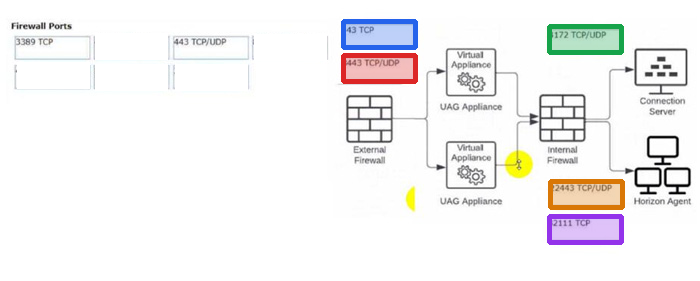
DRAG DROP Drag and drop the appropriate firewall ports in support of the Blast Extreme protocol into the correct locations in the diagram on the right. Two options will not be used. 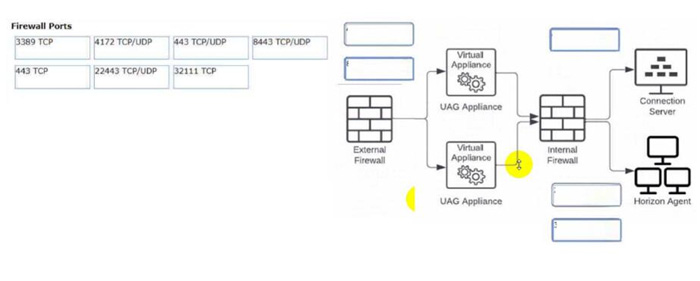
Reveal answer details
Close answer details
Which of the following components enables central communication, management, and configuration of multiple ESXi servers?
-
A
-
B
-
C
VMware DEM (Dynamic Environment Manager)
-
D
Reveal answer details
Close answer details
Correct answerA
ExplanationVMware vCenter Server is the central management component for ESXi servers, allowing administrators to manage multiple ESXi hosts and virtual machines (VMs) from a single console. It provides essential management capabilities, including resource allocation, performance monitoring, and centralized access control, making it the cornerstone for managing a VMware virtualized infrastructure.
Question 3
Multiple choice
Which three of the following are benefits of using Virtual Machines? (Choose three.)
-
A
Difficult to move or copy.
-
B
Independent of physical hardware.
-
C
-
D
Bound to a specific set of hardware components.
-
E
Reveal answer details
Close answer details
Correct answersB, C, E
ExplanationOne of the benefits of using virtual machines is that they are independent of physical hardware. This means that they can run on any compatible host machine, regardless of the underlying hardware components. This also enables them to be migrated, moved, or copied easily from one host to another, without requiring any reconfiguration or installation. This enhances the flexibility and portability of virtual machines, as well as their availability and disaster recovery.
Another benefit of using virtual machines is that they are faster to provision than physical machines. This is because they can be created from templates or snapshots, which contain preconfigured operating systems and applications. This reduces the time and effort needed to install and configure software on each machine. Moreover, virtual machines can be cloned or duplicated quickly, allowing for rapid scaling and deployment of multiple identical instances.
References:
=
Virtual Machines Overview
Creating and Provisioning Virtual Machines Migrating Virtual Machines
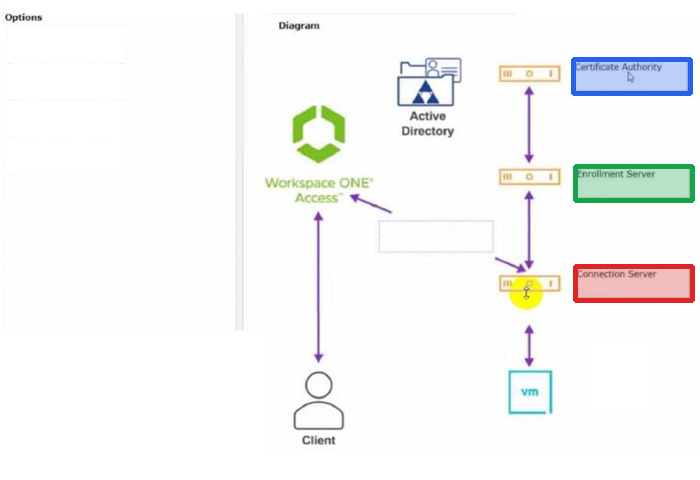
DRAG DROP Drag and drop the correct options to build a Simple True 5SO Architecture on the left into the diagram on the right. 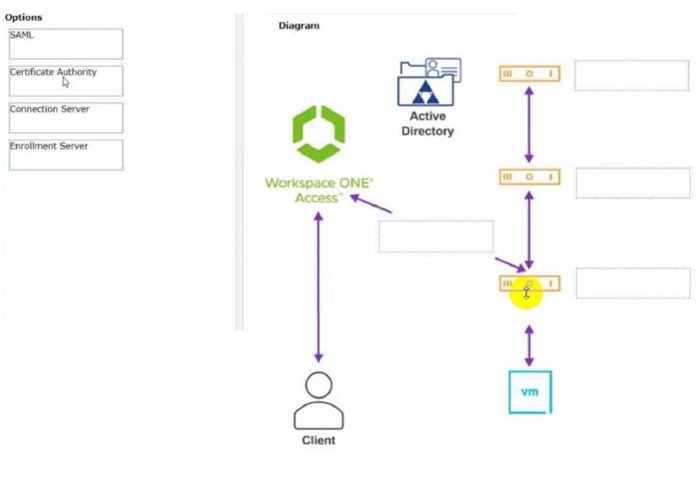
Reveal answer details
Close answer details
Question 5
Multiple choice
An administrator wants to provision a new golden image but doesn't see the VM in the list with golden images. Which three could be the cause of the issue? (Choose three.)
-
A
The golden image was not optimized.
-
B
No snapshot was made after optimizing the golden image.
-
C
Enable Windows Server desktops is not set.
-
D
There is more than 1 active snapshot on the golden image.
-
E
The golden image VM is not configured with a CD-ROM player.
-
F
The wrong Guest OS Version was selected when creating the golden image.
Reveal answer details
Close answer details
Correct answersB, D, F
ExplanationA golden image must have a current snapshot to be used for cloning, and having multiple active snapshots can cause confusion and issues in the provisioning process. Additionally, selecting the correct Guest OS version is crucial for compatibility and optimal performance. These factors must be correctly configured for a VM to appear in the list of available golden images for provisioning.
An administrator is tasked with configuring VMware Integrated Printing. They enabled the VMware Integrated Printing feature during the installation of the Horizon Agent in the golden image, and created a Test Desktop Pool. On a physical end-point where the Horizon Client already is installed, the administrator added multiple network printers which are working perfectly. They test the configuration by connecting to the Horizon Desktop with the Horizon Client, unfortunately they do not see the printers within their Horizon Desktop. What could be the reason that the administrator is not seeing the printers within his Horizon Desktop session?
-
A
Port TCP 9427 is disabled.
-
B
The VMware Integrated Printing feature is not installed in the Horizon Client.
-
C
Printing is disabled in the Horizon Desktop Pool.
-
D
Port TCP 32111 is disabled.
Reveal answer details
Close answer details
Correct answerC
ExplanationOne of the possible reasons that the administrator is not seeing the printers within his Horizon Desktop session is that printing is disabled in the Horizon Desktop Pool. Printing is a feature that allows users to print from a remote desktop to any local or network printer available on their client device. Printing can be enabled or disabled for each desktop pool by using the VMware Integrated Printing feature. VMware Integrated Printing is a feature that supports client printer redirection, location-based printing, and persistent print settings. Client printer redirection enables users to print from a remote desktop to any local or network printer available on their client device. Location-based printing enables users to print to network printers that are physically near their client device. Persistent print settings enable users to retain their print settings across sessions.
To enable or disable printing for a desktop pool, the administrator needs to follow these steps:
In Horizon Console, select Inventory > Desktops.
Select the desktop pool and click Edit.
In the Edit Desktop Pool dialog box, select the VMware Integrated Printing tab. Select or clear the Enable VMware Integrated Printing check box.
Click OK.
If printing is disabled for a desktop pool, users will not see any printers within their Horizon Desktop session, even if they have installed the VMware Integrated Printing feature in the Horizon Agent and the Horizon Client. Therefore, to resolve this issue, the administrator needs to enable printing for the desktop pool by selecting the Enable VMware Integrated Printing check box.
The other options are not likely to be the reason that the administrator is not seeing the printers within his Horizon Desktop session: Port TCP 9427 is disabled: This port is used by the VMware Integrated Printing feature for communication between the Horizon Agent and the Horizon Client. If this port is disabled, users might experience printing errors or delays, but they should still see the printers within their Horizon Desktop session. The VMware Integrated Printing feature is not installed in the Horizon Client: This feature is installed by default in the Horizon Client for Windows, Mac, Linux, Chrome, and HTML Access. If this feature is not installed in the Horizon Client, users might not be able to print from their remote desktops, but they should still see the printers within their Horizon Desktop session. Port TCP 32111 is disabled: This port is used by ThinPrint for communication between the Horizon Agent and the ThinPrint Client. ThinPrint is a legacy printing feature that has been replaced by VMware Integrated Printing. If this port is disabled, users might experience printing errors or delays with ThinPrint, but they should still see the printers within their Horizon Desktop session if they use VMware Integrated Printing.
References:
Configuring VMware Integrated Printing, Enable or Disable Printing for a Desktop Pool, and
[VMware Horizon 8.x Professional Course]
Question 7
Multiple choice
An administrator is creating an instant clone desktop pool and needs to enable NVIDIA Grid 3D Rendering.
NVIDIA GRID vGPU and drivers are installed on the physical ESXi hosts. In Horizon Console, when creating an instant-clone pool, the NVIDIA GRID vGPU option is not available in the 3D Render field. Which two of the following could be the reason for the issue? (Choose two.)
-
A
Horizon 8 does not have an explicit 3D renderer option for instant clone. Select Manage Using vSphere Client in the 3D Render field. Instant-clones inherit the settings configured in the vSphere Client for the golden image.
-
B
In Horizon Console, when an instant-clone pool is created, the golden image and snapshot that the administrator selected has not been configured for NVIDIA GRID vGPU.
-
C
The administrator has selected Shared when editing the Host Graphics Settings for the ESXi host in the vCenter Server.
-
D
Instant-clone pools do not support NVIDIA GRID vGPU.
-
E
The administrator has selected Shared Direct when editing the Host Graphics Settings for the ESXi host in the vCenter Server.
Reveal answer details
Close answer details
Correct answersA, B
ExplanationTo enable an instant-clone pool to use NVIDIA GRID vGPU, the administrator needs to do the following: Install NVIDIA GRID vGPU in the physical ESXi hosts and select Shared Direct in the Host Graphics Settings12.
Prepare a golden image with NVIDIA GRID vGPU configured, including selecting the vGPU profile to use 12.
Take a snapshot of the golden image 12.
In Horizon Console, when creating an instant-clone pool, select Manage Using vSphere Client in the 3D
Render field. Instant-clones inherit the settings configured in the vSphere Client for the golden image 12.
Therefore, the possible reasons for the issue are: The administrator has selected Shared instead of Shared Direct when editing the Host Graphics Settings for the ESXi host in the vCenter Server. This option is for vSGA, not vGPU3.
The golden image and snapshot that the administrator selected has not been configured for NVIDIA GRID vGPU. The administrator needs to verify that the correct vGPU profile is selected and that the NVIDIA drivers are installed in the golden image 4.
The other options are not valid because: Horizon 8 does have an explicit 3D renderer option for instant clone, but it is Manage Using vSphere Client, not NVIDIA GRID vGPU12. Instant-clone pools do support NVIDIA GRID vGPU as long as the ESXi hosts and the golden image are properly configured 12.
References:
1: VMware Horizon 8 Documentation: Enable NVIDIA GRID vGPU for Instant-Clone Pools
2: VMware Horizon 8 Documentation: Configuring 3D Rendering for Automated.
3: VMware Horizon 8 Documentation: Types of Graphics Acceleration
4: VMware Horizon 8 Documentation:
Prepare a Virtual Machine to Use Accelerated 3D Graphics
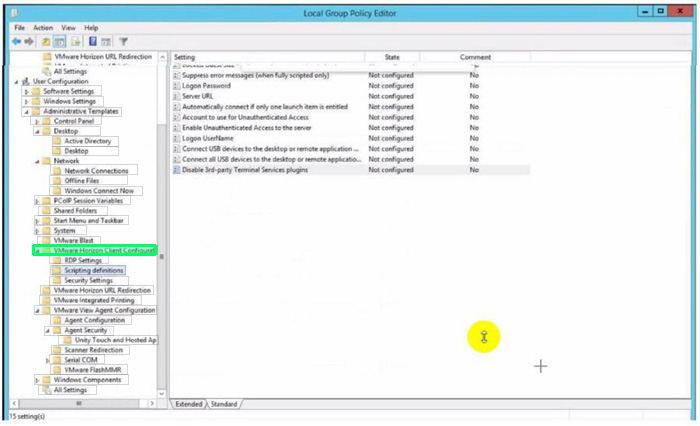
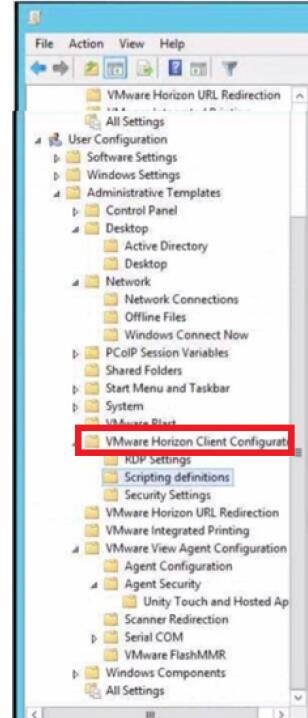
HOTSPOT An administrator wants to set the initial login into a VDI desktop to be full screen. In the Group Policy Management Editor Window, mark the setting that needs to be configured by clicking on it. 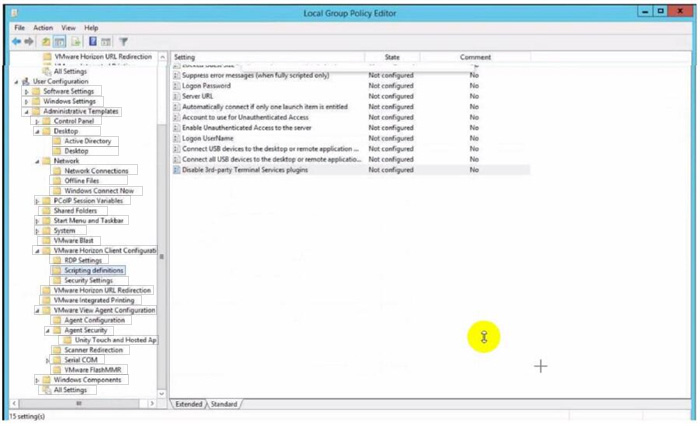
Reveal answer details
Close answer details
Question 9
Multiple choice
An end-user is experiencing a black screen when connecting to their virtual desktop. After a few seconds, the connection closes. Which could be the cause of the issue? (Choose three.)
-
A
There is a vRAM shortage on the Horizon virtual machine.
-
B
The Client machine video memory is too high.
-
C
The incorrect video driver version is installed on the Horizon virtual machine.
-
D
The Horizon Virtual Machine video memory is too high.
-
E
There is an incorrect firewall configuration.
Reveal answer details
Close answer details
Correct answersA, C, E
ExplanationA black screen when connecting to a Horizon virtual desktop can be caused by various reasons, such as network issues, hardware issues, Horizon tunnel issues, or underlying guest operating system issues.
Based on the options given, the following could be the cause of the issue: A vRAM shortage on the Horizon virtual machine. This can affect the display performance and cause a black screen or a disconnect. To resolve this issue, you should configure the pool to provide enough video memory for the resolutions you plan to present to the clients 1.
The incorrect video driver version installed on the Horizon virtual machine. This can cause compatibility issues and prevent the display protocol from working properly. To resolve this issue, you should verify that the View desktop is using the correct video driver and that it is compatible with the VMware Tools and Horizon Agent versions installed 23.
An incorrect firewall configuration. This can block or misroute the display protocol traffic and cause a connection failure. To resolve this issue, you should verify that the required ports are open between the client, UAG/Security server/Connection server, and VDI machine4 .
The other options are not likely to cause a black screen when connecting to a Horizon virtual desktop: The client machine video memory is too high. This should not affect the display protocol performance or cause a black screen. The client machine video memory is only used to render the display on the local device, not on the remote desktop. The Horizon virtual machine video memory is too high. This should not cause a black screen or a disconnect either. The Horizon virtual machine video memory is used to allocate resources for the display protocol on the server side, not on the client side.
References:
Dual monitors configured using PCoIP does not span both the monitors for VMware View and Connecting to a VDI desktop with PCoIP displays a black screen and disconnects after 10 seconds Error attaching to SVGADevTap, error 4000: EscapeFailed reported by PCoIP server Interoperability Matrices Configuring PCoIP Secure Gateway in VMware View
[Network Ports in VMware Horizon]
Question 10
Lab simulation
Simulation Refer to the exhibit. 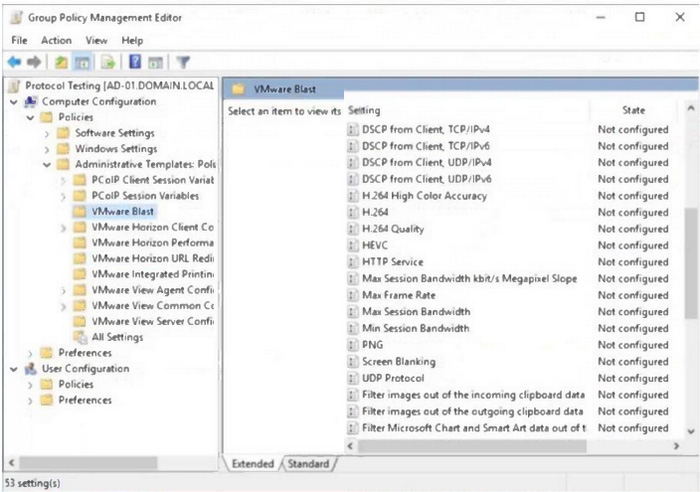 An administrator wants to be able to see the desktop VM's active session in vSphere Console. In the Group Policy Management Editor window, mark the correct VMware Blast setting to be configured by clicking on it.
Reveal model answer
Close model answer
In the Group Policy Management Editor window shown, the administrator should configure the "VMware Horizon Performance Tracker " setting to be able to see the desktop VM's active session in the vSphere Console. However, this setting is not directly visible in the screenshot provided. The Performance Tracker is a tool that enables the monitoring of session performance and is used for this purpose. In the list shown, there is no specific setting under "VMware Blast" that directly allows for the monitoring of active sessions in the vSphere Console. Typically, active session monitoring in the vSphere Console is not solely managed via Group Policy but also involves settings within the VMware Horizon Console itself and the vSphere infrastructure. If the task requires enabling something from Group Policy for better visibility or performance tracking of the VM's active sessions, then the closest relevant setting in the context of VMware Blast would be the "VMware Horizon Performance Tracker" if it was listed or part of another category in the Group Policy settings.
Question 11
Single choice
What are the steps to create a custom role?
-
A
In the navigation pane under the Settings section dick on Administrators > Roles and Permission >
Add. Once the Add Role pane opens, add a name for the role and select the specific privileges.
-
B
In the navigation pane under the Settings section click on Administrators > Roles and Permission >
Users and groups > Add. Once the Add Role pane opens, add a name for the role and select the
specific privileges.
-
C
In the navigation pane under the Settings section click on Administrators > Entitlements > Add. Once
the add Role pane opens, add a name for the role and select the specific privileges.
-
D
In the navigation pane under the Settings section click on Administrators > Users and Groups > Add.
Once the Add Role pane opens, add a name for the role and select the specific privileges.
Reveal answer details
Close answer details
Correct answerA
ExplanationRoles and permissions are a way of controlling the access and actions of administrators and users in Horizon. By default, Horizon provides two predefined roles: Administrators and Read Only Administrators. However, a high-level administrator can create custom roles with specific privileges to suit different needs and scenarios. To create a custom role, the administrator needs to follow these steps:
In the navigation pane under the Settings section, click on Administrators > Roles and Permissions.
In the Roles and Permissions page, click on Add. In the Add Role pane, enter a name for the role in the Role Name text box. In the Privileges section, select the checkboxes for the privileges that you want to assign to the role. You can expand or collapse the categories to view or hide the sub-privileges. You can also use the Select All or Deselect All buttons to select or clear all the privileges in a category.
Click on Save to create the custom role.
The custom role will appear in the Roles and Permissions page, where you can edit or delete it as needed.
You can also assign the custom role to users or groups in the Users and Groups page.
References:
[Create Custom Roles] and [VMware Horizon 8.x Professional Course]
Question 12
Multiple choice
Which three VMware Horizon based resources does Unified Access Gateway (UAG) provide access to? (Choose three.)
-
A
-
B
-
C
physical Windows machines
-
D
-
E
Reveal answer details
Close answer details
Correct answersA, B, C
ExplanationUnified Access Gateway (UAG) is a secure gateway appliance that provides access to VMware Horizon based resources such as virtual desktops, RDSH-based applications, and physical Windows machines.
UAG supports multiple authentication methods and protocols, such as SAML, OAuth, and RADIUS, to provide secure access to end users from any device and location. UAG also provides edge services such as load balancing, high availability, and firewall rules to optimize the performance and availability of Horizon based resources 12.
References:
1: VMware Horizon Architecture Planning: Unified Access Gateway
2: VMware Unified Access Gateway Administration Guide: Introduction to Unified Access Gateway
Question 13
Multiple choice
What are two Cloud Pod Architecture feature limitations? (Choose two.)
-
A
Cloud Pod Architecture does not support Active Directory two-way trusts between domains.
-
B
Cloud Pod Architecture is not supported with Unified Access Gateway appliances.
-
C
Kiosk mode clients are not supported unless a workaround has been implemented.
-
D
Cloud Pod Architecture cannot span multiple sites and data centers simultaneously.
-
E
The Cloud Pod Architecture feature is not supported in an IPv6 environment.
Reveal answer details
Close answer details
Correct answersA, C
ExplanationCloud Pod Architecture is a feature that allows administrators to link multiple Horizon pods across sites and data centers to form a single logical entity called a pod federation. Cloud Pod Architecture enables global entitlements, which allow users to access desktops and applications from any pod in the pod federation. Cloud Pod Architecture also provides load balancing, high availability, and disaster recovery capabilities for Horizon deployments.
However, Cloud Pod Architecture has some feature limitations that administrators should be aware of. Two of these limitations are: Cloud Pod Architecture does not support Active Directory two-way trusts between domains: This means that the domains that contain the Horizon pods in the pod federation must have a one-way trust relationship, where the domain that contains the Cloud Pod Architecture home site trusts all the other domains, but not vice versa. A two-way trust relationship, where each domain trusts and is trusted by all the other domains, is not supported by Cloud Pod Architecture and can cause authentication and entitlement issues.
Kiosk mode clients are not supported unless a workaround has been implemented: This means that users who log in to Horizon Client in kiosk mode, which is a mode that allows users to access a single desktop or application without entering credentials, cannot access desktops or applications from a Cloud Pod Architecture implementation. Kiosk mode clients are not compatible with global entitlements and load balancing features of Cloud Pod Architecture. However, there is a workaround that involves creating a dedicated user account and a dedicated desktop pool for each kiosk mode client and using a script to launch Horizon Client with the appropriate parameters. For instructions, see VMware Knowledge Base (KB) article 21488881.
The other options are not limitations of Cloud Pod Architecture: Cloud Pod Architecture is supported with Unified Access Gateway appliances: Unified Access Gateway is a platform that provides secure edge services for Horizon deployments, such as secure remote access, load balancing, and authentication. Unified Access Gateway is compatible with Cloud Pod Architecture and can be configured to route user requests to the appropriate pod in the pod federation based on global entitlements and load balancing policies. Cloud Pod Architecture can span multiple sites and data centers simultaneously: This is one of the main benefits of Cloud Pod Architecture, as it allows administrators to scale up and out their Horizon deployments across different geographic locations and network boundaries. Cloud Pod Architecture can support up to 15 pods per pod federation andup to 5 sites per pod federation, with a maximum of 200,000 sessions per pod federation.
The Cloud Pod Architecture feature is supported in an IPv6 environment: IPv6 is the latest version of the Internet Protocol that provides a larger address space and enhanced security features for network communication. Cloud Pod Architecture supports IPv6 environments and can operate in mixed IPv4 and IPv6 environments as well.
References:
Cloud Pod Architecture Limitations in Horizon 8 and [VMware Horizon 8.x Professional
Course]
Question 14
Multiple choice
An administrator needs to configure BLAST Bandwidth Profiles to define the quality, maximum session bandwidth, and frame rate. Which are the two possible ways an administrator can accomplish this goal? (Choose two.)
-
A
Create a login script which will set all required settings in the desktop.
-
B
Use post-synchronization scripts during pool creation to define these settings.
-
C
Configure these BLAST settings in the desktop pool configuration.
-
D
Use Horizon Smart Policies of Dynamic Environment Manager.
-
E
Set all required settings from a profile manually through GPO policies.
Reveal answer details
Close answer details
Correct answersD, E
ExplanationConfiguring BLAST Bandwidth Profiles involves setting quality, maximum session bandwidth, and frame rate controls. This can be effectively managed using Horizon Smart Policies within VMware's Dynamic Environment Manager (DEM), which allows administrators to create contextual policies that dynamically adapt to the end-user's environment. Alternatively, Group Policy Objects (GPOs) can be used to manually set these configurations across the desktop environment, providing a more static approach to enforcing these settings.
|